MCP Server Not Connecting to Claude Desktop? Common Fixes (2026)
17 min read
Most Claude Desktop MCP error messages come from five causes, and the app's own log names the one you hit. When an MCP server is not connecting to Claude, check these first:
📝 A typo in claude_desktop_config.json
🔍 A command Claude Desktop can't find
💥 A server that crashes on start
🔗 A remote URL in the config file instead of Connectors
🔐 An unfinished sign-in or a plan limit
Fully quit Claude, read the error Claude Desktop shows or its log, and fix the line it names. We broke a working setup on purpose to record the exact error messages, and each fix below covers local servers, remote servers or ChatGPT.
If you only want a writing tool inside Claude, a remote server like Phrasly's skips the config file: you add its URL and sign in.
Skip the Config File: Add Phrasly's MCP Server to Claude 👇
Add Phrasly to Claude with one URL and a sign-in, then humanize and check drafts without leaving the chat.
Claude Desktop MCP Errors: Quick Fix Table
Find the message you see in the table below, then apply the fix in that row. Local servers, which start from the config file or a desktop extension, fail on JSON, paths and crashes. Remote servers, which you add by URL under Connectors, fail on reachability, sign-in and plan limits. Fully restart Claude Desktop after every fix.
What You See | What It Usually Means | Fix | Type |
|---|---|---|---|
Couldn't load app settings pop-up naming an Unexpected token, and the server is missing from Connectors | A JSON error in the config file | Fix the character the pop-up names, fully quit Claude, reopen it | 💻 Local |
couldn't start pop-up saying Its command wasn't found, or spawn npx ENOENT on the Developer page | Claude Desktop can't find Node.js, npx or the command you typed | Correct the command, or put its full path in "command" and check the Node.js install | 💻 Local |
Failed status on the Developer page, or MCP error -32000: Connection closed in the log | The server started, then stopped | Read mcp-server-NAME.log, run the command in a terminal, add missing env keys | 💻 Local |
Windows only: the log shows ${APPDATA} | A variable that never expanded | Add the expanded APPDATA path to the env block | 💻 Local |
MCP error -32001: Request timed out | Slow first start (package download) or stray output | Install the package first, then restart | 💻 Local |
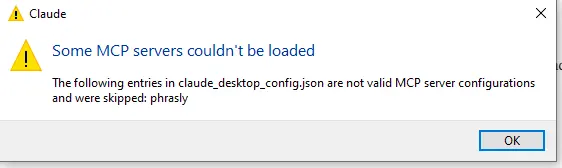
Some MCP servers couldn't be loaded pop-up naming your remote server | The config file only starts local servers, so Claude skipped the URL entry | Remove the entry and add the URL under Connectors | ☁️ Remote |
Custom connector won't connect | Anthropic's cloud can't reach the server (localhost, VPN, firewall) | Use a public HTTPS URL or allowlist Anthropic's IP addresses | ☁️ Remote |
⚠️ and a Reconnect button next to the connector, or a sign-in loop | The sign-in expired or didn't finish | Click Reconnect and sign in again; remove and re-add if it repeats | ☁️ Remote |
You can't add a connector, or the option is missing | A plan or workspace limit | Check your plan or ask the workspace owner | ☁️ Remote |
Tools listed, but Claude never uses them | Connector off in this chat, tool blocked, or a vague prompt | Turn it on under + > Connectors, allow the tool, name it in the prompt | 🔁 Both |
UnsupportedProtocolVersionError (-32022) | The app and server use different MCP versions | 🔁 Both |
Is Your MCP Server Local or Remote? Check This First
A local MCP server runs on your computer, and Claude Desktop starts it from claude_desktop_config.json or a desktop extension. A remote MCP server runs online, and you add it by URL under Connectors so Claude reaches it from Anthropic's cloud. Each type breaks in different ways, so confirm which one you have before you change anything.
An MCP server connects Claude to an outside tool or data source, and the best MCP servers for writers include both types. The setup page of your server tells you which one you installed.
📊 MCP by the Numbers
Anthropic counted more than 10,000 active public MCP servers in its December 2025 announcement. Each server picks its own setup, so two servers from the same list can fail for different reasons.
Question | 💻 Local Server | ☁️ Remote Server |
|---|---|---|
Where do you add it? | claude_desktop_config.json or a desktop extension (.mcpb file) | A URL under Customize > Connectors |
What runs it? | Your computer | The service's own servers, reached from Anthropic's cloud |
Do you need Node.js or Python? | ✅ Often, for config-file servers (desktop extensions use Claude Desktop's built-in Node.js) | ❌ No |
What usually breaks? | JSON errors, wrong paths, crashes | Unreachable URLs, sign-in, plan limits |
Where do you look? | The Developer page in Settings, then mcp.log, mcp-server-NAME.log and main.log | The connector's status under Connectors |
📄 The config file handles local servers only. It starts programs from a command over stdio (standard input and output), so remote URLs go under Connectors, as Anthropic's custom connector guide shows.
📦 Desktop extensions are local servers packaged for one-click install. They come as .mcpb files, and Anthropic's local MCP guide says Claude Desktop includes a built-in Node.js environment for them.
☁️ Phrasly's MCP server is a remote server. It connects through a web address and your Phrasly account, and nothing runs on your computer.
How Do You Fix a Local MCP Server That Won't Connect?
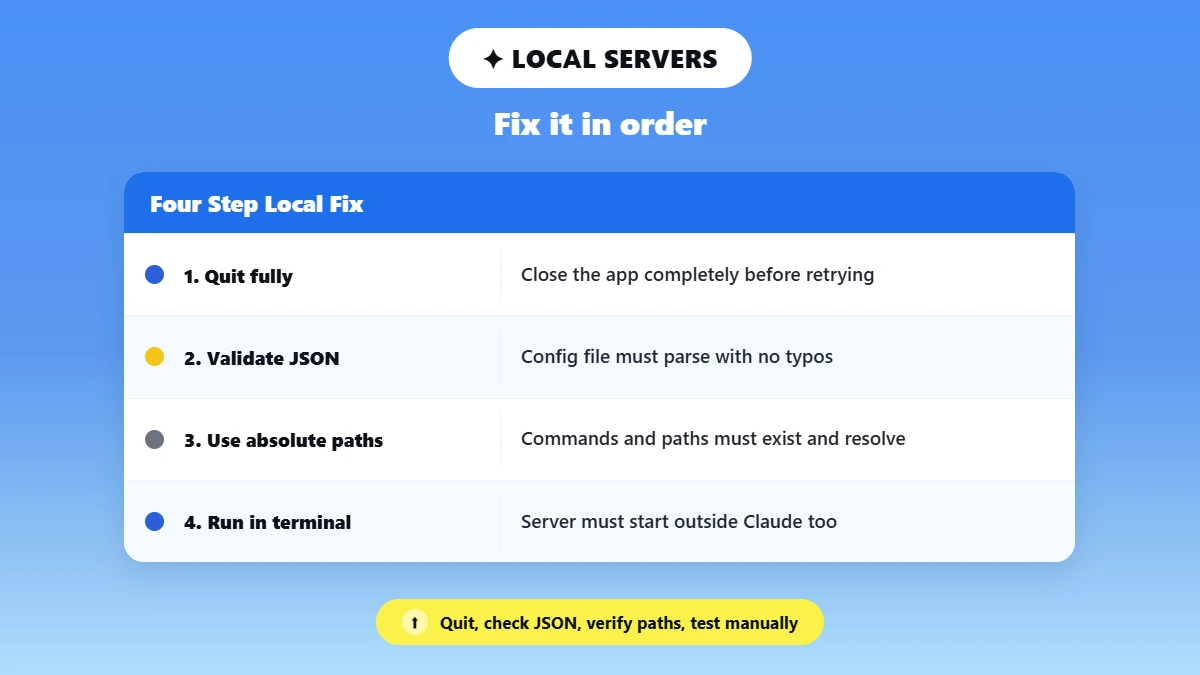
Fully quit Claude Desktop first, then check three things in order. The config file must hold valid JSON, every command and path in it must be absolute and exist, and the server must start when you run its command in a terminal. Claude Desktop usually names what failed in a pop-up or on its Developer page, so check both whenever a step doesn't clear the error.
Step 1: Quit Claude Desktop Completely, Then Reopen It
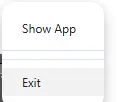
Claude Desktop reads the config file only when it starts, so closing the window doesn't load your changes. The official MCP debugging guide says to fully quit and reopen the app after every edit.
🍎 macOS: open the Claude menu in the top menu bar and choose Quit.
🪟 Windows: click the ^ arrow on the taskbar, right-click the Claude icon, and choose Exit. Then open the app again.
Step 2: Check claude_desktop_config.json for JSON Errors
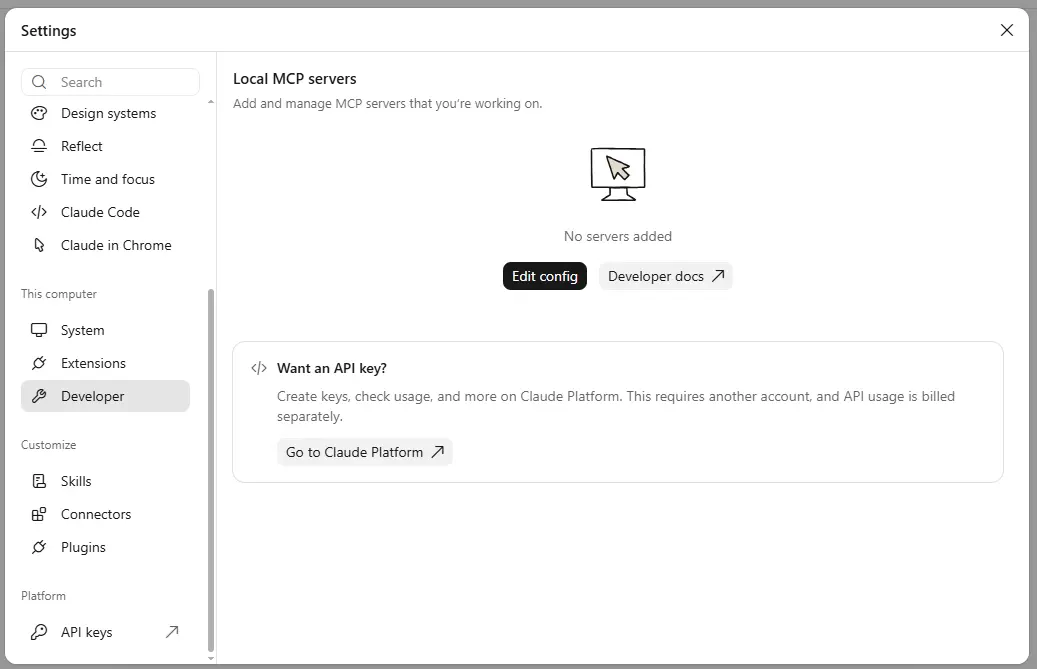
One misplaced character in claude_desktop_config.json can stop every server in the file from loading. The MCP guide to local servers gives these paths:
macOS: ~/Library/Application Support/Claude/claude_desktop_config.json
Windows: %APPDATA%\Claude\claude_desktop_config.json
The quickest way to open it is the Edit config button. On Windows, click the ☰ menu, choose File > Settings, then click Developer under This computer. Back up the file before you edit it, so you can restore a working copy.
💡 Can't Find the File?
On our Windows test computer, Claude Desktop kept the config file and its logs in folders under AppData\Local, not at the %APPDATA% path the official guide lists. The Edit config button opened the right folder every time.
⚠️ Common JSON Mistakes
A comma after the last item in a list
A missing closing brace }
Single backslashes in Windows paths (write C:\\Users, not C:\Users)
Two servers with the same name
Curly quotes pasted from a word processor
This correct example from the MCP guide starts the official Filesystem server on macOS. Replace username with your own:
{
"mcpServers": {
"filesystem": {
"command": "npx",
"args": [
"-y",
"@modelcontextprotocol/server-filesystem",
"/Users/username/Desktop",
"/Users/username/Downloads"
]
}
}
}
Step 3: Fix spawn npx ENOENT and "Command Not Found"
spawn npx ENOENT means Claude Desktop can't find the program named in "command". The app may not see the same PATH as your terminal. PATH is the list of folders your system searches for programs, so Node.js installed through a version manager can stay invisible to Claude Desktop.
Put the full path in "command" instead. Run which npx on a Mac or where npx on Windows to find it. Windows has two extra fixes in the MCP guide:
🪟 If npx keeps failing, check that %APPDATA%\npm exists. If it doesn't, run npm install -g npm.
🪟 If the log shows a literal ${APPDATA}, add the expanded %APPDATA% path to the server's env block.
Step 4: Use Absolute Paths and Put Keys in the Env Block
A server started from the config file may run from an undefined working folder, such as / on macOS, so a relative path like ./data fails. The debugging guide says to use full paths everywhere in the config.
Servers also inherit only a limited set of environment variables from your system, so API keys belong in the server's env block.
🔒 Keep Your Keys Private
Your config file is plain text. Never paste it into a public forum or a GitHub issue with API keys inside.
Step 5: Run the Server by Hand to See the Real Error
Copy the command and args from the config into a terminal and run them. If the server fails there too, the server has the problem, and Claude Desktop only reports it.
The debugging guide calls the MCP Inspector, an official testing tool, your "first stop" for checking a server outside Claude. Launch it with npx @modelcontextprotocol/inspector, which needs Node.js 22.19.0 or newer.
What If You Don't Write Code?
Send the last log lines and the exact command to the server's maintainer, usually through its GitHub issues page. Remove any API keys before you post.
Step 6: Try the Desktop Extension Version Instead
If your server offers a desktop extension, install that and skip the JSON entirely. Anthropic says you manage extensions under Settings > Desktop app, then Manage next to Extensions (Settings > Extensions in the older layout). When an extension fails, Anthropic suggests these fixes:
⬆️ Update Claude Desktop to the latest version.
📥 Download the extension file again in case it's corrupted.
🔄 Restart Claude Desktop.
🔑 Fill in every required field, such as API keys.
Where Are Claude Desktop's MCP Logs, and What Do They Say?
Claude Desktop writes MCP logs to ~/Library/Logs/Claude on macOS and %APPDATA%\Claude\logs on Windows. The mcp.log file records connection attempts and failures, and each mcp-server-NAME.log file holds one server's own error output. Open your server's file first and read its last 20 lines.
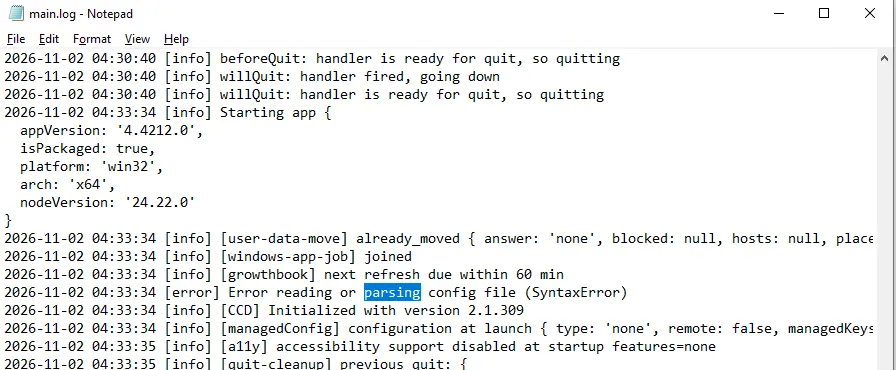
The fastest route is the View logs button next to each server on the Developer page, which opened that server's log in Notepad on our Windows computer. A broken config file is the exception: in our test, it left no line in mcp.log and showed up in main.log instead.
These commands from the MCP debugging guide show the latest lines.
macOS (Terminal):
tail -n 20 -F ~/Library/Logs/Claude/mcp*.log
Windows (PowerShell):
type "$env:AppData\Claude\logs\mcp*.log"
💡 What the Log Line Means
ENOENT: the command path is wrong.
Error reading or parsing config file (SyntaxError) in main.log: the config file has a JSON error.
Unexpected token in a server log: the server prints to stdout. The debugging guide says local servers should log to stderr only.
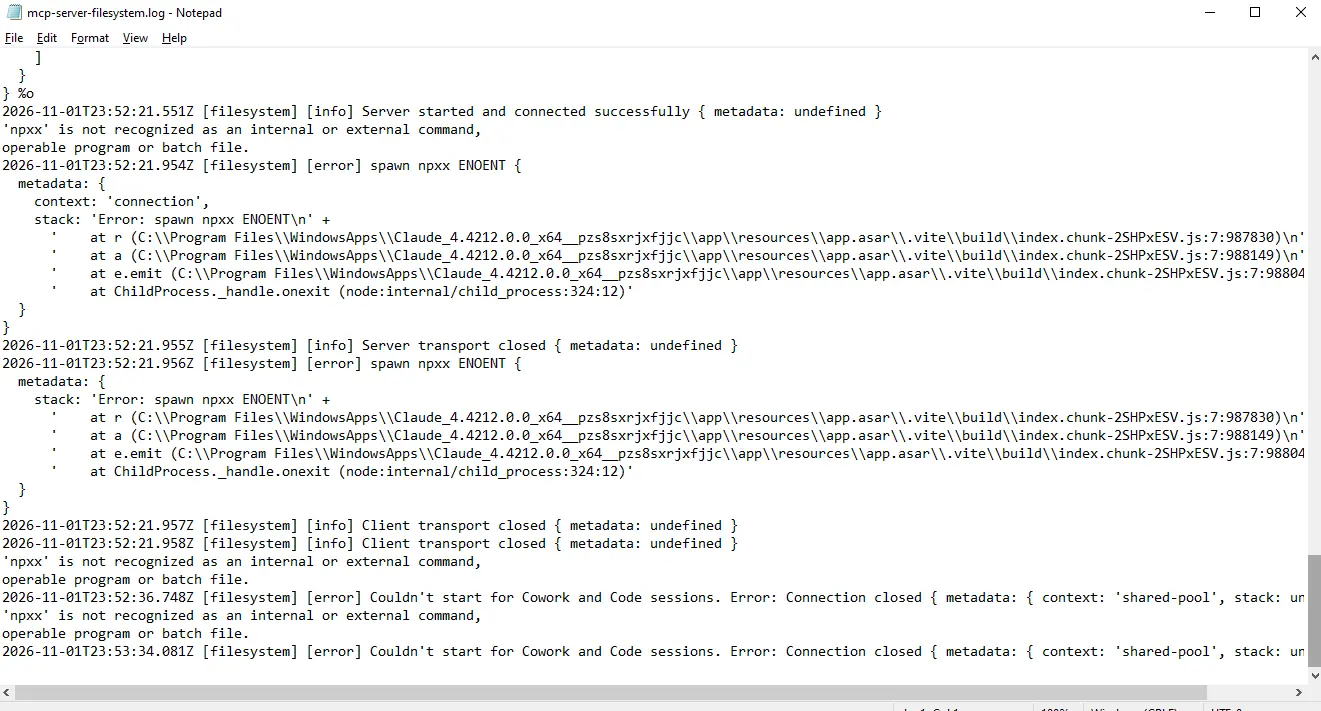
is not recognized as an internal or external command: Windows can't find the program in "command".
Connection closed or -32000: the server crashed, so read the lines above it.
-32001: the server took too long to answer.
-32022: the app and the server use different MCP versions.
Developers can also open Chrome DevTools inside Claude Desktop by creating a developer_settings.json file with allowDevTools set to true, as the debugging guide shows.
Why Won't a Remote MCP Server Connect in Claude Desktop?
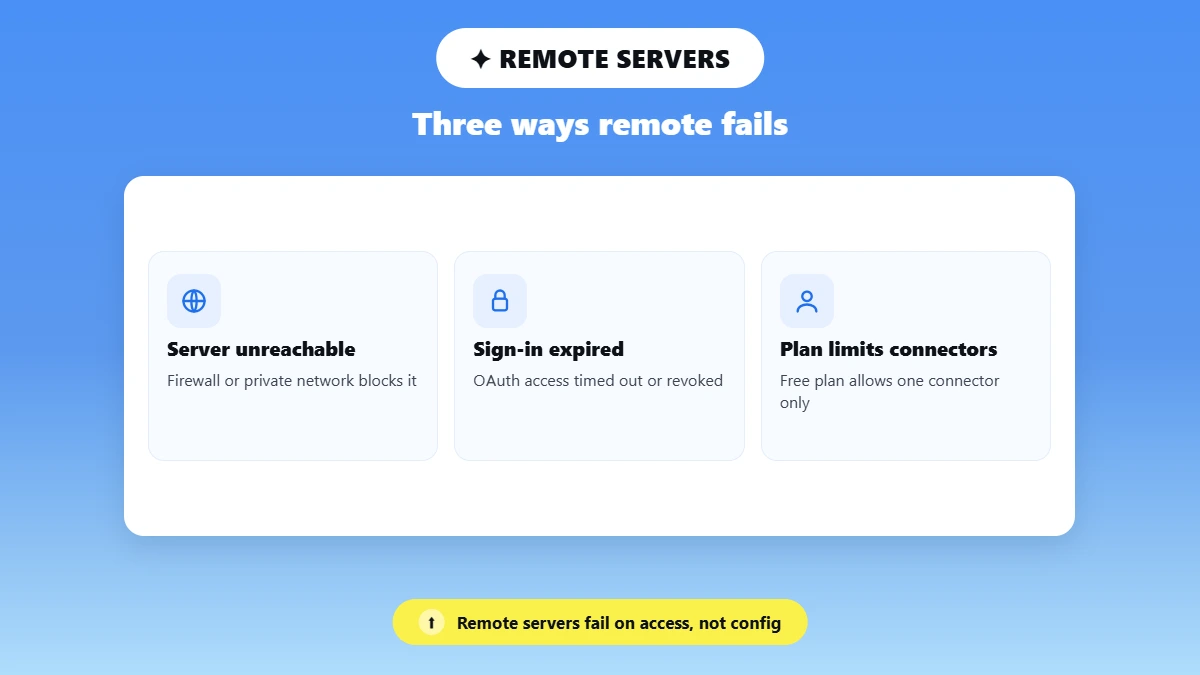
A remote MCP server fails when Claude can't reach it, can't sign in to it, or isn't allowed to add it. The config file can't start a remote server, so Claude Desktop skips a URL pasted there. Add the URL under Customize > Connectors, finish the sign-in, and check that the server's tools appear in the chat's + menu.
You Put the URL in claude_desktop_config.json
The config file starts local servers from a command, so Claude Desktop skips any entry that uses the url and type fields other MCP apps use, and shows a pop-up naming it. Add the URL as a custom connector instead: Anthropic's path is Customize > Connectors, then + Add > Add custom connector.
Developers running an HTTP server on their own computer can bridge it into the config with the mcp-remote package.
Claude Can't Reach the Server
Claude connects to remote MCP servers from Anthropic's cloud, not from your computer. Anthropic's connector guide says servers on a private network, behind a VPN or blocked by a firewall won't connect, which is why a localhost URL fails as a custom connector.
Use a public HTTPS URL, or ask your IT team to allowlist Anthropic's IP addresses.
The Sign-In Didn't Finish or Expired
Most remote servers use OAuth, a sign-in step that lets the service give Claude access to your account. The sign-in breaks in four common ways:
🚫 A pop-up blocker stopped the sign-in window.
👤 You signed in to the wrong account.
⏳ Access expired after a long time unused.
🔒 Someone revoked access on the service's side.
Claude marks an expired connector with ⚠️ and a Reconnect button under Settings > Connectors. Click Reconnect, or disconnect and connect again, to start a fresh sign-in. To change a connector's details, Anthropic says to remove it and add it again.
Your Plan or Workspace Limits Custom Connectors
Custom connectors work on Claude's Free, Pro, Max, Ultra, Team and Enterprise plans, according to Anthropic's Help Center as of November 2026. Free users can add one custom connector.
On Team and Enterprise, an Owner adds the connector under Organization settings > Connectors, and members then click Connect. If the option is missing on a work account, ask your workspace owner.
The Phrasly MCP server for Claude needs one URL and your Phrasly account, so no config file, Node.js or API key is involved. Claude can then humanize and AI-check your drafts in the chat.
MCP Connected but Not Working? Fix Missing or Ignored Tools
When a server shows as connected but Claude ignores it, the problem usually comes from the chat itself. The connector may be switched off for that conversation, a tool may be blocked, or your prompt may give Claude no reason to call it. Turn the connector on under + > Connectors, then name the tool in your request.
The Connector Is Switched Off in This Chat
Connectors have an on/off toggle for each conversation. Click + at the lower left of the chat, choose Connectors, and switch on the one you need. Check the toggle again whenever you start a new chat.
A Tool Is Blocked or Waiting for Approval
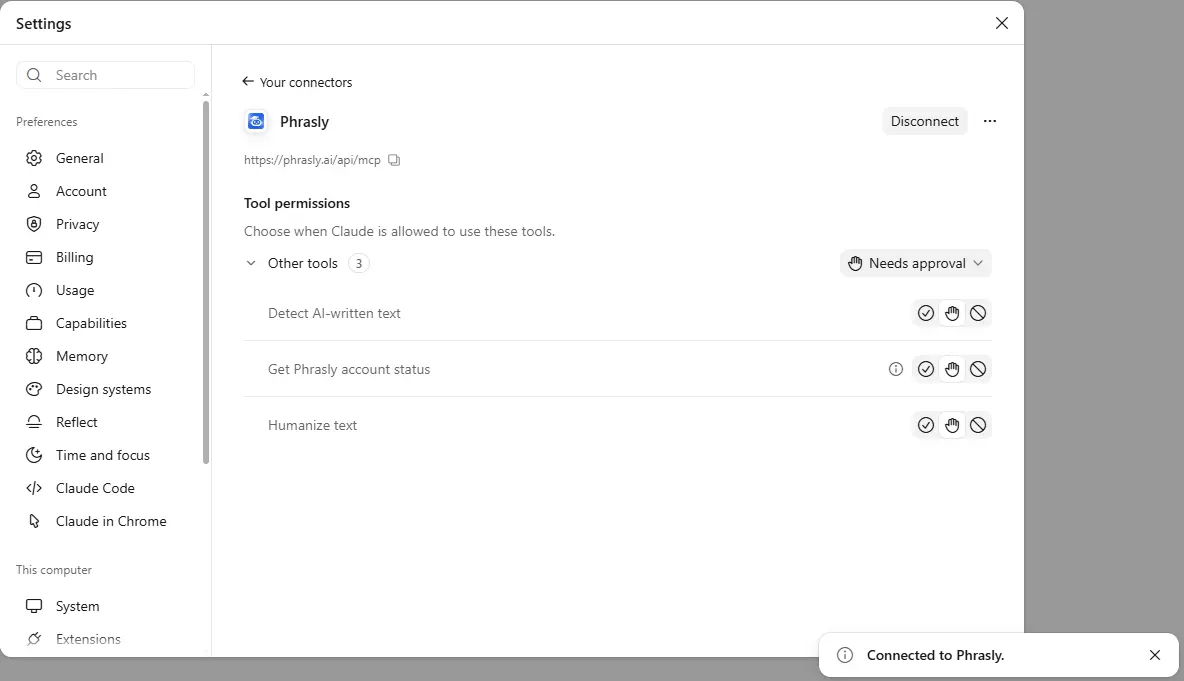
Each tool on a connector can run freely, ask before it runs, or stay blocked. A blocked tool never runs, and a tool set to Needs approval waits for you in the chat. Click the connector under Settings > Connectors to change each tool's setting.
Check what each MCP permission allows before you let a tool run without asking, because Anthropic advises that setting only for servers and tools you trust.
Claude Doesn't Call the Tool
Claude decides when to call a tool from your request, so a vague prompt can skip the server you added. Name the server or tool in the prompt, such as "Use Phrasly to humanize this paragraph," and switch off connectors you don't need in that chat.
A prompt that states the task, the input and the tool by name works best, and the same habits help you write better prompts for Claude in general.
It Disconnects Mid-Session or After an Update
Long inactivity or an app or server update can drop a working connection. The MCP spec revision of July 2026 made the protocol stateless and renumbered its version error, so an older server and a newer app can disagree with UnsupportedProtocolVersionError (-32022). Update Claude Desktop and the server, then reconnect.
We Broke Claude Desktop's MCP Setup on Purpose: Here's What It Showed
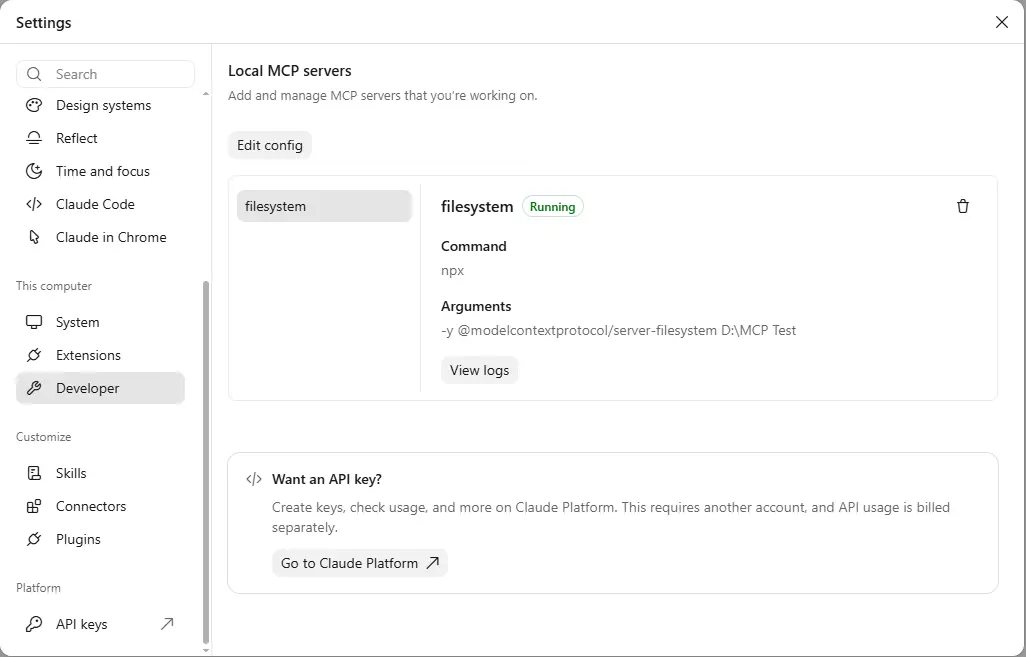
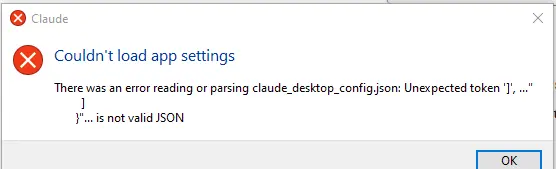
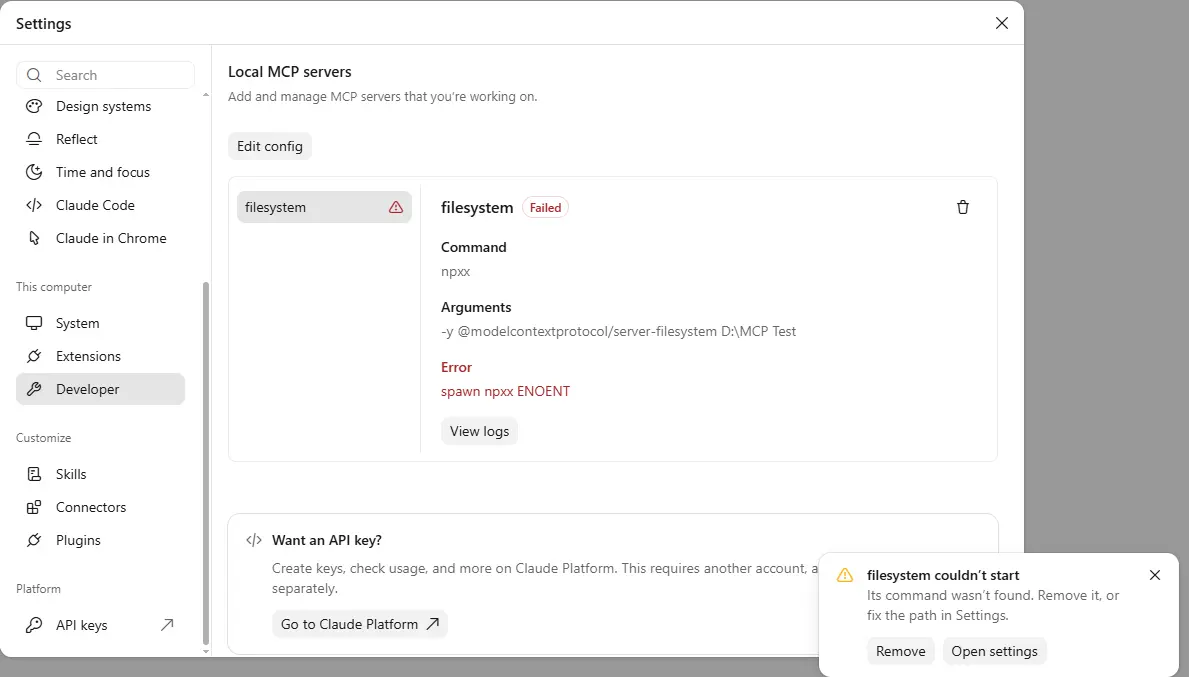
None of our three mistakes failed silently: Claude Desktop showed a pop-up for each one. The wrong command was the easiest to trace, because the Developer page printed the exact error. The broken JSON was the hardest, because mcp.log stayed empty and only main.log recorded it.
We ran the tests on Windows 10 Pro with Claude Desktop 4.4212.0 in November 2026, in one sitting. We backed up the config file, added the official Filesystem server with access to one empty test folder, and confirmed it showed Running. Then we broke one thing at a time.
What We Broke | What Claude Desktop Showed | What the Log Said | Fix | Time to Fix |
|---|---|---|---|---|
Added a trailing comma to the config | A Couldn't load app settings pop-up naming Unexpected token ']'. Claude closed after OK, and the server was gone on the next start. | Nothing in mcp.log. main.log: Error reading or parsing config file (SyntaxError) | Removed the comma, quit, reopened | About 1 minute |
Changed npx to npxx | A filesystem couldn't start pop-up saying Its command wasn't found, and Failed with spawn npxx ENOENT on the Developer page | 'npxx' is not recognized as an internal or external command and spawn npxx ENOENT | Restored npx, quit, reopened | Under 1 minute |
Added https://phrasly.ai/api/mcp to the config as a url entry | A Some MCP servers couldn't be loaded pop-up saying the phrasly entry was skipped. The Filesystem server kept running. | Not needed, because the pop-up named the entry | Removed the entry, then reconnected Phrasly under Connectors | Under 2 minutes |
For the second half of Test 3, our Phrasly connector already showed ⚠️ and Reconnect because its sign-in had expired. One click on Reconnect, a sign-in in the browser and an approval brought back all three Phrasly tools in under two minutes, each set to Needs approval.
Does the Same Fix Work for MCP in ChatGPT?
Only the remote fixes carry over to ChatGPT, because ChatGPT supports remote MCP servers only. The config file, PATH and Node.js fixes don't apply there. Most ChatGPT failures come from workspace permissions, the wrong sign-in choice when you add the server, or a plugin you didn't select in the chat.
🔌 Add the server from Plugins. OpenAI's help article on custom MCP servers says you select + in Plugins, then Add custom MCP server, and the current Plugins experience doesn't require Developer Mode first.
🔐 Pick the right sign-in. Choose OAuth for servers that need a sign-in and No Auth for servers that don't, as Simon Willison's July 2026 walkthrough shows.
🧰 Review the tool list. ChatGPT shows the discovered tools after you create the server, and an empty list points to a problem on the server's side.
🏢 Check workspace rights. On ChatGPT Business, only admins and owners can add custom MCP servers, so ask your admin on a work account.
💬 Select it in the chat. Type @ in a new conversation and pick the plugin. The selection covers that one message, so @mention it again when a follow-up needs it.
📱 Use the web app. OpenAI says custom MCP servers connect on ChatGPT's web version only.
Phrasly's server URL works in ChatGPT too, so you can humanize ChatGPT text without leaving the chat.
Phrasly MCP Not Connecting? Four Quick Fixes
When Phrasly's connector stops working, reconnect it under Connectors and sign in again, which also refreshes the tool list. The other Phrasly causes are a human verification check, an empty word balance, or text too short to process, and each one clears in a single step.
🔄 The tools disappeared: reconnect from Claude's connector settings and sign in again. Access renews in the background, but it can expire if you don't use the connector for a long time or if you revoke it.
✅ Claude says verification is needed: Phrasly runs occasional human checks and sends back a link. Open it, complete the check, and ask Claude to try again.
📉 You ran out of words: ask Claude to check your balance with get_account_status, then top up or upgrade on phrasly.ai. Trials and paid plans run Phrasly Ultra, the newer model compared in Phrasly Ultra vs Phrasly Humanizer.
✂️ The text came back unchanged or too short: Phrasly needs at least 30 words to humanize and 50 words to check for AI, so send a longer section.
The detect_ai_text tool returns a verdict, an AI percentage and the flagged sentences, and how AI detectors work explains what those scores can and can't tell you. Phrasly's Claude setup guide has the full steps for each fix.
A stable setup keeps local servers in the config file and remote servers under Connectors, with a full restart after every change. Once your server connects, try it on a real task before you rely on it. For writers, the guide to humanize AI cold emails in Claude walks through a full workflow with a connected server.
Once your connection is stable, humanize and check drafts inside Claude with Phrasly. Add one URL, sign in, and ask Claude to refine or AI-check your draft in the same chat.
Frequently Asked Questions
Why Is My MCP Server Not Showing Up in Claude Desktop?
Your MCP server usually stays hidden because the config file has a JSON error or Claude wasn't fully quit. Fix the JSON, then quit Claude completely and reopen it. If the server is still missing, the Developer page in Claude's settings shows its status and the error.
Where Is claude_desktop_config.json on Mac and Windows?
On macOS, the file is ~/Library/Application Support/Claude/claude_desktop_config.json. On Windows, the official path is %APPDATA%\Claude\claude_desktop_config.json, but some installs keep it elsewhere, so the Edit config button on the Developer page is the surest way to open it.
What Does "Server Disconnected" Mean in Claude Desktop?
The message means the server started and then stopped. Claude Desktop's Developer page shows each server's status and error, and its View logs button opens mcp-server-NAME.log with the cause. A missing API key, a wrong path and a package that failed to install are common causes.
Can I Put a Remote MCP Server URL in claude_desktop_config.json?
A remote URL won't work in the config file, because Claude Desktop only launches local programs from that file. Add remote servers by URL under Connectors instead. Developers with a local HTTP server can connect it through the mcp-remote package.
Do I Need a Paid Claude Plan to Use MCP Servers?
A paid plan isn't required for one custom connector, because Anthropic lets Free users add one as of November 2026. Paid plans support custom connectors too, and Team and Enterprise owners add them for the whole workspace. Local servers run through Claude Desktop on your computer.
Is an MCP Connector Better Than a Custom GPT for Humanizing Text?
An MCP connector calls a real tool, while a custom GPT is a set of instructions on top of ChatGPT. In Phrasly's test of two humanizer GPTs, both kept the facts but changed little. Phrasly's connector runs the same humanizer engine as its website.
Can Developers Use Phrasly Without MCP?
Developers can call the Phrasly Humanizer API from their own app instead of using MCP. Phrasly's roundup of AI humanizer APIs includes setup steps, code examples and production checks.
Does Connecting Phrasly to Claude Cost Anything?
Phrasly connects to Claude for free with a Phrasly account. Each humanization uses the same word balance as the website: a free account starts with a small balance, and the trial or a paid plan adds more. Phrasly pricing lists the current plans, and Claude's own plan rules for custom connectors still apply.

Written by
Alina Shah
SEO Content Specialist · Karachi, Pakistan
She writes about AI so you don't have to guess. 8+ years in content strategy and editing. Now she puts AI writing tools and detection systems through real tests and shares what actually works.