Natural Typist Alternatives (Free and Paid, 2026)
13 min read
Among Natural Typist alternatives for Google Docs, Phrasly Human Auto Typer and Duey are the closest swaps. Duey also lists Google Slides and Word Online, and CopyPaster is a desktop app for writing outside the browser.
Human Typing Simulator, HumanTyper, Dripwriter Origin and Humanize Autotyper fill smaller gaps, from detailed rhythm controls to Edge and Firefox support.
We installed each browser tool and typed the same 191-word sample into Google Docs to see what the free versions really allow. These tools enter text you already have, one keystroke at a time. They do not show who wrote it.
Type Your Draft Into Google Docs
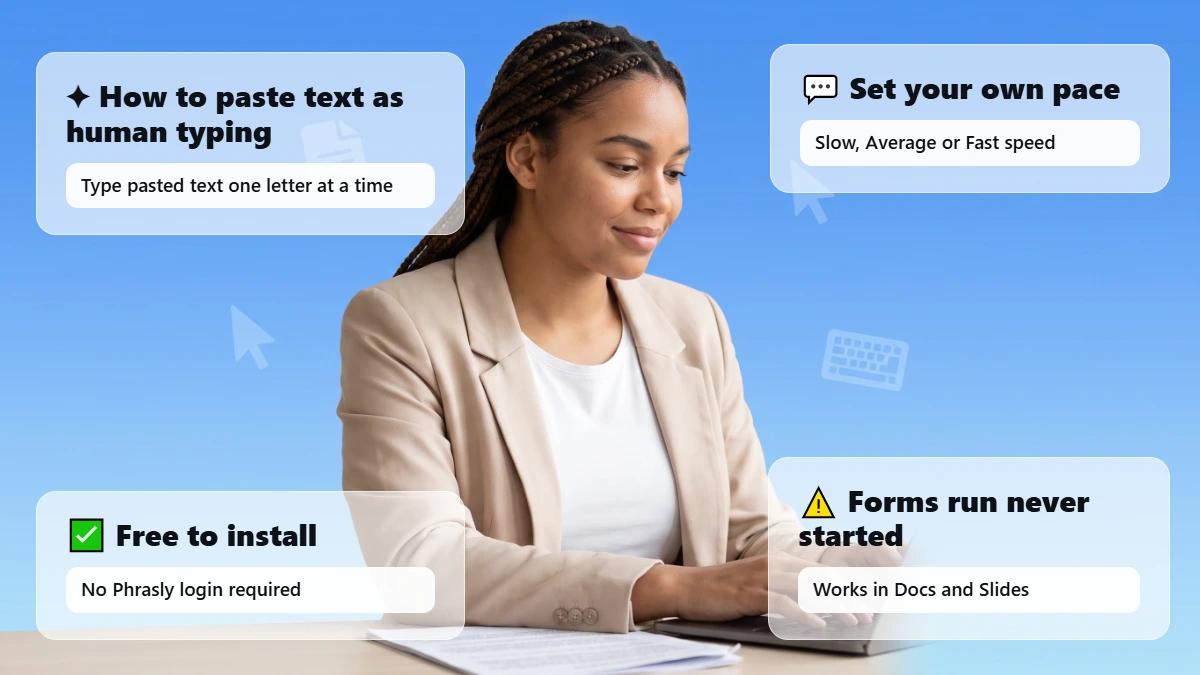
Paste your text, pick a speed, and watch Phrasly Human Auto Typer type it in. Free to add to Chrome.
Which Natural Typist Alternative Fits Your Workflow?
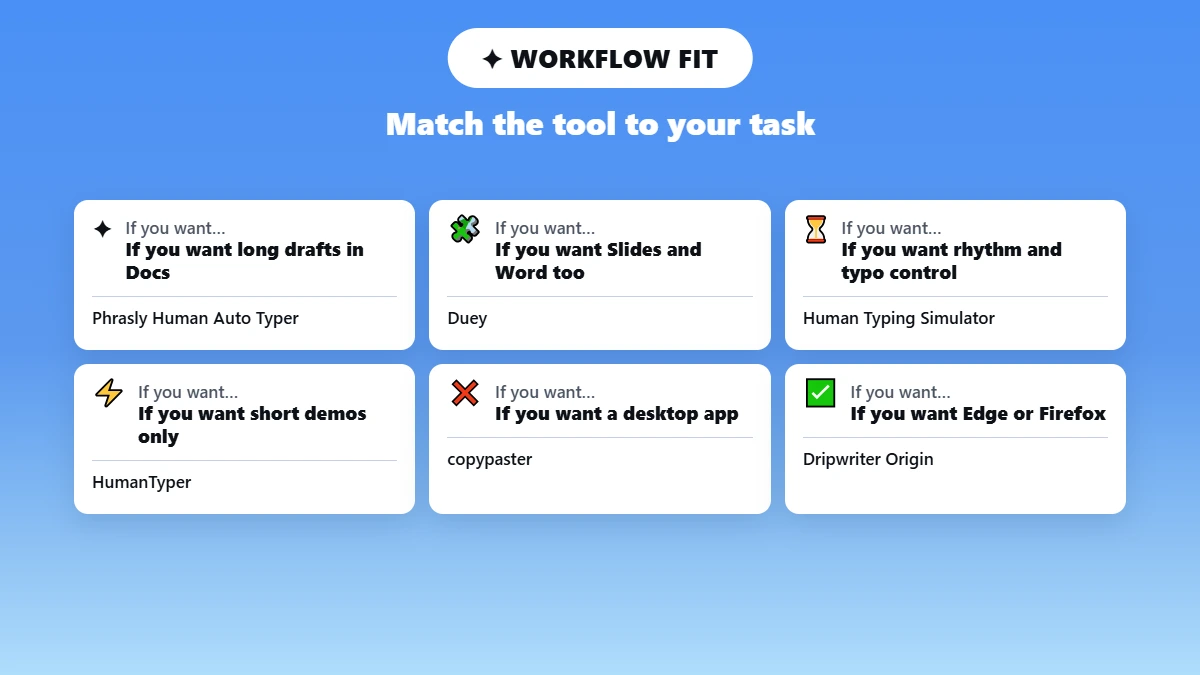
For long drafts in Google Docs, Phrasly Human Auto Typer or Duey handle a full draft on their free versions. For short demos or form fields, HumanTyper’s 250-character free limit is enough. For desktop apps, copypaster is the only option here, and Dripwriter Origin suits Edge or Firefox users.
Free limits vary more than the word “free” suggests. In our test, free use ranged from no visible limit to 250 characters per run. A free Natural Typist alternative is enough for most drafts, while a paid Natural Typist alternative makes sense only if you need formatted typing, cloud sessions or desktop apps. None of the three tools we ran on our formatted sample kept bold text, links or lists.
The table below compares the best Natural Typist alternatives side by side, with what each gives you free and what costs money:
Tool | Works in (vendor-stated) | Free access | Paid plan | Main trade-off |
|---|---|---|---|---|
Phrasly Human Auto Typer | Google Docs, Google Slides, web text fields | Free Chrome install; no limit shown in our signed-out test | Included with Phrasly subscriptions | Chrome only; Stop but no Pause |
Duey | Google Docs, Slides, Word Online | Free fast typing, no account needed | Pro: $9.99/month or $60/year | Human-like typing and Sessions are Pro; typos cannot be turned off |
Human Typing Simulator (Quyet Tran) | Browser text fields (Docs worked in our test) | No limit or payment prompt seen | None published | Same-name copies in the store |
HumanTyper | Web inputs (Docs worked in our test) | 250 characters per run, plus one 1,000-character bonus run | Premium (price not confirmed) | Very small free limit |
Dripwriter Origin | Chrome, Edge, Firefox | Free for noncommercial use | Commercial license required | Edge and Firefox not tested by us |
Humanize Autotyper | Browser editors | 300 words every 14 days | $4.99/month or $24.99/year | Slowest in our test; plain text only |
copypaster | Windows, macOS, Linux desktop apps | Five-paste trial only | Personal €29/year; Pro €69/year | A trial, not a free plan; not tested by us |
Prices and limits checked on October 9, 2026.
⚠️ Pricing is accurate as of the date this article was written and is subject to change. Confirm the current price on the tool’s official pricing page before purchasing.
What Should a Natural Typist Replacement Actually Do?
A good replacement does what Natural Typist does: it takes text you paste in and types it into your editor one keystroke at a time, at a speed you set, with optional pauses and corrected typos. The final text should match your original exactly. Apps that type from speech or teach typing belong to a different category.
Natural Typist itself is a Chrome extension for Google Docs, listed as “Natural Typist - Human Typing Simulator.” Its listing describes adjustable errors and breaks and a 30 to 150 WPM range.
This kind of paste-as-typing tool is sometimes called a “natural typer,” but that name covers several unrelated products, so in this guide we mean the Natural Typist extension only.
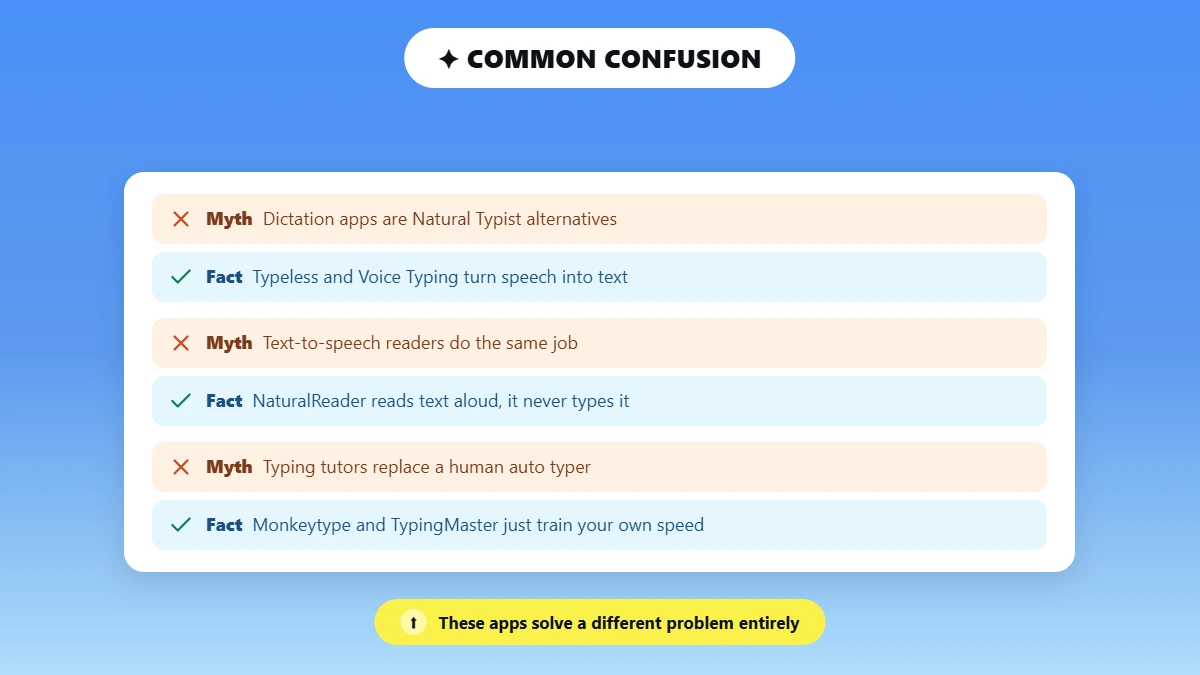
Three kinds of apps often come up in the same searches, but they do a different job:
Dictation Apps: Typeless and Windows Voice Typing turn your speech into text rather than typing a draft you already have.
Text-to-Speech Readers: NaturalReader reads text aloud and does not enter it anywhere.
Typing Tutors: Monkeytype and TypingMaster train you to type faster yourself.
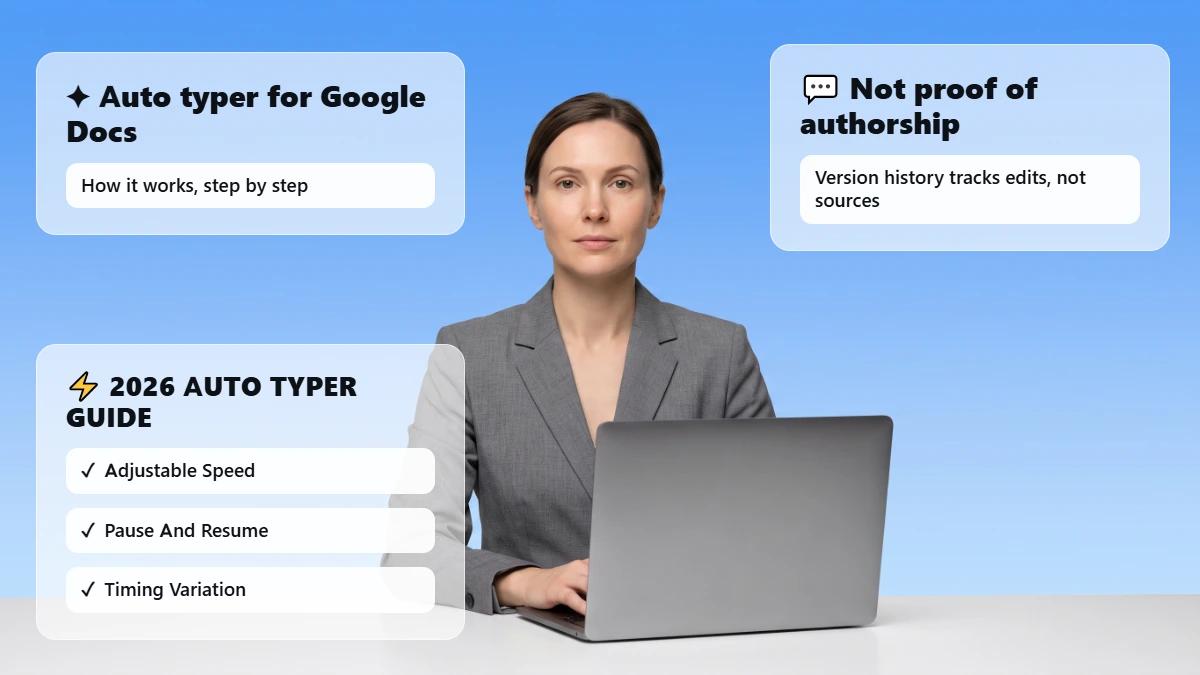
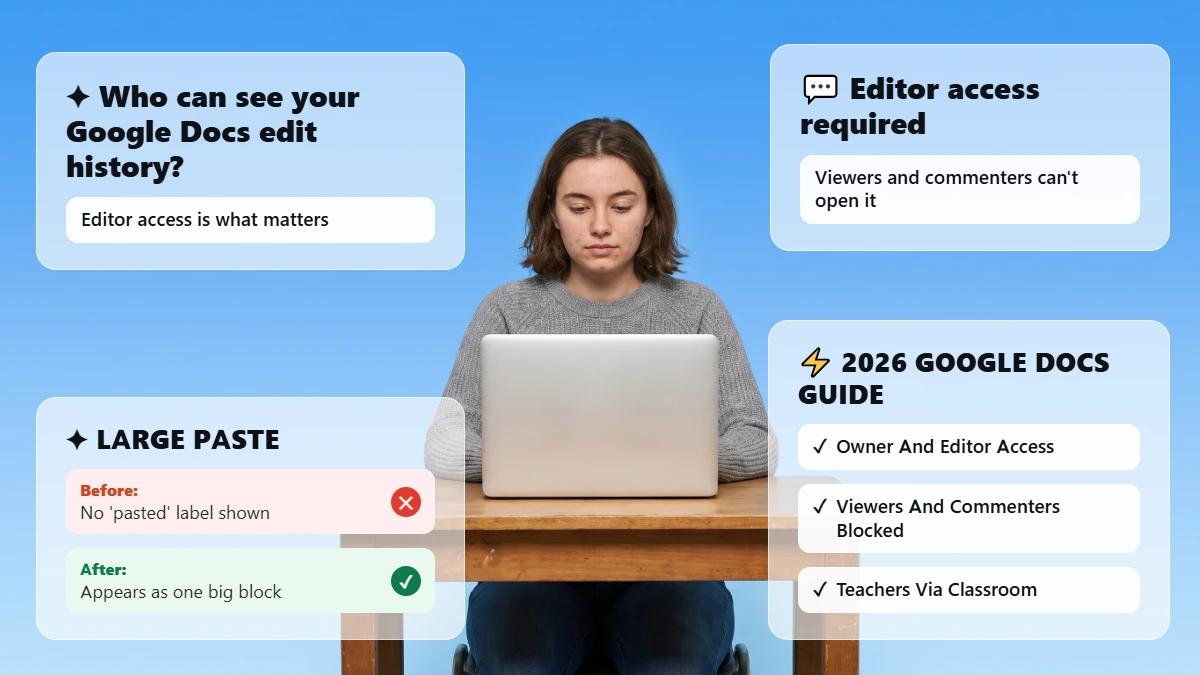
Gradual typing does not prove who wrote a draft either. Google Docs groups edits in version history and can merge revisions, so it is not a keystroke log. Docs also has no built-in AI detector.
Our guides to Google Docs version history and Google Docs AI detection explain what it does and does not record.
Natural Typist Alternatives to Compare in 2026
These seven Natural Typist alternatives in 2026 all type prepared text into an editor gradually, but they differ in where they work, how much is free and what realistic auto typing controls they offer. Six of them work as a human typer extension in Chrome, and copypaster is the one desktop app.
🔍 How We Picked: We chose tools with clear editor support, clear free access, useful typing controls and a working install as of October 9, 2026. The order is editorial, not a performance ranking, and we tested free versions only, so features marked “lists” or “says” come from the vendor.
Phrasly Human Auto Typer: Best for Google Docs Drafts
Best For: Typing a prepared draft into Google Docs with simple controls.
Phrasly’s product page lists a 30 to 240 WPM range, wider than Duey’s listed 15 to 150, with pauses after sentences and punctuation and adjustable typo rate and correction speed. It works in Google Docs, Google Slides, online essay portals and other web text fields, although Duey lists more editors.
As of October 9, 2026, the Chrome extension installs free, and Phrasly subscribers get it included. Its store listing says the developer will not collect or use your data, which is the developer’s own disclosure.
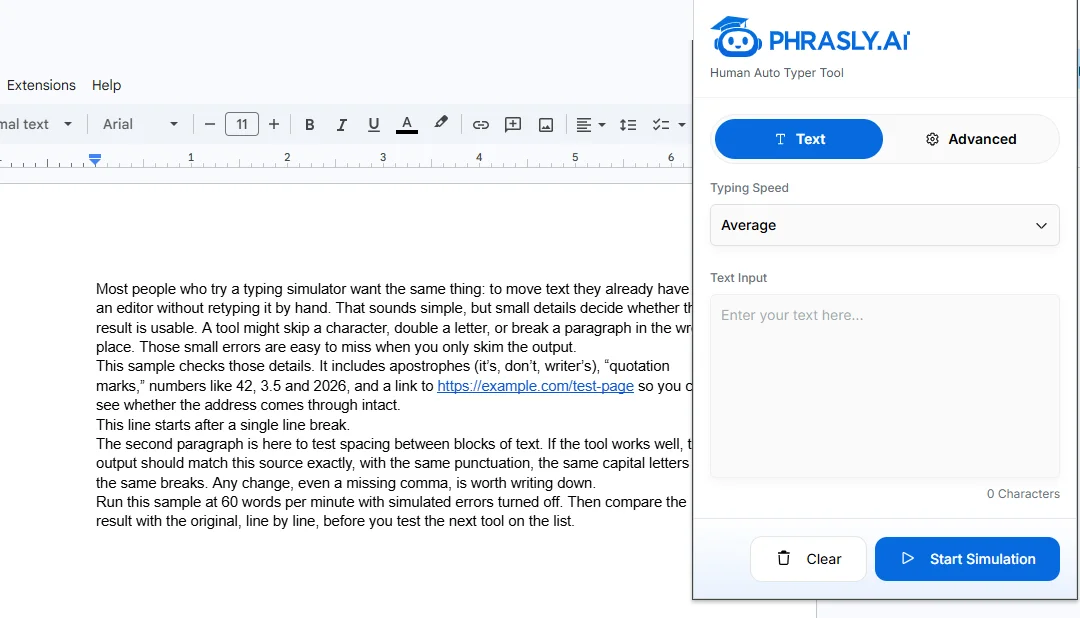
In Our Test: We installed it, signed out and saw no login prompt or usage limit. The app offers three presets (Slow, Average, Fast) instead of a WPM number. On Average with errors off, it typed our 191-word sample exactly in about 2 minutes 15 seconds.
Limitation: It runs in Chrome only, and it has Stop but no Pause, so a stopped run starts again from the beginning.
Duey: Best for Docs, Slides and Word Online
Best For: Writers who move between Google Docs, Google Slides and Word Online.
Duey lists all three editors, more than Phrasly, with speeds from 15 to 150 WPM, simulated mistakes, breaks and typing in a background tab. The free extension needs no account. Pro, checked October 9, 2026, adds Sessions, which type into Google Docs over hours or days while your laptop is closed, and Duey lists formatted typing as a Pro feature.
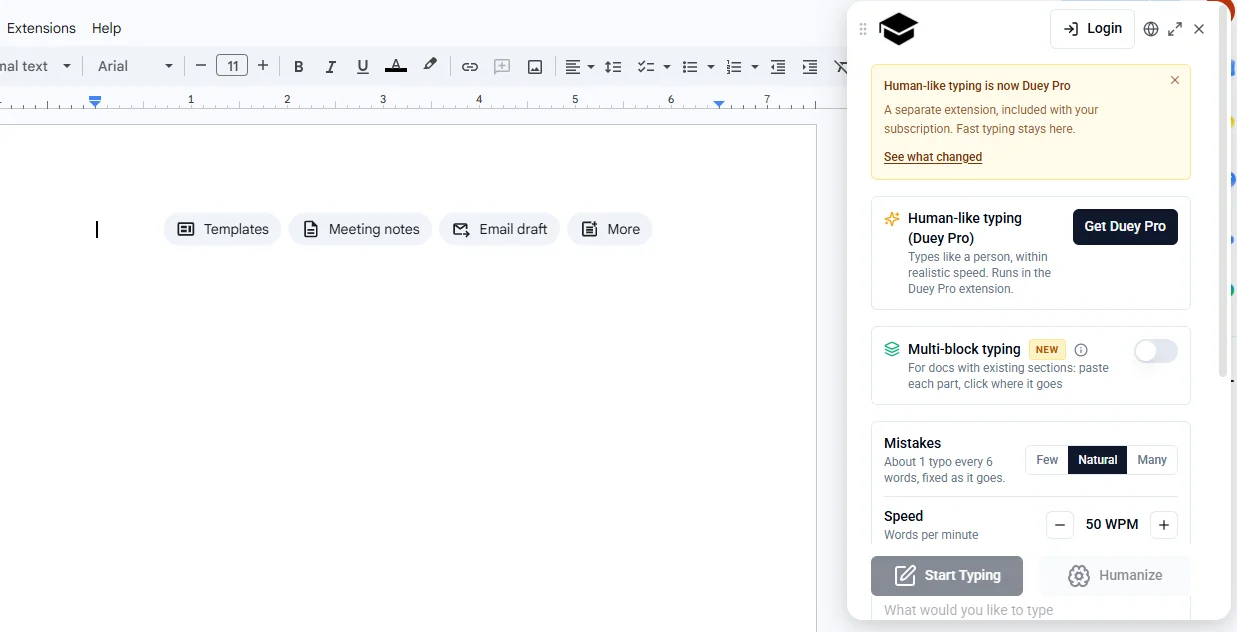
In Our Test: The free panel said human-like typing had moved to a separate Duey Pro extension, while fast typing stays free. Mistakes cannot be turned off; the lowest setting is Few. Set to 60 WPM, it averaged 23 WPM because of breaks and corrections, and finished in 9 minutes 34 seconds with the text exactly right. Pause and resume worked cleanly.
Limitation: The most useful extras are in Pro, and we tested Google Docs only, so Slides and Word Online support is vendor-stated.
Human Typing Simulator: Best for Detailed Rhythm Controls
Best For: People who want to fine-tune typing speed and rhythm themselves.
This profile covers the Human Typing Simulator by Quyet Tran (version 3.0, updated August 3, 2026). Several other extensions share the name, so check the publisher before installing. The listing describes a 20 to 600 WPM range, separate rhythm and typo options, and pause and stop shortcuts; 600 WPM is far beyond human typing speed. No pricing was published as of October 9, 2026.
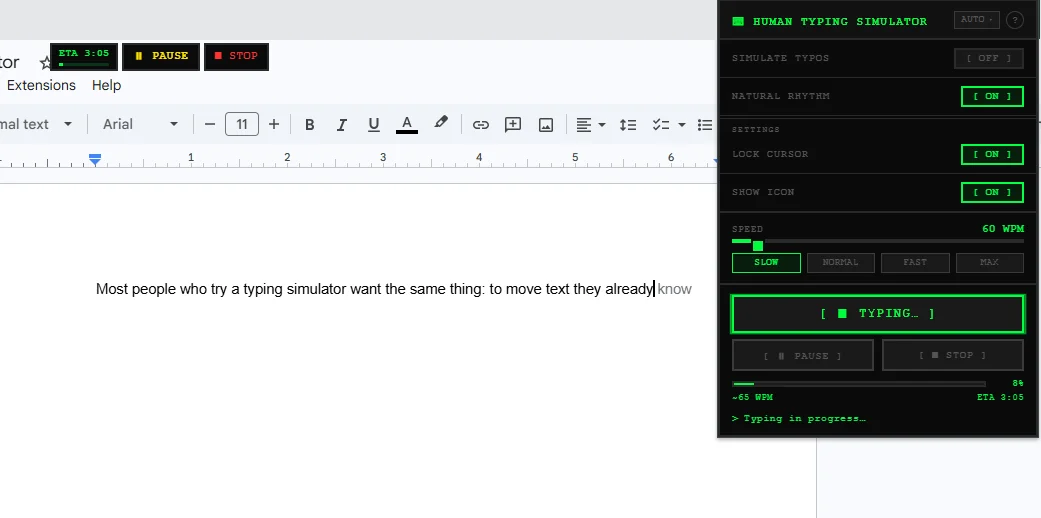
In Our Test: No login, limit or payment prompt appeared. With typos off at 60 WPM, it typed our sample exactly in about 4 minutes, and Pause, Resume and Stop all worked from a small bar on the page.
Limitation: Unpublished pricing does not guarantee it stays free, and it asks permission to read data you copy and paste.
HumanTyper: Best for Short Snippets and Browser Demos
Best For: Short demos and form fields, not full essays on the free plan.
HumanTyper (version 2.3.7, updated July 8, 2026) offers speed settings from Slow to Fast, random delays, natural pauses and optional corrected typos for web inputs. Its listing gives no WPM range and does not name Google Docs. A Premium plan removes the character limit, but we could not confirm its price on October 9, 2026.
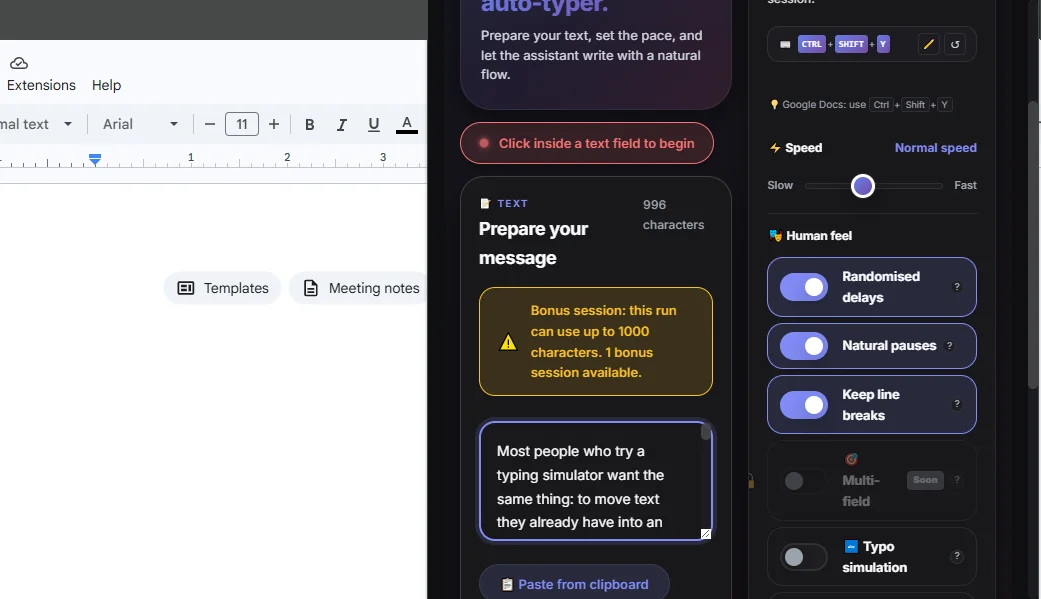
In Our Test: It worked in Google Docs, started with the shortcut Ctrl+Shift+Y. The free version allowed one bonus run of up to 1,000 characters, then showed that free users are limited to 250 characters, about 40 words. Our sample was cut off at the limit, but everything inside it typed correctly.
Limitation: The 250-character free limit makes it impractical for anything longer than a short paragraph.
Dripwriter Origin: Best for Noncommercial Cross-Browser Use
Best For: Students and writers who use Edge or Firefox as well as Chrome.
Dripwriter Origin lists Chrome, Edge and Firefox. It is source available and free for noncommercial use under its own license, while commercial use needs a separate license (checked October 9, 2026). It is an independent project, not the commercial Dripwriter service. Its controls cover speed and speed variance, break timing, typos and false starts, the most detailed set we saw.
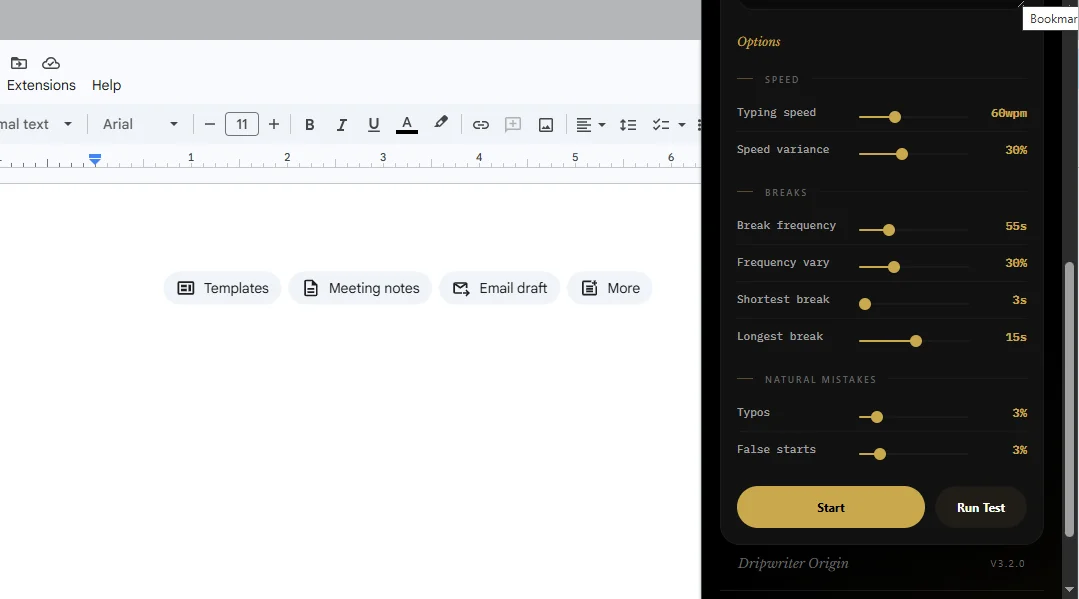
In Our Test: It installed from the Chrome Web Store (version 3.2.0) with no login. With typos and false starts at 0%, it typed our sample exactly in about 4 minutes, and it was the only tool whose quotation marks stayed straight.
Limitation: We tested Chrome only, so Edge and Firefox support is vendor-stated, and we did not test its pause or stop controls.
Humanize Autotyper: Best for Small, Occasional Jobs
Best For: Short, occasional plain-text entry on a small budget.
Humanize Autotyper says you set a typing duration instead of a speed, and that it keeps paragraph breaks but does not carry bold or italics. Its website and store listing disagree on the free quota (600 versus 300 words). Paid plans, checked October 9, 2026, unlock unlimited words.
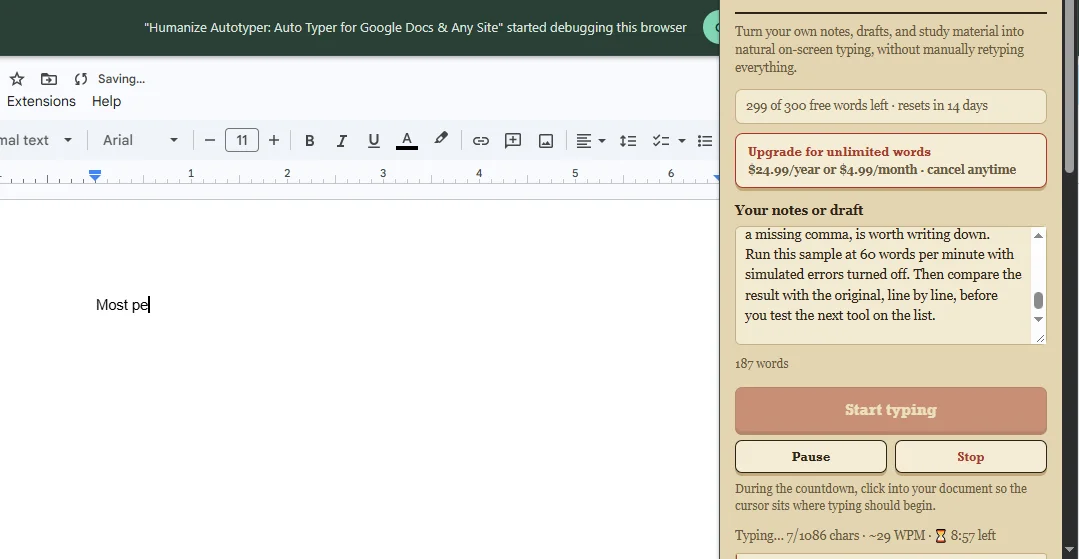
In Our Test: The installed version (1.3.5) showed 300 free words that reset every 14 days, which settles the conflict. Our 191-word sample used most of it. Typing took about 9 minutes, the slowest in our test, and one space after a full stop was dropped.
While it ran, Chrome showed a notice that the extension “started debugging this browser,” which comes from a debugger permission it requests at install.
Limitation: The free quota covers about one short essay every two weeks.
Copypaster: Best for Desktop App Workflows
Best For: Typing into desktop apps rather than a browser.
Copypaster is a desktop app for Windows 10 or newer, macOS and Linux that types your clipboard text as keystrokes into any app, and its website says it works in desktop Word. It offers a five-paste free trial with no card, then yearly plans priced in euros: Personal for two devices and Pro for unlimited devices (checked October 9, 2026).
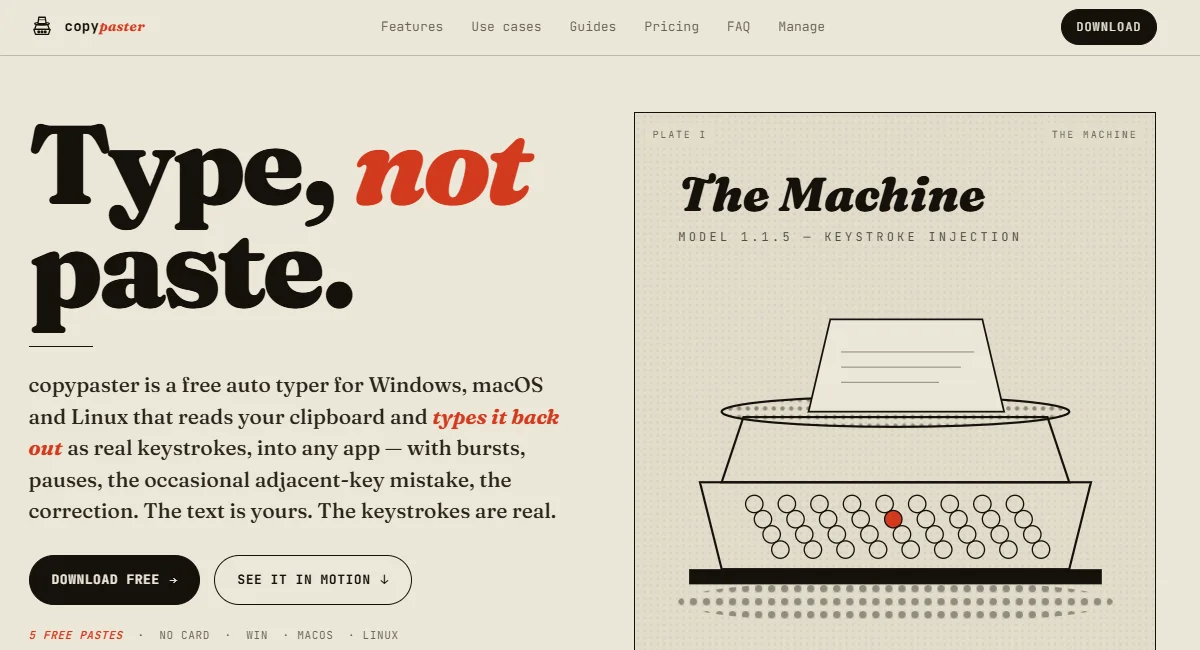
Not Tested: Microsoft Defender SmartScreen blocked the installer on our company-managed Windows 10 laptop, and copypaster’s own install notes say SmartScreen and some antivirus tools may flag it. Everything in this profile comes from the vendor.
Limitation: Five pastes is a trial, not an ongoing free plan, so test a desktop target with a short sample before you pay.
Which Free or Paid Natural Typist Alternative Should You Choose?
Start with a free alternative to Natural Typist, and switch to a paid Natural Typist alternative only when the free version blocks something your workflow needs. For most Google Docs users, a free install covers a full draft. Paying makes sense for formatted typing, cloud sessions or desktop apps, including a Natural Typist alternative for Word.
Here is the shortest route by workflow:
Google Docs Drafts: Phrasly Human Auto Typer, with Duey as the close alternative.
Docs, Slides and Word Online: Duey, which lists all three.
Desktop Apps, Including Desktop Word: copypaster, which we could not test on our Windows 10 laptop. Word in the browser and the desktop app are different programs; see Microsoft’s guide to the differences between Word in the browser and the desktop app.
Edge or Firefox, Noncommercial Use: Dripwriter Origin.
Fine-Grained Rhythm Settings: Human Typing Simulator or Dripwriter Origin.
Occasional Short Jobs on a Budget: Humanize Autotyper or HumanTyper, within their small free limits.
Not Writing in Google Docs at All: Compare Google Docs alternatives first.
Building a Wider Student Toolkit: See our best AI tools for college students.
💡 Three rules before you switch:
A free download is not the same as a free plan.
An unknown quota is not unlimited. Check the panel after install.
Word Online support is not desktop Word support.
Writing in Google Docs?
For Google Docs, add Phrasly’s Human Auto Typer Chrome extension and run a short draft first to set your speed and pauses.
How Can You Test a Natural Typist Alternative Before Moving a Full Draft?
To test an auto typer, run it on a short sample in a spare document before trusting it with a full draft. You are checking three things: the output matches your text, Stop works when you need it, and the tool behaves in the editor you actually write in.
Here is how to test an auto typer in five short steps:
Check the Extension: Confirm the exact name, publisher and permissions before installing. Chrome’s help page explains how to install and manage extensions.
Open a Spare Document: Use a new, empty document so nothing important is overwritten.
Load a Short Sample: Use a paragraph or two with apostrophes, numbers and a line break, and use the same sample for every tool.
Test Stop and Pause: Stop part way through, and pause and resume if the tool offers it. Look for skipped or doubled text.
Compare the Output: Check the result against your source character by character. Separate editor autocorrect, such as curly quotes, from changes the tool made.
For a full setup walkthrough, see our guide to the auto typer extension for Google Docs.
🧪 What We Saw When Six Tools Typed the Same Text
On October 9, 2026, we typed the same 191-word sample into Google Docs with each browser tool, using Chrome 155 on Windows 10. We set each tool as close to 60 WPM as it allowed, with simulated typos off where possible, and kept one extension on at a time. copypaster was not tested.
Tool | Text match | Time for the sample | Pause / Stop | Bold, link, list kept? |
|---|---|---|---|---|
Phrasly Human Auto Typer | ✅ Exact | About 2 min 15 s (Average preset) | Stop only | ❌ No |
Duey | ✅ Exact, after correcting its own typos | 9 min 34 s (set to 60 WPM, averaged 23) | Pause, resume, cancel | ❌ No |
Human Typing Simulator | ✅ Exact | About 4 min (60 WPM) | Pause, resume, stop | ❌ No |
HumanTyper | ✅ Exact up to the free limit; rest cut off | About 4 min for about 1,000 characters | Not seen on page | Not run (limit) |
Dripwriter Origin | ✅ Exact | About 4 min (60 WPM) | Not tested | Not run |
Humanize Autotyper | ❌ One missing space | About 9 min | Not tested | Not run (quota) |
No tool skipped or doubled letters. None of the three tools we ran on our formatted sample kept bold text, links or bullet lists. Google Docs turned straight quotes into curly ones and made the URL a link for every tool except Dripwriter Origin; that is the editor, not the tool. This is a small workflow check on one computer, not a reliability benchmark.
Set Your Pace Before a Long Run
Try Phrasly Human Auto Typer’s speed and pause controls on a paragraph or two before you start a full draft.
Final Verdict
Choose by editor first, then by real free limits and the controls you saw working, not the ones a listing promises. For Google Docs drafts, Phrasly Human Auto Typer is the simplest free start, with Duey close behind if you also need Slides or Word Online. Whatever you pick, run a short sample before you trust it with a long draft.
Frequently Asked Questions
Is Natural Typist the Same as Typeless?
No. Typeless is a voice dictation app that turns your speech into text. Natural Typist instead types a draft you already have into Google Docs. If you would rather speak than paste, a dictation tool is the better fit; the tools in this guide are typing simulators.
Do Natural Typist Alternatives Work in Desktop Word?
Mostly not. The browser extensions here work in web editors, and Duey’s Word Online support does not cover the desktop app. For desktop Word, try copypaster, though Windows 10 blocked its installer on our test laptop, so test it with a short sample.
Will an Auto Typer Keep Bold Text and Links?
Not on the free versions we tested. Phrasly, Duey and Human Typing Simulator all typed our formatted sample as plain text, dropping bold, the link and the bullet list. Duey lists formatted typing as a paid Pro feature, and Humanize Autotyper says it does not carry bold or italics.
Can a Typing Simulator Keep Running After I Close the Browser?
Usually not. Browser extensions need the browser open and the computer awake. Duey’s paid Pro Sessions are the exception: they type into Google Docs over hours or days, even with your laptop closed, while its free extension lists typing in a background tab.
Does Simulated Typing Prove a Draft Is Human Written?
No. Simulated typing only shows how text was entered, not who wrote it. Google Docs groups and merges revisions, so its history is not a keystroke record, and teachers look at more than typing pace. See how teachers check for AI and which Google Classroom AI detector schools use.

Written by
Hasnain
Karachi, Pakistan
I help businesses grow with SEO-friendly blog posts, landing pages, and long-form content. With 3+ years of experience, I deliver clear, original, and well-researched writing that drives results.