Does Google Docs Have AI Detection? What It Can Actually Detect in 2026
11 min read
Google Docs has no native AI-text detector that labels writing as human or AI-generated. A separate add-on or detector, built by someone other than Google, analyzes the text itself. Docs' own features record document changes, run Gemini writing tools, and show Content Credentials for supported AI-generated media.
Students and teachers ask because Docs looks like it should do this. Google's own AI writing tools, add-on listings hosted on a google.com domain, and version-history guides all resemble built-in detection.
We checked Google's own help pages in August 2026 to confirm what each feature does. This page covers what Docs can and cannot check, how to check a Google Doc for AI writing, and how far a detector score goes.
Google Docs does not produce an AI-writing score. Phrasly's free AI Detector checks the text itself, and the result works as a review signal, not proof of authorship.
📄 Copy your draft out of Docs and check the text before you submit it. 👇
Does Google Docs Have a Built-In AI Detector?
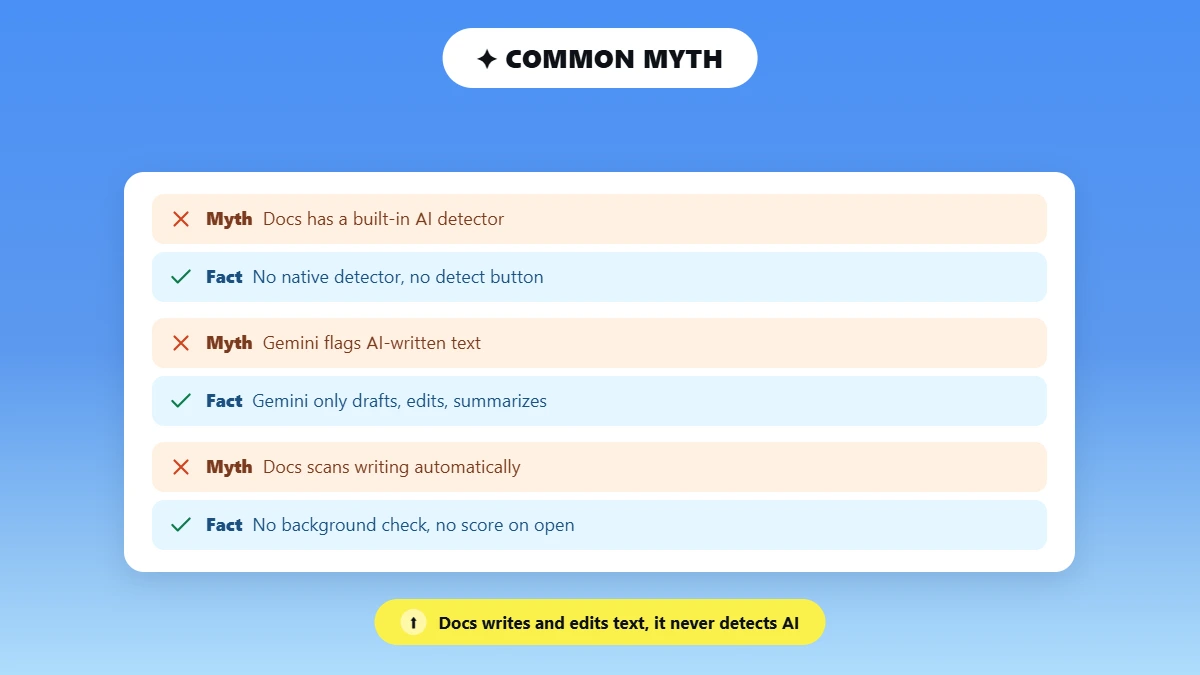
No. Google Docs has no native AI-text detector, and nothing in its menus scores your writing as human or AI-written. There is no standard “AI detect” button anywhere in the interface, and no setting that switches one on.
Gemini in Google Docs is a writing tool. Google's help page for Gemini in Docs describes it drafting, rephrasing, shortening, elaborating, and summarizing on request. Every one of those actions produces new text, and none of them decides who wrote text that is already on the page.
Docs also never scans your writing for AI on its own. No background check runs while you type, and no score appears when you open a file.
Google's own help pages cover three things:
Creating text with Gemini
Tracking edits in version history
And labeling media with Content Credentials
None of them describes a tool that reads finished writing and decides who produced it. Google Search treats AI pages as a separate matter, so whether Google can detect AI content on the web is a different question from what Docs does inside one file.
What if you see an “AI Detector” button in Docs?
That button came from software installed on your own account. A Chrome extension or a Workspace add-on can place its own panel inside the Docs interface.
Check two places to find it:
🧩 In Docs, open Extensions, then Add-ons, then Manage add-ons.
🌐 In your browser, open the extensions list and review what is enabled.
The AI detector add-on on Google Workspace Marketplace comes from an outside developer. A Marketplace listing on a google.com domain still belongs to whoever built it.
⚠️ Check who built it. A panel inside Google Docs can belong to any developer who published an add-on. The Docs interface only hosts the panel, and Google had no hand in building the tool behind it.
What Google Docs Can and Cannot Check
Google Docs can record edits, generate text with Gemini, and support Classroom originality checks. No feature in that list grades prose as AI-written.
Feature | Native to Google? | What it shows | Classifies text as AI? |
|---|---|---|---|
Gemini in Docs | ✅ Yes (eligible accounts) | Generates, edits, summarizes, answers prompts | ❌ No |
Version history | ✅ Yes | Who edited, when, and what changed | ❌ No |
Originality Reports | ✅ Education and Classroom feature | Matching or uncited text against source collections | ❌ No |
Content Credentials | ✅ Yes, supported media only | Provenance of supported images, video, audio | ❌ Not for text |
Gemini Workspace logs | ✅ Admin feature (eligible editions) | Gemini usage events: action, app, user, time | ❌ No verdict |
Third-party detector or add-on | ❌ No | The provider's AI-writing probability | ⚠️ Yes, probabilistic |
What do Google's 2026 AI content labels cover?
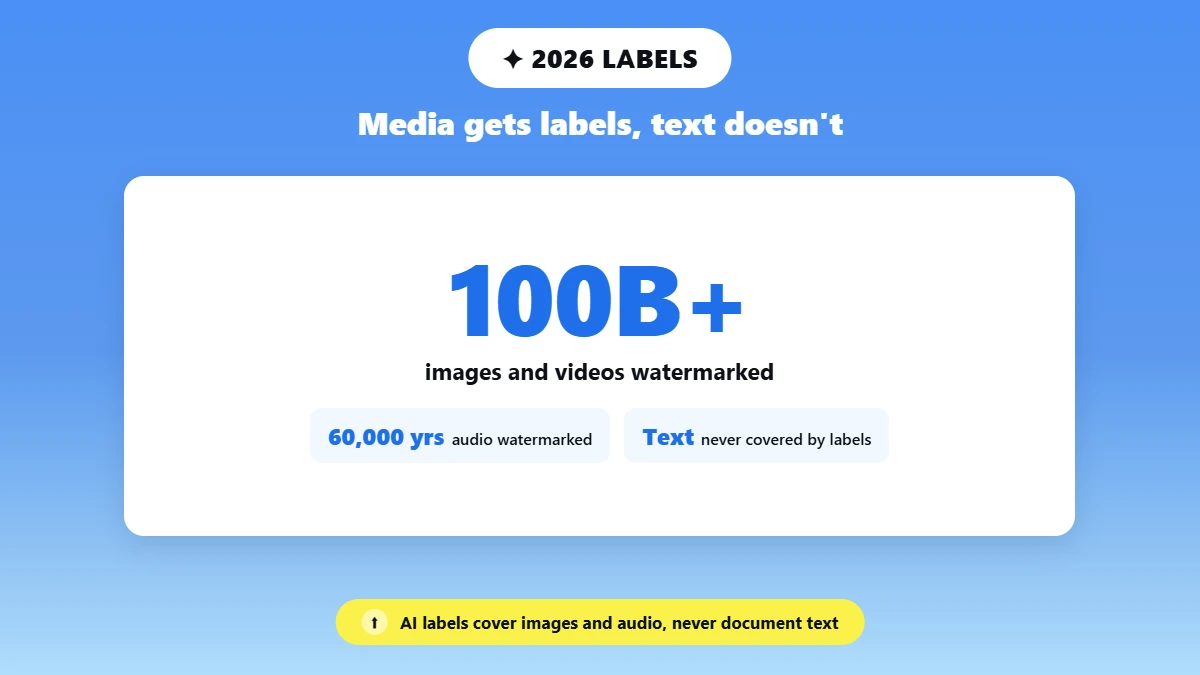
Google's 2026 AI labels cover media files only. Its Content Credentials for AI-generated media verify images, video, and audio through the Gemini app, and the words inside a document fall outside that system entirely.
📊 Google's own number. SynthID watermarking now covers “over 100 billion images and videos and 60,000 years of audio,” per Google's May 2026 announcement. Those labels travel with media files, never with document prose.
Can teachers or collaborators see your Gemini prompts?
No. Google's Workspace privacy hub states that your Gemini conversations are visible only to you, and that collaborators in shared files cannot see your prompts or Gemini's responses.
School administrators see more than collaborators do. Eligible Workspace admins can review Gemini usage log events, which record the action taken, the app, the user's email address, and the timestamp.
Access to those logs depends on the Workspace edition and on the admin's own privileges. Even then, a log entry shows only that a Gemini action happened at a certain time. It never says the text in your document was written by AI.
Originality Reports Are Not AI Detection
Google Originality Reports check source overlap and missing citations, and they make no judgment about whether a person or a model wrote the words.
The feature belongs to Google Classroom and Assignments, not to base Google Docs. Classroom keeps its own settings and its own limits, so what AI detector Google Classroom uses is a separate question from anything in Docs.
Reports compare Google Docs, Google Slides, and Microsoft Word files against web pages and books. Google for Education describes the check as hundreds of billions of web pages and over 40 million books.
Teachers switch the check on per assignment, either when they create it or after work comes in. Students get 3 runs of their own before they turn work in. On Workspace for Education Fundamentals accounts, a teacher can enable reports on 5 assignments per class.
💡 A newly generated paragraph may have no matching source, so “original” does not mean “human-written.”
A plagiarism check in Google Docs answers where the text came from. AI detection answers a different question entirely, because it estimates how the text was produced.
How to Check a Google Doc for AI Writing
Copy the text into a separate AI detector. Google Docs runs no check of its own, so the words have to leave the document to get scored.
Three methods work, and they differ mainly in how much access you hand over to the tool.
Method 1: Copy the text into Phrasly AI Detector (recommended)
Copy and paste is the safest route, because no tool touches your Drive.
📄 Open the Doc and select a meaningful sample, not a single sentence.
📋 Copy the selection.
🔍 Open the Phrasly AI Detector and paste at least 30 words.
▶️ Run the check.
👀 Review the overall result and any highlighted passages.
🧠 Treat the score as a prompt for review, never as a verdict.
Phrasly's AI Detector is free to use, and the first three checks run without an account. A free account unlocks unlimited checks after that, and sentence-level highlighting requires you to be signed in.
How much text should you paste?
Paste at least 30 words, and paste more than that whenever the document gives you the room. Short samples leave a detector less to work with, so scores swing harder on a few lines than they do on a full draft.
Method 2: Download the Doc and upload the file
Download the document first, then upload the file. In Docs, open File, then Download, then Microsoft Word (.docx).
Check the accepted formats on the detector's page first, because formats vary by tool. The paste route and the file route both appear in how to scan any text for AI.
Method 3: Install a third-party add-on or extension
An add-on scans inside Docs, and it asks for access to do that. The Marketplace AI detector listing requests permission to view and manage the documents it is installed in, plus specific Drive files.
What should you check before installing an add-on?
👤 Developer identity. Who built it, and do they publish a real site?
🔐 Requested access. Which documents and Drive files can it read?
🗄️ Storage and training policy. Does your text get stored or used to train a model?
🧾 Account requirement. Does a scan need a login?
📉 Scan limits. How many checks, and at what text length?
Method | Setup | Access it needs | Best for |
|---|---|---|---|
Copy and paste | None | ✅ Nothing beyond the text you paste | A quick check before submitting |
File upload | Download the .docx first | ✅ Only the file you upload | Long or formatted drafts |
Add-on or extension | Install and approve permissions | ⚠️ Document and Drive access | Repeat checks inside Docs |
Curious what your own draft scores? Paste it below. 👇
Can Teachers Tell If You Used ChatGPT in Google Docs?
Not from Google Docs alone. Nothing in Docs labels a passage as ChatGPT output, and nothing records which app a piece of text arrived from.
Version history records edits and when they happened, and what Google Docs version history actually shows covers who can open it. It stores no clipboard source, no “ChatGPT” label, and no keystroke log. Google's own help page notes that some changes might not show up in the edit history.
A large block appearing at once can prompt a question from a teacher. That same block can equally be a student's own draft, written offline or in another app and pasted in once it was finished.
Teachers can add their own tools on top of what Docs provides. A third-party detector or a writing-process extension gives them a score or an editing pattern, and both point to something worth checking rather than something settled.
📊 AI use is common enough that one unusual edit proves little. Gallup's 2026 study with Lumina Foundation found 57% of US college students use AI in their coursework at least weekly.
How Reliable Is AI Detection for Google Docs Text?
Reliability depends entirely on the detector you run, because Google plays no part in the score. Text copied out of Docs carries no Google verdict with it, so the tool you paste it into decides everything about the result.
Six things move a detector's result:
🛠️ The detector you use. Two tools can score the same paragraph differently.
🎚️ Its confidence threshold. The cut-off a tool uses decides how much writing gets flagged.
📏 The length of the text. A few lines and a full draft can score differently.
🌐 The language it is written in. Results differ between languages.
🤖 The model that produced it. Different models leave different patterns.
✏️ How much a human edited afterward. Editing changes the patterns a detector looks for.
📊 Independent benchmark, 2025. A University of Chicago working paper by Brian Jabarian and Alex Imas tested four detectors. A false positive means human writing marked as AI. The free open-source tool they tested, RoBERTa, produced them in roughly 30% to 78% of cases, depending on the test. Pangram was the only tool to hold that rate at or below 0.5% and still catch AI text.
Those numbers come from that study's samples, and they are not a promise for your own document. Different text and different settings move the score, which is why AI detector accuracy varies so widely between tools.
No universal safe number exists either, so what counts as an acceptable AI detection score depends on the tool and the policy you are being judged against.
What to Do If Human Writing Is Flagged
Recheck the full document first, then collect the work that shows how you wrote it. AI detector false positives are the reason a single flag settles nothing on its own.
🔁 Rescan the whole draft. Isolated sentences score differently from a complete document.
📁 Keep your process files. Notes, outlines, sources, and earlier drafts all help.
❓ Ask for specifics. Which detector, which version, and which threshold produced the score?
📜 Read the policy. Gallup found 42% of students say their school discourages AI use, and 11% say it is banned outright.
🗣️ Explain your work. Walk through your argument and your sources in your own words.
🙋 Request human review when a score is being treated as conclusive.
Version history helps here as supporting process evidence, and it works best alongside your drafts, your notes, and a conversation rather than on its own. A rewrite aimed only at moving a score usually costs you the parts a teacher wanted to see.
Google Docs records what happens to a document, and it never grades who wrote the words.
✍️ Gemini creates and edits text.
🕓 Version history records changes.
🔎 Originality Reports find matching sources.
🖼️ Content Credentials cover supported media.
🤖 Third-party tools analyze text and return a probability.
That split decides what you can act on. A score points you to passages worth a second look, and your drafts, notes, and sources answer the question a score cannot.
🔍 Run the finished draft through a detector, and keep your notes and earlier versions. 👇
Frequently Asked Questions
1. Does Google Docs have AI detection?
No. Docs ships no AI-text detector of its own. Its Gemini tools write and edit, version history logs changes, Originality Reports match sources for education accounts, and Content Credentials label supported media, but none of those features grades prose as human or AI-written.
2. Can Google Docs detect ChatGPT text?
No. Docs has no feature that flags text as coming from ChatGPT. A separate detector can still analyze pasted AI text and return a probability score, and that score points to a pattern in the writing without naming the tool that produced it.
3. Why is there an “AI detector” button in my Google Doc?
It came from an installed Chrome extension or Workspace add-on, because base Docs carries no such button. Look through your Docs add-on list and your browser extensions, then read each developer name before you trust the score one of them shows you.
4. Does Google Docs version history show copy and paste?
It logs each edit with a timestamp, per Google's page on finding what has changed in a file. The record carries no clipboard trail and no keystroke log. A pasted block and a draft imported from another app look identical there, so it works as process evidence only.
5. Do Google Originality Reports detect AI?
No. They compare submissions against web pages and books to find matching or uncited text, so the check covers source overlap alone. A newly generated paragraph can show zero matches and still be AI-written.
6. Can teachers see Gemini prompts in Google Docs?
Ordinary collaborators cannot see them. Google keeps a user's Gemini side-panel history private to that user, even inside a shared file. Workspace administrators on eligible editions can pull usage logs, and those logs show that a Gemini action ran without saying anything about who wrote the document.
7. Can I add an AI detector or AI checker to Google Docs?
Yes, through an add-on or a browser extension built by an outside company, since Google Docs only hosts the panel it appears in. Read its access requests, its storage and training policy, its account requirement, and its scan limits before you install it.
8. Can AI-generated text still be detected after it is pasted into Docs?
Yes. A paste into Docs does not strip AI-writing patterns, so a detector run on the copied text still returns a probability. The length of the sample, the language it is written in, and any editing done afterward all move that result. The steps for scanning text for free work the same whether you paste the words or upload the file.

Written by
Alina Shah
SEO Content Specialist · Karachi, Pakistan
She writes about AI so you don't have to guess. 8+ years in content strategy and editing. Now she puts AI writing tools and detection systems through real tests and shares what actually works.