Copy-Paste Typer: How to Paste Text So It Types Like a Human
13 min read
Moving a finished draft into Google Docs usually takes one Ctrl+V (Cmd+V on a Mac), but some writers want the text to appear the way typing looks, one letter at a time.
To paste text as human typing, you load your finished text into an auto typer extension, click where the text should start, choose a speed and press Start. Phrasly Human Auto Typer, a free Chrome extension, typed our test passage into Google Docs, Google Slides and Gmail. A copy-paste typer changes how text enters the page, not who wrote it, so you still check what lands on the page.
The steps below come from test runs we recorded in October 2026, and they take you from setup to a checked result.
Paste your text once, and Phrasly types it into your editor at the pace you set.
What Is a Copy-Paste Typer?
A copy-paste typer is a browser extension or desktop app that takes text you already have and types it into a field one character at a time, at a speed you set. The final words match your source, and only the way they arrive changes. Chrome extensions that type what you paste are easy to find, and Phrasly Human Auto Typer is the one this guide uses.
Method | How text arrives | 500 words takes | Best for |
|---|---|---|---|
📋 Ctrl+V paste | The whole block at once | Instant | Quick transfers where gradual entry adds nothing |
⌨️ Copy-paste typer | One character at a time, with optional pauses and corrections | About 7 minutes at Phrasly's Average speed (estimate from our test rate) | Moving your own draft gradually, demos, less repetitive typing |
✍️ Typing it yourself | Your own keystrokes | Your own pace | Composing and revising as you go |
Two other tools often get confused with a copy-paste typer. Some multi-account browsers offer a right-click "paste as human" option built for account sign-up forms, and text expanders insert saved snippets when you type a shortcut. The auto typer extension for Google Docs guide compares these tools in full.
When Should You Paste Text as Human Typing?
Paste text as human typing when you move text you're allowed to use into a browser editor. It works best when gradual entry helps the job, such as moving your own draft or recording a demo. Skip it when rules require you to write in place, when the text is sensitive, or when a normal paste works just as well.
✅ Good fits:
Your own draft moves from a notes app or desktop editor into Google Docs or a CMS draft.
You record a tutorial or product demo, and viewers need to watch the text appear.
You want to cut long, repetitive typing out of your day.
🚫 Skip it when:
Your school, employer or a platform requires you to compose in place, as in exams, job applications and timed writing.
The text is sensitive, such as passwords or client and medical data.
A plain paste gives you the same result in less time.
What Do You Need Before You Start?
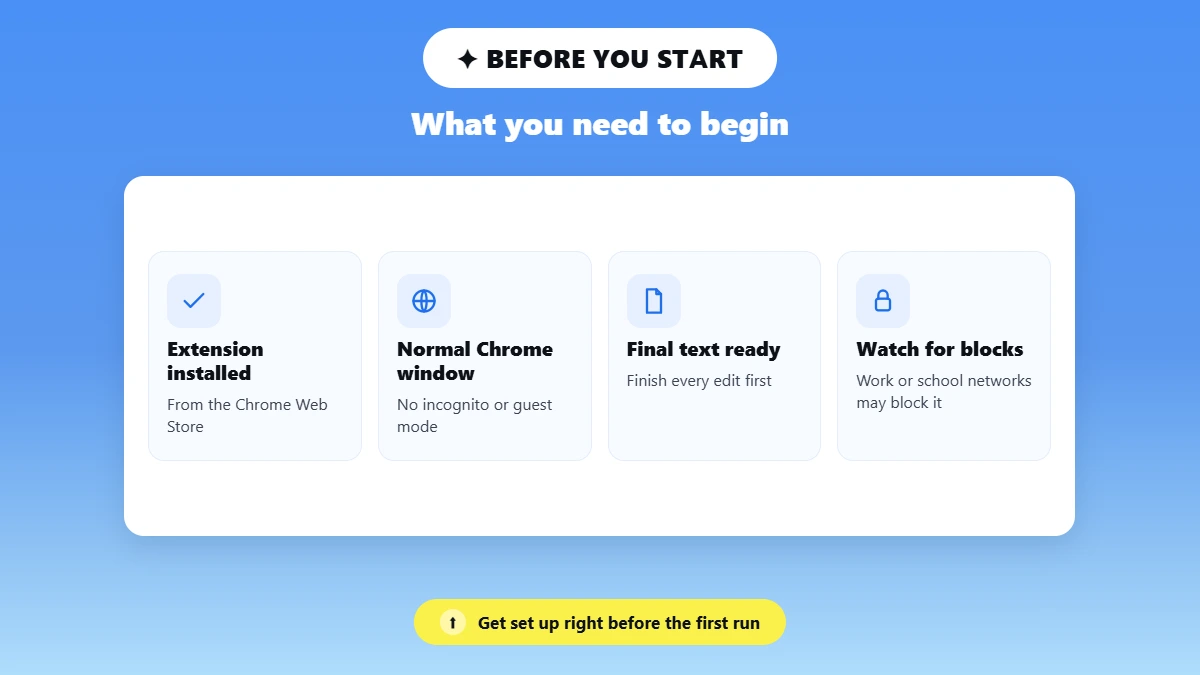
You need desktop Chrome with the extension installed from its official Chrome Web Store listing, plus the final version of your text. Finish every edit first, because a change after the run means typing that section again.
📋 Pre-run checklist:
Desktop Chrome in a normal window. Google's Chrome Web Store Help says you can't add extensions in Incognito mode or as a guest, and a work or school computer may block some extensions.
The official listing. The Phrasly Human Auto Typer listing names PHRASLY LLC as the publisher and showed version 1.0.1, updated in June 2026, which matched the version we installed in October 2026.
Site access. Chrome lets you set an extension to work when you click it, on specific sites or on all sites, under More → Extensions → Manage extensions → Details.
Finished text. Edit in your drafting tool first. How to use AI to edit a document covers editing in Word, Docs and PDFs, and AI document editor vs Google Docs helps if you're still choosing where to draft.
Plain text only. The extension's Text Input box takes plain text. When we pasted a bold phrase into it, the bold dropped, so apply headings, bold and links after the run.
A saved copy of your source, so you can compare the output after the run.
How to Paste Text as Human Typing With Phrasly (Step by Step)
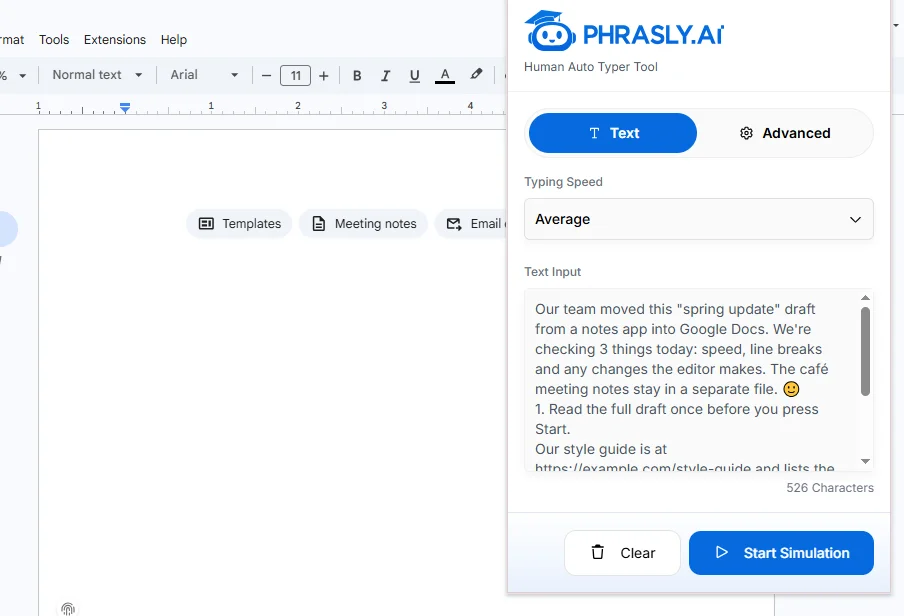
To paste text as human typing with Phrasly, install Phrasly Human Auto Typer, place your cursor in the destination, load your text into the panel, choose your settings and click Start Simulation. Keep the tab open and untouched during the run, then compare the output with your saved source.
Step 1: Install and Pin the Extension
Open the Chrome Web Store listing, click Add to Chrome and approve the prompt. Then open Chrome's Extensions menu and click Pin, so the Phrasly panel opens from the toolbar in one click. In our test, the extension worked while we were signed out of Phrasly.
Step 2: Open the Destination and Place Your Cursor
Open your Google Doc, Google Slides text box or web form, and click the exact spot where typing should begin. In Google Slides, click inside the text box first, and pick a large box, because our passage overflowed the default title box.
Step 3: Paste Your Text Into the Extension Panel
Click the Phrasly icon and paste your text into the Text Input box, not into the document. A counter under the box shows the character count, which helps when you check the output later.
Step 4: Choose Typing Speed and Advanced Settings
Pick Slow, Average or Fast from the Typing Speed menu on the Text tab, then open the Advanced tab for the pause and typo controls explained under Which Settings Make Typing Look Natural?. For a first run, set Error Rate to 0, so any difference in the output comes from the editor and not from simulated typos.
Step 5: Click Start Simulation and Keep the Tab in View
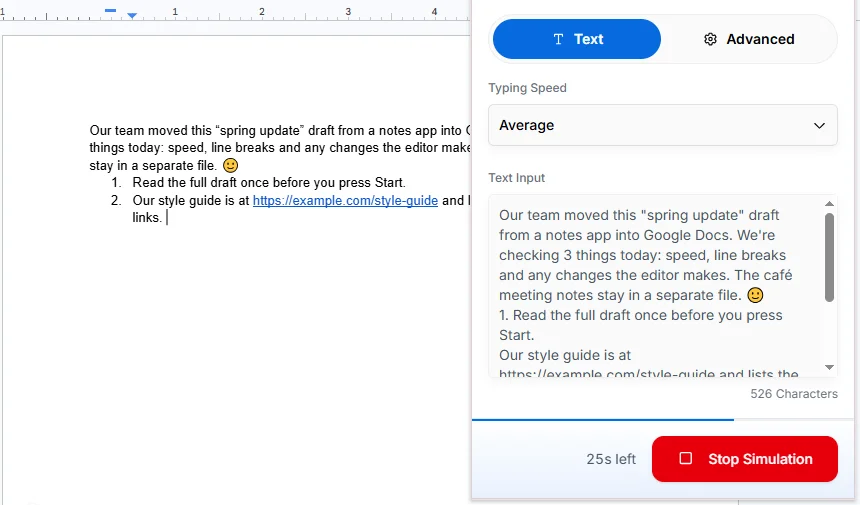
Click Start Simulation and wait for the run to finish before you touch the page. During our runs, the button turned into a red Stop Simulation button with a countdown of the seconds left.
⚠️ Tab switching slows the run: When we switched to another tab mid-run, typing almost stopped and only started again after we came back. Don't click or scroll inside the document during the run either.
Step 6: Check the Result Against Your Source
Compare the typed text with your saved copy before you share or submit anything. These characters change most often:
🔤 Straight quotes and apostrophes
🔢 List numbers such as "1. "
🔗 URLs and links
🌍 Accented letters and emoji
🔚 The final line of the passage
How Do You Compare Text in Google Docs?
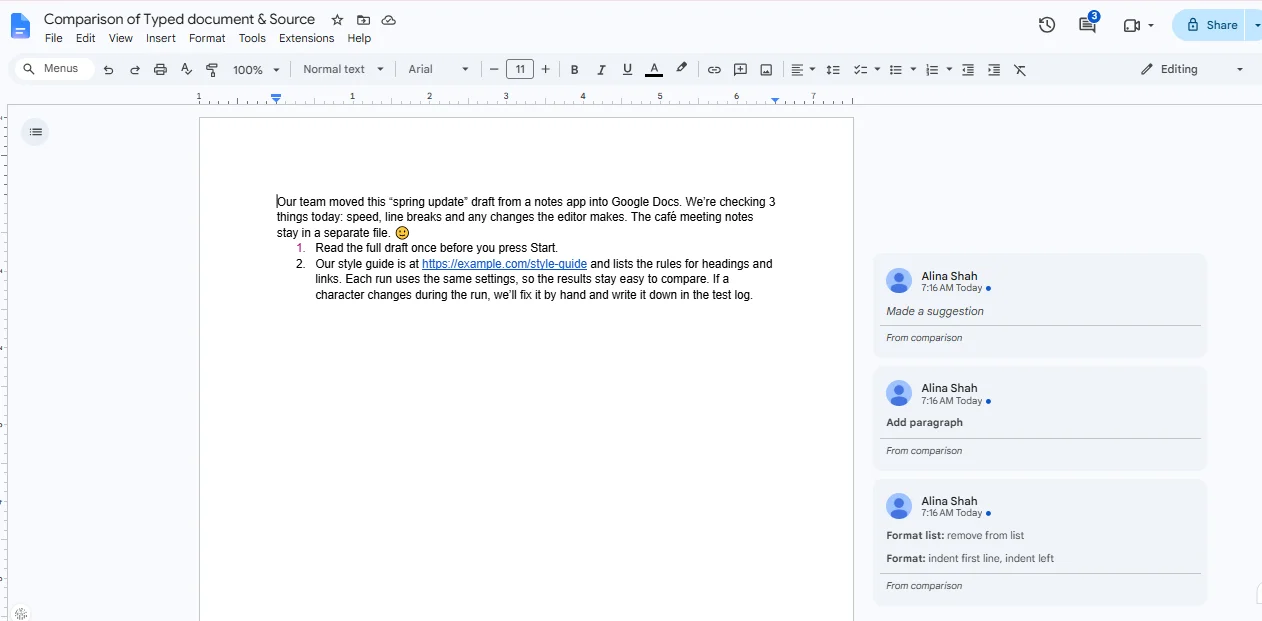
Google Docs can compare two files for you. Paste your source into a second Doc, open the typed Doc and choose Tools → Compare documents. Docs then creates a new document that shows every difference as a suggested edit.
In our test, Compare documents caught the list changes but missed the curly quotes, because Docs also curled the quotes in the source copy when we pasted it. Check quotes by eye.
How Do You Check a Plain Web Field?
A character count gives a quick check when a field has no compare tool. Paste the source and then the typed output into Phrasly's free Word, Sentence & Character Counter, and a different count means a character went missing or doubled somewhere.
⌨️ Settings picked? Run a 100-word test with Phrasly Human Auto Typer for Google Docs and Slides before you move a full draft. 👇
Which Settings Make Typing Look Natural?
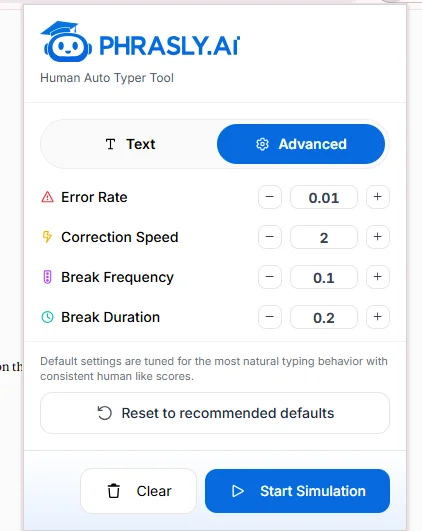
Typing speed, breaks and the error rate shape how natural a run looks. Speed sets the base pace, breaks add pauses of a set frequency and length, and the error rate adds typos that the tool then fixes at your chosen correction speed. None of these settings changes the words that end up on the page.
Phrasly doesn't publish how its timing logic works, and the panel shows the values without units, so the table describes what each control does rather than exact timings.
Setting | What it changes | Range in our test (default) | First-run suggestion |
|---|---|---|---|
Typing Speed | Base pace of entry | Slow, Average or Fast | Average |
Error Rate | How often a typo appears before it's fixed | 0 to 0.05 (0.01) | 0 |
Correction Speed | How fast a typo gets fixed | 0 to 2 (2) | Default |
Break Frequency | How often typing pauses | 0 to 0.1 (0.1) | Default |
Break Duration | How long each pause lasts | 0 to 1 (0.2) | Default |
Reset to recommended defaults | Restores the default values | Not applicable | Use after experimenting |
💡 Tip: Change one setting at a time on a short passage, so you see what each control does before a full run.
How Long Does It Take to Auto Type Your Text?
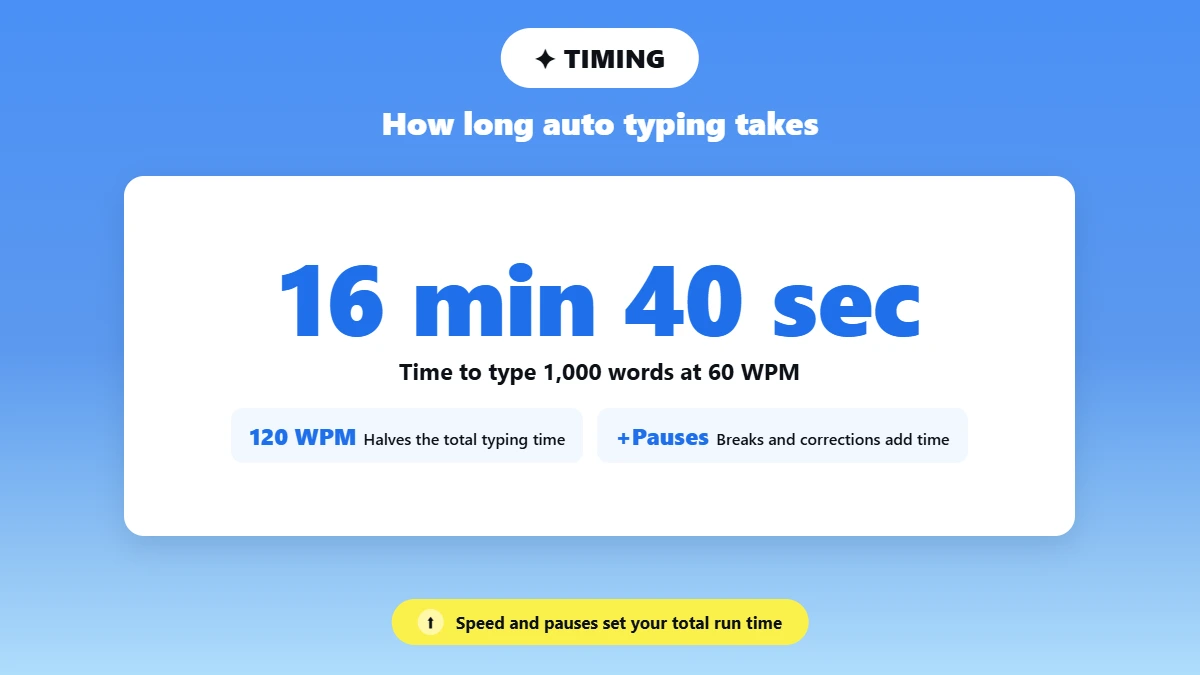
Divide your word count by the words-per-minute (WPM) rate to get a baseline, then add time for breaks and corrections. At 60 WPM, 1,000 words take about 16 minutes 40 seconds before pauses, and doubling the speed to 120 WPM halves that time.
Phrasly's panel shows Slow, Average and Fast instead of a WPM number, so a timed test run is the only way to learn your real rate. Our 94-word passage at Average took 1 minute 20 seconds in Google Docs with the default breaks on, which works out to about 70 WPM.
Words | At 40 WPM | At 60 WPM | At 120 WPM |
|---|---|---|---|
250 | 6 min 15 s | 4 min 10 s | 2 min 5 s |
500 | 12 min 30 s | 8 min 20 s | 4 min 10 s |
1,000 | 25 min | 16 min 40 s | 8 min 20 s |
1,500 | 37 min 30 s | 25 min | 12 min 30 s |
⏱️ Arithmetic baseline only. Breaks and corrections add time. In our test, 94 words at Average took 1 min 20 s in Google Docs, 1 min 31 s in Google Slides and 1 min 16 s in Gmail.
💡 Tip: Split a long draft into sections and run one section at a time. If focus slips partway, you only redo that section.
Where Does It Work, and Does Formatting Survive?
Phrasly advertises Google Docs, Google Slides, online essay portals, text forms and most web-based text editors. Our passage came through in Docs, Slides and a Gmail message, but the extension never started in a Google Forms answer box. The typer enters plain characters only, and Google Docs autocorrect can still change them by curling quotes, starting lists and turning URLs into links.
🧪 How we ran the test
Test date: October 2026
Setup: Chrome 155.0.8059.39 on Windows 10, Phrasly Human Auto Typer 1.0.1, signed out of Phrasly
Passage: one original 94-word passage with straight quotes, apostrophes, a line starting with "1. ", a URL, a number, an accented word and an emoji
Settings: Average speed, Error Rate 0, other controls at their defaults
Retries: the Google Form failed again after a page reload, so we ran the same passage in a Gmail draft as a second web field
Destination | Phrasly says | Our test result | Watch for |
|---|---|---|---|
Google Docs (default Preferences) | ✅ Named on the product page | ✅ Typed in 1 min 20 s. Docs curled the quotes and apostrophes, linked the URL, and turned "1. " into an automatic list that pulled the next paragraph in as item 2. | Smart quotes, automatic lists, link detection |
Google Slides text box | ✅ Named on the product page | ✅ Typed in 1 min 31 s. Slides made the same automatic list and link, the text overflowed the title box, and an empty "3." appeared at the end. | Box size, automatic lists, line breaks |
Google Forms answer box | ✅ Text forms named on the product page | ❌ Didn't start. The panel kept asking us to click a text field, even after a reload with site access set to all sites. | Fields the extension can't detect |
Gmail message box | ✅ Listing names most web text fields and editors | ✅ Typed in 1 min 16 s. Output matched the source exactly, with straight quotes, no list and a plain-text URL. | The editor's own spelling suggestions |
To stop Google Docs from changing typed text, open Tools → Preferences before the run. The General tab in our test listed Use smart quotes, Automatically detect links and Automatically detect lists, each with its own checkbox. Google's autocorrect help explains that the Substitutions tab lets you uncheck single replacements or turn off all automatic substitution at once.
Why Is My Copy-Paste Typer Not Working?
Most copy-paste typer failures come from focus or access. The cursor isn't in an editable field, the extension lacks access to that site, or a click moved the cursor mid-run. Stop the run, fix the cause and retry with a short passage before you send the full text again.
Work down the checks in order, and rows marked 🧪 show what we saw in our test.
Symptom | Check first | Fix |
|---|---|---|
❌ Nothing types | No editable field selected; the tab was open before you installed the extension; no site access | Click into the field, reload the tab, then allow the extension on that site in Details |
🧪 Panel says "Click a text field on the page to start typing" | The extension doesn't recognize the field, as happened in our Google Forms test | Reload the page and click the field again; if Start Simulation still doesn't show, type into a different editor |
📍 Text lands in the wrong place | You clicked or scrolled to another spot, or another field had focus | Click Stop Simulation, undo with Ctrl+Z, place the cursor again and restart |
🧪 Typing stops partway | The tab lost focus; in our test, typing almost stopped while another tab was open | Keep the tab visible and rerun only the missing section |
🧪 Output doesn't match the source | Docs autocorrect, automatic lists or smart quotes; error simulation left on | Turn off those options in Docs Preferences, turn error simulation off and compare the documents |
🧪 Text repeats from the start | You clicked Start Simulation again after a stop; in our test, a restart typed the passage from the top | Delete the partial text first, or remove the already-typed part from the Text Input box before you restart |
🔒 Can't install | An Incognito or guest window, or a managed work or school browser | Use a normal window or ask your administrator |
🚧 The site blocks paste | The site's own rules | The extension types rather than pastes, but check that the site permits automated entry first |
🛠️ Field fixed? Run a short passage through the Phrasly Human Auto Typer paste typer extension, then send the full draft. 👇
Does Pasting as Human Typing Change AI Detection or Prove You Wrote It?
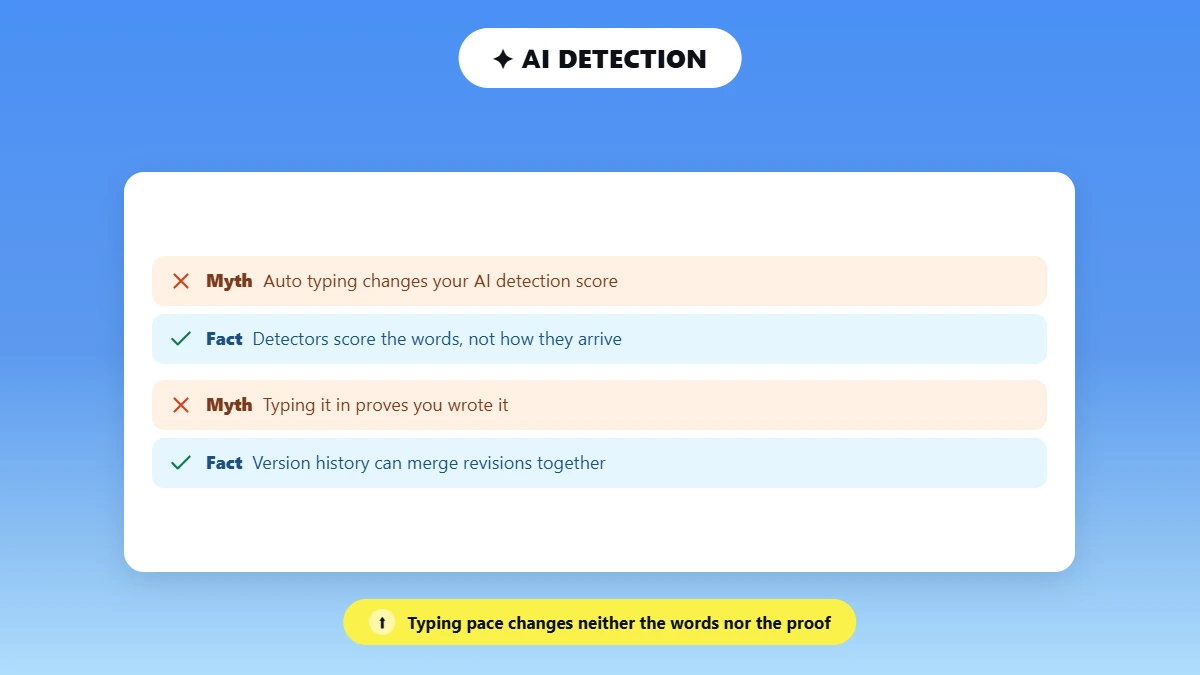
An auto typer doesn't change an AI detection score, because detectors score the words and the typer leaves them as they were. It doesn't prove authorship either. Google Docs version history records how a document changed, and some schools add separate tools that replay the writing process.
Google's version history help also says the revisions for a file may occasionally be merged, so you can't count on history to show each typed character as its own version.
🎓 Can a teacher tell? It depends on the tools your school uses, and what Google Docs version history shows breaks down what a teacher can see in a shared Doc.
🔍 Does Docs flag AI text? Google Docs has no built-in AI text detector, as does Google Docs have AI detection explains.
📝 Flagged writing: If your own essay gets flagged, why your essay is detected as AI explains the common causes.
To see how the words themselves score, check them with Phrasly's free AI Detector, since the result stays the same before and after a run. Use auto typing only where your school's or employer's rules allow it.
Start with a 100-word passage in the editor you plan to use, check it against your source, and move the full draft only after that check passes. A short test shows how fast your settings type and what that editor changes in your text.
Frequently Asked Questions
Can Chrome paste text letter by letter without an extension?
Chrome has no built-in setting that pastes text letter by letter. A normal paste inserts all the text in one step, so you need an extension or a desktop app to type pasted text gradually.
Can I use Phrasly Human Auto Typer on my phone?
Phrasly Human Auto Typer is a desktop Chrome extension. On a phone, Google's help says the Chrome Web Store's Add to Desktop option sends an extension to Chrome on your computer, and the extension doesn't work in mobile Chrome.
Is Phrasly Human Auto Typer free?
Phrasly Human Auto Typer is free to add from the Chrome Web Store, and it ran in our October 2026 test without a Phrasly login. Phrasly subscribers get it at no additional cost.
Can I pause and resume a run?
The panel had Start and Stop only in our test, with no pause button, and pressing Start again began from the first word. Run long text in sections, so a stop costs you only one section.
Does it work outside Google Docs?
Phrasly also advertises essay portals, forms and other web editors. Our test runs worked in Google Slides and Gmail, while the Google Forms run never began. If you're moving away from Docs, Google Docs alternatives compares 12 other editors.
How should I check my text before auto typing it?
Finish your edits, run a spell-check and read the text once from start to finish. If AI detection matters to you, how to scan text for AI walks through a free scan, and auto typing won't change that result.

Written by
Alina Shah
SEO Content Specialist · Karachi, Pakistan
She writes about AI so you don't have to guess. 8+ years in content strategy and editing. Now she puts AI writing tools and detection systems through real tests and shares what actually works.