What Google Docs Version History Shows Your Teacher (And What It Doesn't)
12 min read
Teachers can open Google Docs version history only if they have edit access, usually through Google Classroom or a shared editable link.
It shows who changed the document, when, and what changed. It does not label pasted text, name its source, or prove ChatGPT was used. Revisions are grouped, so it is not a keystroke log.
What Is Google Docs Version History? (And How to Open It)
Google Docs version history keeps a record of how a document changes over time. It groups saved changes into revisions, showing who changed the document, roughly when, and what it looked like at different points.
New text appears in a different color, while deleted text is shown with strikethrough.
To open it on a computer, go to File → Version history → See version history. You can also use Ctrl + Alt + Shift + H on Windows or Command + Option + Shift + H on Mac.
How to See Version History in Google Docs (Steps)
Open the Google Doc on your computer.
Click File in the top menu.
Select Version history.
Click See version history to open the revision panel.
Select a date or revision to see what changed.
The full Version History panel is available on Google Docs on the web and desktop, not in the same form on Android or iOS. Edits made on mobile can still become part of the version history after they are saved and synced.
Can Teachers See Your Google Docs Version History?
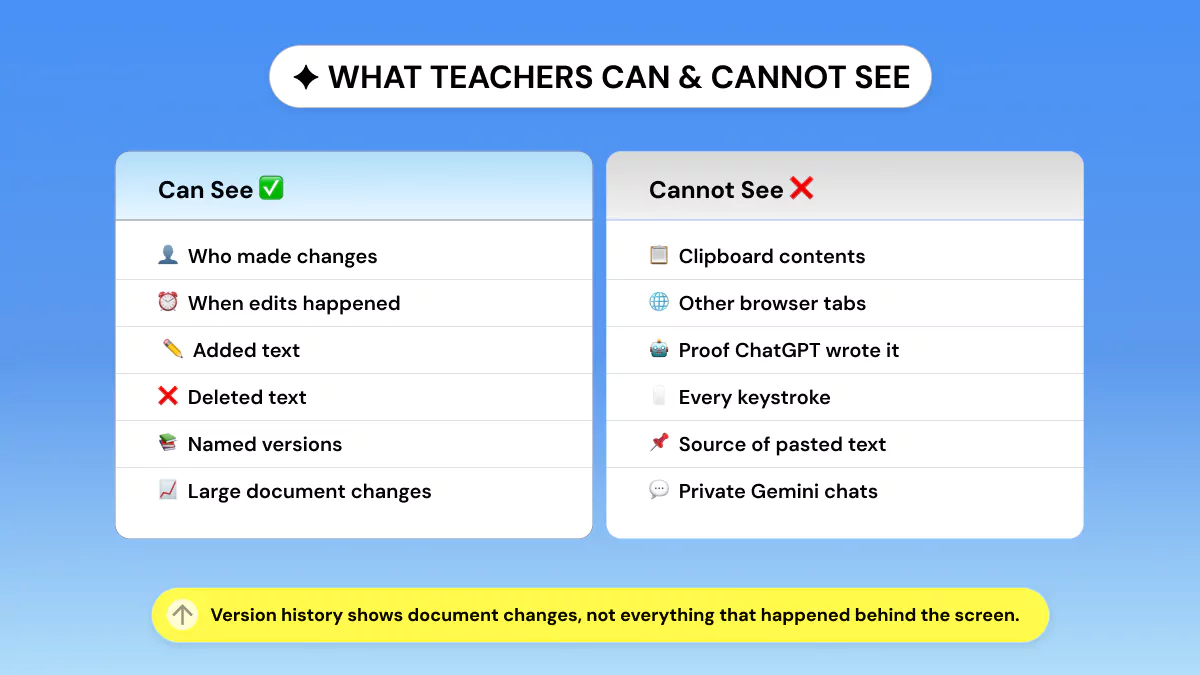
Yes, if they have edit access. A teacher you shared an editable copy with, or who received your file through Google Classroom, can open version history exactly as you can. Viewers and commenters cannot. If your school uses managed Google Workspace, administrators can have additional visibility.
The same permission rule applies to professors and other collaborators with edit access.
What Your Teacher Can and Can't See: Comparison Table
A Teacher With Edit Access Can See | Version History Does Not Directly Show |
|---|---|
Who made each change | Your clipboard, screen, or other tabs |
Roughly when changes happened | A labeled “paste” event or where text came from |
What text was added or removed | Proof that ChatGPT, Claude, or Gemini wrote anything |
Large additions between retained versions | Every keystroke |
Named versions you saved | Your private Gemini side-panel prompts |
Does Your Teacher Automatically Have Access to Version History?
No. Teachers do not automatically get access to Google Docs version history. It depends on the sharing permission you give them.
Viewer vs Commenter vs Editor
Permission Type | Can Open Version History? | Typical Case |
|---|---|---|
Viewer | No | Read-only link |
Commenter | No | Peer review, feedback |
Editor | Yes | Collaborators, shared editable link |
Classroom Teacher | Usually Yes | Classroom grants the access needed to work with the assignment |
What Changes If You Share a Link vs Submit Through Classroom?
A view-only link keeps version history private, while an editable link lets the teacher open it. When you submit through Google Classroom, the teacher generally receives the access needed to view the document's history.
Can Teachers See Copy and Paste in Google Docs?
Native Google Docs Version History does not show a dedicated “pasted” label or tell your teacher where inserted text came from. A large insertion can still be visible in the document history, and third-party teacher tools such as Revision History or Brisk can analyze writing activity and flag copy or paste actions.
What a Large Paste Looks Like in Version History
A document written gradually may show a sequence of smaller edits across different sessions. By contrast, a document that was mostly empty and then suddenly contains thousands of words may show one large revision.
This difference can draw attention, especially if a large change happens close to the submission deadline.
Pasting Is Not Proof of Anything by Itself
A large paste does not automatically mean that a student copied someone else’s work or used AI. Students may paste their own drafts, research notes, quotations, or text written in another document.
Can Teachers See If You Used ChatGPT or AI in Google Docs?
No, not directly. Version history has no label saying text was written by ChatGPT, Claude, or Gemini. It records how the document was edited. A teacher may read an unusual pattern (like a single huge insertion) as a reason to ask questions, but the history itself does not prove AI authorship.
For example, if 2,000 words suddenly appear in a document at once, a teacher may notice that change in the version history. But that does not mean ChatGPT wrote those words.
The text could have been pasted from a Word document, notes, a previous draft, or another source.
If a teacher wants to make an AI-use judgment, they would need to use a separate AI detector or consider other evidence.
Even tools or teacher extensions that flag unusual editing patterns do not make those patterns proof of AI use. For the broader question, see our guide on can professors detect ChatGPT.
If you are worried that your own writing could be mistaken for AI-generated text, you can check how it scores before submitting it.
Can Teachers See Deleted Text or Every Keystroke?
Teachers can sometimes see deleted text in retained versions of a Google Doc, especially in named versions that were saved. They cannot see every keystroke or a second-by-second timeline of everything you typed and deleted. Google Docs groups revisions and may merge changes together, while offline edits can sync back to the document later.
Named versions can stay separate from merged revisions, with Google Docs allowing up to 40 named versions per document.
Can Teachers See How Long You Spent on a Google Doc?
Teachers can see the timestamps of revisions in Google Docs, but they cannot see a stopwatch or an exact minute-by-minute record of how long you worked. They may see that you made changes at certain times, but they cannot tell exactly how much time you spent on the document.
Third-party extensions can provide more detailed writing-time data, such as minutes spent or session counts. Those features do not come from Google Docs itself. We cover these extensions later in this guide.
What Can Teachers See Through Google Classroom?
In Google Classroom, teachers can view your progress while you work, because the assignment file is shared with them. After you turn it in, you lose edit access until the teacher returns it, so only they can edit during that window. Once returned, you can edit again, and new edits appear in version history.
Before you submit, teachers can also comment on and edit the file.
What Happens After Your Teacher Returns the Assignment
Any changes you make are recorded in Version History, including edits made after you receive a grade. Those later changes can stand out because they appear after the original submission and grading activity.
Can Teachers See Your Gemini Prompts in Google Docs? (2026)
No, not simply because they can edit your document. Google states that Gemini side-panel conversations are private to you: other collaborators cannot see your prompts or Gemini's responses, even in a shared file. A school Workspace administrator with the right privileges is a separate matter and may have access to Gemini interaction and activity metadata.
Google’s Gemini in Google Docs privacy guidance also explains how Gemini handles data in Docs.
The School Workspace Admin Exception
School administrators are separate from classroom teachers. An authorized Workspace admin can control Gemini conversation-history settings and data retention for the school’s account. Admin access depends on the school’s Workspace edition, settings, and privileges. A classroom teacher cannot turn on these admin-level controls from Google Classroom.
Version History vs Activity Dashboard vs School Admin Logs
Google Feature | What It Answers |
Version History | Who changed the doc, when versions changed, and what changed. Needs edit access. |
Activity Dashboard | Who viewed the file and when. Needs edit access and the same domain; privacy settings can hide it. |
Drive audit / log events | Admin records of org users' Drive activity. Needs admin privileges; does not log everything. |
Gemini Workspace logs | Admin-level data about users' Gemini interactions in Workspace apps. |
Third-party writing extension | May add replay, paste detection, writing-time analytics, and pattern flags beyond native history. |
Teacher Extensions Can Show More Than Google Docs Alone
Third-party extensions can give teachers more information than Google Docs alone. The Revision History Chrome extension can show a writing timeline, editing sessions, time spent, video replay, large paste and deletion highlights, copy-paste detection, and Google Classroom integration. Brisk’s Inspect Writing can also replay how a document was built.
These tools can show unusual writing patterns, but those patterns do not prove that a student used ChatGPT or another specific tool. A large paste can have an innocent explanation, so it should not be treated as proof of AI use.
Can You Delete Google Docs Version History?
Yes, if you own the file, on supported plans. Google now lets file owners permanently delete unnamed version history: either all unnamed versions, or a selected version plus older unnamed versions. This is limited to certain Google Workspace editions, so many personal and basic school accounts will not see the option. Deletion is permanent, and named versions are handled separately.
Google provides “Delete history” and “Delete this and older versions,” followed by “Delete forever.” Named versions are handled separately.
Google says version-history deletion is permanent and cannot be undone. If you are working in a school-managed Classroom file, you may also not be the file owner or have the required permissions to manage its history.
Deleting history can work both for and against you. Removing it also removes a record that could otherwise help show how your work developed if it were falsely questioned for AI use or plagiarism. So deletion should not be presented as a way to hide AI use or beat detection.
The Old Workaround (Copy to a New Doc) and Why It Backfires for a Graded Paper
Copying your content into a new Google Doc starts a fresh version history and leaves the original document's history behind. If the new history begins on the night of a deadline, it may raise questions rather than settle them.
Use this only as a fallback when the native delete option is unavailable, not as a recommended trick.
Is Version History Proof That You Did (or Didn't) Use AI?
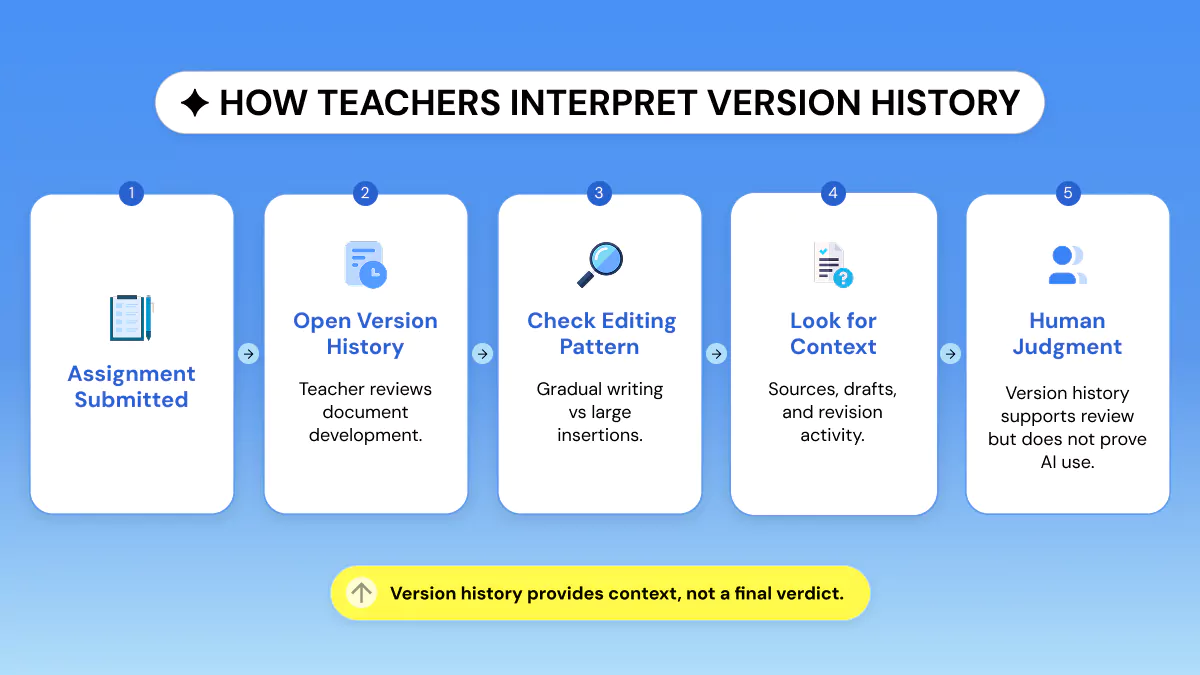
Version history is contextual evidence of how a document developed, not proof that you did or did not use AI. A messy, gradual history with multiple revisions can support your explanation that you wrote the paper, while a single large paste does not prove that you cheated or copied from ChatGPT.
How Version History Can Help If You Are Wrongly Flagged
Google Docs version history can be useful supporting evidence of how a paper developed over time, especially when combined with outlines, research notes, drafts, citations, dated files, and your ability to explain the work.
Still, it is corroborating evidence, not proof. Revisions can be merged, and owners on some plans can delete unnamed history. AI detectors can also produce false positives, so a flag is not automatically proof of AI use. See our Turnitin flags human writing as AI for more on this issue.
To keep useful evidence, write in the document when possible, name important versions such as First Draft, After Peer Review, and Final, and keep your notes and outlines in dated files. Do not delete a messy history that you may need later.
If you draft somewhere else, such as Word or Notion, or rewrite an AI-assisted draft in your own voice before moving it into Google Docs, the pasted text can appear as one large insertion. That pattern may draw questions even when the work is yours.
Phrasly's Human Auto Typer enters existing text into Google Docs character by character instead of inserting it as one bulk paste. This changes how the text-entry pattern appears in the document history, but it does not prove who originally wrote the text.
How to Document Your Writing Process (So You Are Protected)
Version history is stronger evidence when your document shows a natural writing process. These steps help you build that record:
Draft inside Google Docs when you can. Writing directly in the document creates a gradual history of revisions, which supports your explanation that the work is yours far better than a single large paste.
Name your key versions. Save checkpoints like First Draft, Reviewed Draft, and Final Draft so the history shows clear stages instead of merged revisions. Google Docs lets you keep up to 40 named versions per document.
Keep supporting files dated. Store your outlines and reading notes in separate, dated files so you have corroborating evidence alongside the doc itself.
Avoid one bulk paste if you drafted elsewhere. If you wrote in Word, Notion, or another tool, bring the text in by typing rather than pasting thousands of words at once, since a large insertion can draw questions even when the work is yours.
Run a free AI detector before submitting. Checking your own writing first tells you whether it might be falsely flagged, so you can address it early rather than after grading.
Revise AI-assisted material in your own voice. If you used AI while drafting, review and rewrite it so it reflects how you actually write. Our guide on humanize AI text explains how to revise AI-assisted writing so it sounds more like your natural style.
Do not delete a messy history you might need. A gradual, imperfect record is useful proof of your process, so keep it in case your work is ever wrongly questioned.
Follow your school's policy and disclose AI assistance when asked.
FAQs
Can Teachers See Version History on Google Docs?
Yes, teachers can see version history if they have Editor access to the Google Doc. Viewer or Commenter access does not let them open it. If you submit through Google Classroom or share an editable file, your teacher can view its history when they have the required access.
Can Teachers See Edit History on Word?
Word can track changes and version history, especially for files saved in OneDrive or SharePoint or submitted through an LMS. What a teacher can see depends on how the file is shared and stored. For other options, see our Google Docs alternatives.
Can Commenters See Version History in Google Docs?
No, commenters cannot see Google Docs version history. Only users with Editor access can open it. If you want to keep version history private from someone, share the document with Viewer or Commenter access instead of Editor.
Does Submitting a PDF Include Google Docs Version History?
No, a PDF cannot carry or contain your Google Docs version history. It is a flat snapshot of the document at the time you export it. If a teacher wants to see how your work developed, they need access to the live Google Doc
Can Teachers See Google Docs Version History After Submission?
In Google Classroom, once you turn in a Doc you lose edit access until it is returned, and the teacher can view and edit it in that window. Version history stays intact and viewable to anyone with edit access.
How Far Back Does Google Docs Version History Go?
Google does not publish a simple fixed number of days. Docs may group or merge revisions over time, while named versions can be used to preserve important checkpoints from merging. On supported Workspace editions, file owners can also permanently delete unnamed version history.
Does Google Docs Show Grammarly or QuillBot Use?
Not by name. Google Docs version history does not normally identify Grammarly or QuillBot. Their changes appear as ordinary document edits rather than a native label naming the writing tool.

Written by
Hasnain
Karachi, Pakistan
I help businesses grow with SEO-friendly blog posts, landing pages, and long-form content. With 3+ years of experience, I deliver clear, original, and well-researched writing that drives results.