
How to Check for Plagiarism in Google Docs (Step-by-Step)
Checking for plagiarism in Google Docs takes less than two minutes, once you know which method to use. Here's the complete step-by-step breakdown.
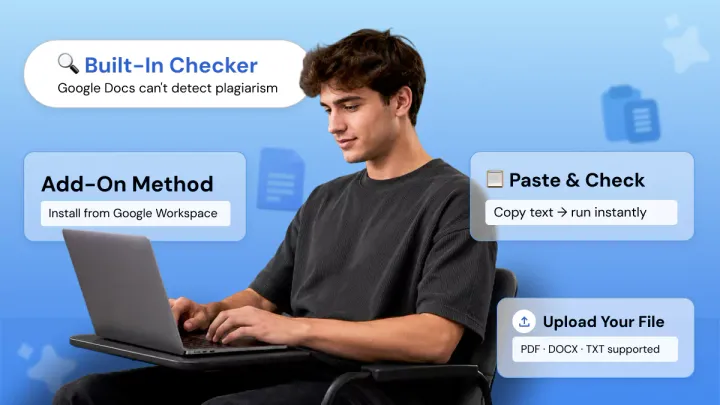
Google Docs is where most of us write but it doesn’t come with a built-in plagiarism checker. So how to check for plagiarism in Google Docs?
There’s more than one way! Here are all your options for running a document plagiarism check quickly and easily, without ever leaving Google Docs.
Whether you are a student worried about plagiarism, a blogger looking for duplicate content, or a businessperson who wants to make sure your content is original before you publish, this article will show you every option.
Check Your Document for Plagiarism 👇
Does Google Docs Have a Built-In Plagiarism Checker?
Google Docs doesn't have a built-in plagiarism checker specifically for Google Docs. This is one of the most commonly asked questions about the platform.
The platform's 'Explore' and 'Citations' tools are meant for research and citation purposes, not text originality checker features or identifying sources.
Simply pasting plagiarized text into Google Docs won’t trigger a warning, highlight text, or produce a plagiarism percentage score.
Google Docs functions as a word processor meant to aid your writing, not to scrutinize it. If you want to run a Google docs plagiarism check, you need a third-party tool and these three options cover all of them.
How to Check for Plagiarism in Google Docs?
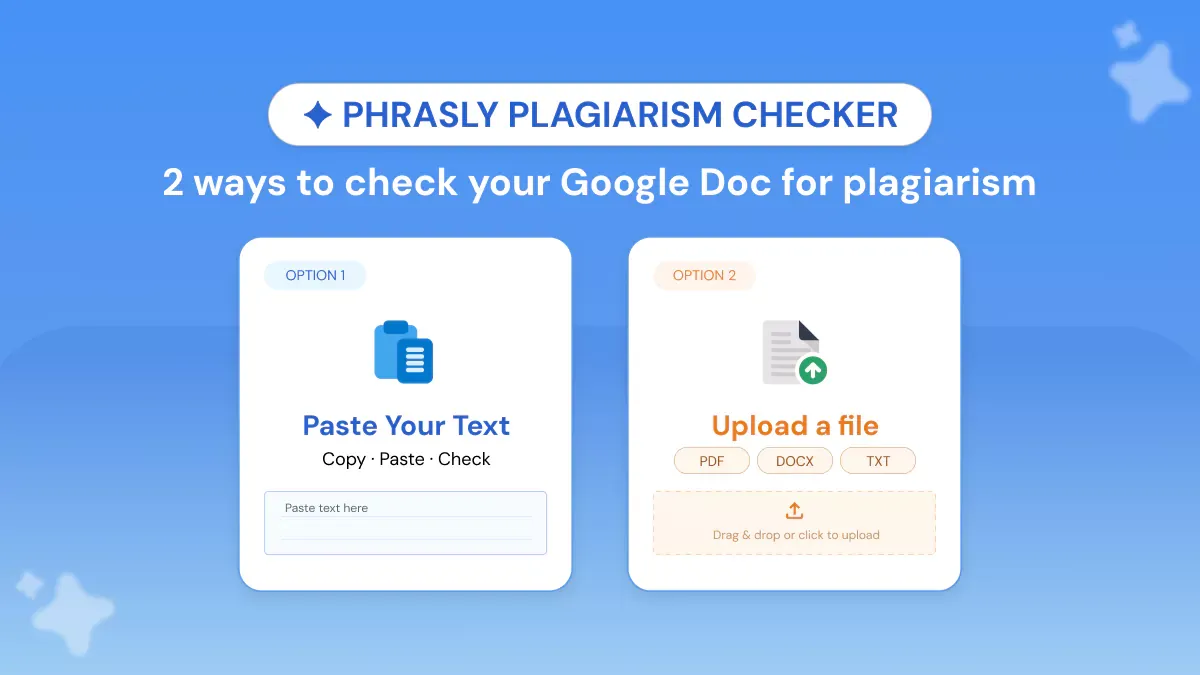
You can run a plagiarism checker on Google Docs in three ways:
- by using a Google Workspace add-on
- by pasting your text into an online plagiarism checker or
- by downloading your file and uploading it.
Method 1: Using a Google Docs Add-On (Extension)
A Google Docs add-on is an add-on you install once through Google Docs' Extensions menu. It lives in your toolbar for future use. Use this if you plan on performing checks often and want to remain within Google Docs.
How to Install a Plagiarism Checker Add-On?
Follow these steps to add a google docs add-on plagiarism tool to your workspace:
- Open your Google Doc and click Extensions in the top menu bar.
- Select Add-ons 🡪 Get add-ons. The Google Workspace add-on marketplace will open.
- Search for a plagiarism checker (e.g. PlagiarismCheck.org) and click Install.
- Grant the required permissions and wait for the installation to complete.
- Once installed, go to Extensions 🡪 PlagiarismCheck.org 🡪 Start. Log in and run your check.
It appears as a sidebar in your Google Docs document showing you a similarity score, matches highlighted within your document and links to the sources of potential matches. No need to switch tabs.
Pricing at a glance:
Pros & Cons of Using a Google Docs Add-On:
Method 2: Paste Your Text into an Online Plagiarism Checker
This is the fastest method. No installation, no account (on some tools), and results in seconds.
When looking for a google docs plagiarism check free tool, start here. This is also the most common method used when searching for a plagiarism checker for students in need of a fast response before turning something in.
How it works: press Ctrl+A (or Cmd+A on Mac) inside your Google Doc to select all text, then Ctrl+C to copy. Open your chosen plagiarism checker in a new tab and paste the text directly into the input box.
The Best Online Plagiarism Checkers for This Method
Several tools accept pasted text directly, but they vary significantly in what they offer:
Quetext handles basic plagiarism detection but caps free users at 500 words and has no AI detection or file upload support.
Duplichecker and SmallSEOTools are decent for quick spot-checks, but both limit free scans to around 1,000 words and lack AI detection entirely.
Phrasly stands out as the strongest option for this method. Unlike the others, it delivers a real-time similarity percentage, highlighted matched excerpts, and full source links. All without requiring an extension or a Google Docs connection.
It works in any browser, on any device. What makes it especially valuable in 2026 is that it combines plagiarism detection and AI content detection in a single scan, so you get a complete picture of your document's originality in one go.
For anyone regularly checking longer documents, Phrasly also supports direct file uploads (PDF, DOCX, TXT), which removes the need to copy and paste entirely.
Comparison of Online Plagiarism Checkers (Paste Method):
Of these options above, Phrasly is the only one offering both plagiarism checker and AI detector capabilities while supporting file uploads making it the most robust option overall if you plan to check frequently.
Phrasly also has no word limit on its plagiarism checker for unlimited plans, removing one of the biggest pain points for students and writers with longer papers.
Pros & Cons of Pasting Text into an Online Checker:
Method 3: Download Your Google Doc and Upload as a File
The majority of online plagiarism checkers only allow you to paste text.
Phrasly is among the rare tools that allow you to upload files in plagiarism checker: PDF, DOCX, TXT so if you have a longer document, uploading is far more convenient than copying and pasting.
Follow these steps:
- Open your Google Doc and click File 🡪 Download.
- Choose your format: PDF, DOCX, or TXT (all supported by Phrasly).
- Go to Phrasly's plagiarism checker and click Upload File.
- Select your downloaded file and click Run Check.
- Review the full similarity report: flagged matches, source matching links, and your plagiarism percentage score.
This can be particularly helpful if you're working with a final draft, long essay or research paper that would take a while to copy and paste in its entirety.
It even supports the growing need for uploading documents to check plagiarism capability: avoiding the annoying word-limit of the majority of free tools.
Pros & Cons of the File Upload Method:
Quick Comparison: Which Method Should You Use?
Why Running a Plagiarism Check Matters (Even for Original Writers)?
Original content writers should use a text originality checker too.
It's easier than you think to accidentally plagiarize something whether it's a paraphrased paragraph, an omitted citation or a common phrase can increase your similarity score and damage your reputation.
Students and scholars face academic integrity policies like never before.
Institutions are now using Turnitin-type tools that detect custom paraphrased content, not just cut-n-paste.
Give yourself time to clean up flagged content by running a check before you turn in.
Duplicate content detection is an SEO concern for bloggers and content marketers as well. Sites are penalized by search engines for hosting pages that replicate existing content, even if done unintentionally.
Running a check before publishing your work can protect your rankings.
Google Docs does not detect AI writing which makes external checking even more important.
If you’re checking your own writing or want to scan AI plagiarism checker 2026-generated text for plagiarism prior to submitting it, you’ll need to use a third-party tool. Luckily, there are tools that combine a plagiarism checker and AI detector.
Phrasly is one of them.
FAQs
Does Google Docs have a built-in plagiarism checker?
No! Google Docs doesn't have a built-in plagiarism checker for Google Docs. The Google Docs tools built into the Docs (Explore, Citations) are designed to help you with research. They don't detect duplicate content. You'll need to use a third-party tool.
What is the best plagiarism checker for Google Docs?
That depends on your needs. If you value in-Docs convenience, then go with a google docs add-on plagiarism checker such as PlagiarismCheck.org.
If you value no-install speed and all-in-one AI plagiarism checker 2026 capabilities, then Phrasly is our top pick. It detects plagiarism and AI in one go.
Is there a free plagiarism checker that works with Google Docs?
Yes! A few free tools accept text pasted directly from Google Docs: Duplichecker and SmallSEOTools (both have word limits).
If you're looking for a non-extension plagiarism checker that also has a pay-per-scan plan, consider Phrasly's $5/scan option that gets you a full report without paying for a monthly plan. This is Google docs plagiarism check free-adjacent option.
Can teachers see plagiarism in Google Docs?
Not natively! Google Docs won't flag anything for plagiarism to anyone (teacher or student). If your school has an LMS connected to Turnitin (Canvas, Blackboard, etc.) work may be turned in there directly to be checked separately.
How do I check an essay for plagiarism in Google Docs?
The quickest way is to select all text in your Google Doc (Ctrl+A), copy it, and paste into Phrasly's plagiarism checker. For longer essays, download the file as DOCX or PDF and upload the file directly. Both give you a full similarity score with source citations.


Keep reading

Copyleaks Plagiarism Checker: Tested, Rated & Compared
Copyleaks Plagiarism Checker review: we tested verbatim, minor-change, and paraphrased content to see how its 3-layer detection performs. See pricing, AI-detection accuracy (77%-96%), free plan limits, and how it compares to Phrasly in a head-to-head scan before you subscribe.
Does Canvas Have a Plagiarism Checker? What It Uses, How It Works & What Students Should Do
Canvas has no built-in plagiarism checker. It relies on instructor-enabled tools like Turnitin or Copyleaks. Learn how scanning actually works, whether Canvas detects AI writing (ChatGPT, Claude, Gemini), and how to check your paper for plagiarism and AI content before you submit.