Plagiarism Checker for Microsoft Word: How to Check a DOCX File
15 min read
There are two practical ways to use a plagiarism checker for Microsoft Word documents. Microsoft Word for Microsoft 365 includes a built-in Similarity Checker under Home > Editor > Similarity, which compares your document with online sources and highlights matching passages. If Similarity is unavailable, you can upload your DOCX file to Phrasly's plagiarism checker and review the results there.
If your assignment, report, or other document is already saved in Word, you do not need to copy and paste each section into a separate checker. Word's Similarity Checker lets you review matching text directly in your document. The similarity percentage can help you identify passages that overlap with online sources, but it is not a final determination of plagiarism.
If you cannot find the Similarity option, or you want another way to review your document, Phrasly lets you upload your DOCX file or paste your text into its plagiarism checker. You can then review detected matches and their sources without rebuilding your document in another format.
Your Situation | Best Route |
Similarity appears inside Microsoft Editor and you want a quick online-source check | Microsoft Word Similarity Checker |
Similarity is missing, or you want to upload a DOCX and review similarity and AI-content results together | Phrasly |
Your school provides Turnitin Draft Coach | Turnitin Draft Coach |
Already have the DOCX file? Upload it to the Phrasly Plagiarism Checker and review the matched passages in seconds.
Check my document
Does Microsoft Word Have a Plagiarism Checker?
Yes, but Microsoft calls it Similarity Checker, not a plagiarism checker. It is available inside Microsoft Editor in Word for Microsoft 365 and compares your text with online sources. It returns a similarity percentage and distinct passages for review, but the result is not a final plagiarism verdict and the check does not run automatically.
The Similarity Checker shows where your document overlaps with text found online and can help you review those passages more closely. For flagged matches, Word can also help you insert a citation or copy citation details for your bibliography. However, a similarity match is evidence of textual overlap, not a plagiarism ruling. The checker does not automatically scan your document every time you open it.
Method 1. How to Check for Plagiarism in Microsoft Word
If you already have your assignment, report, or research paper open in a supported version of Word, you can check it for text similarity without moving the content into another tool. Microsoft calls this feature Similarity Checker, and it is available through Microsoft Editor in Word for Microsoft 365.
Step 1. Open the document in a supported version of Word
Open your document in Word for Microsoft 365 and make sure you are signed in to the Microsoft account connected to your subscription. The document should contain editable text that Word can review rather than a scanned image of text.
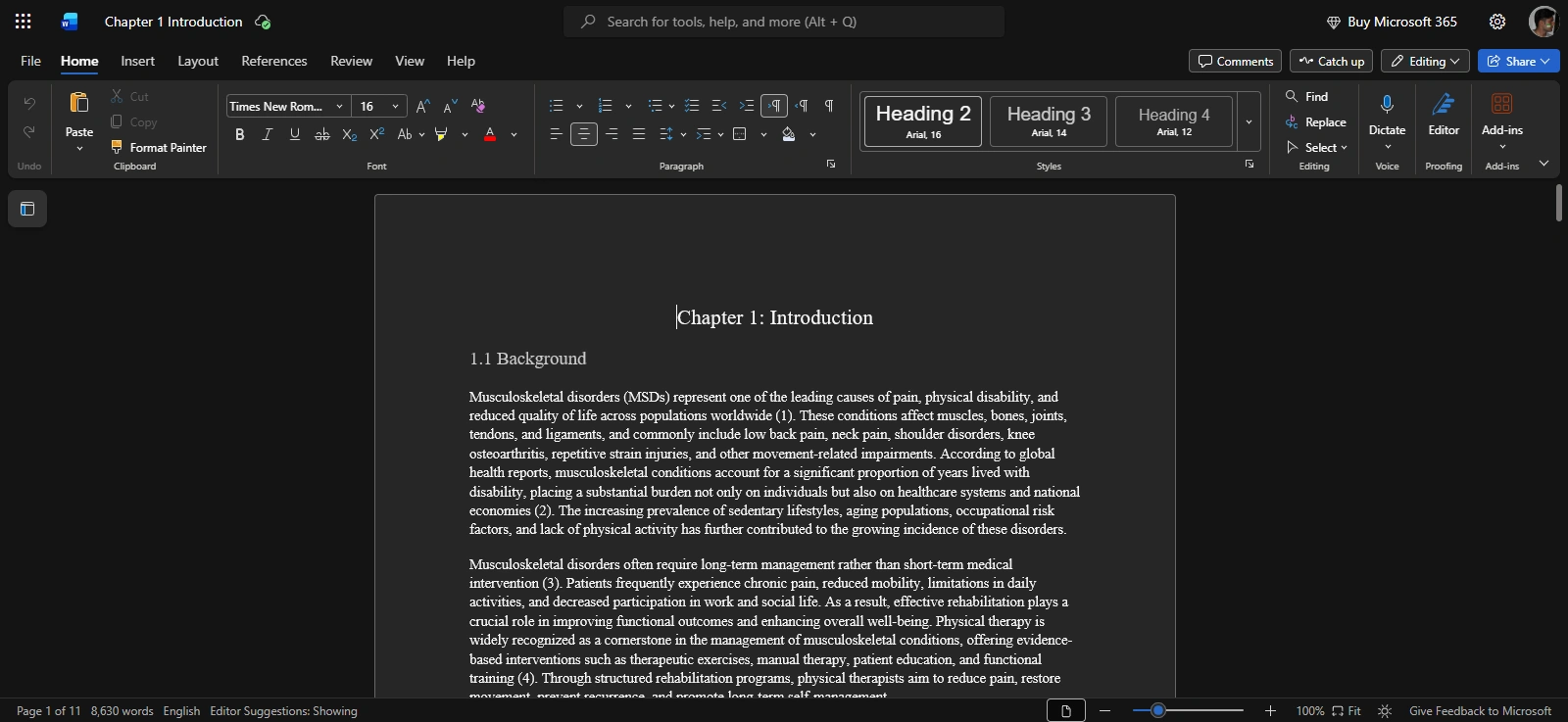
Step 2. Open Microsoft Editor
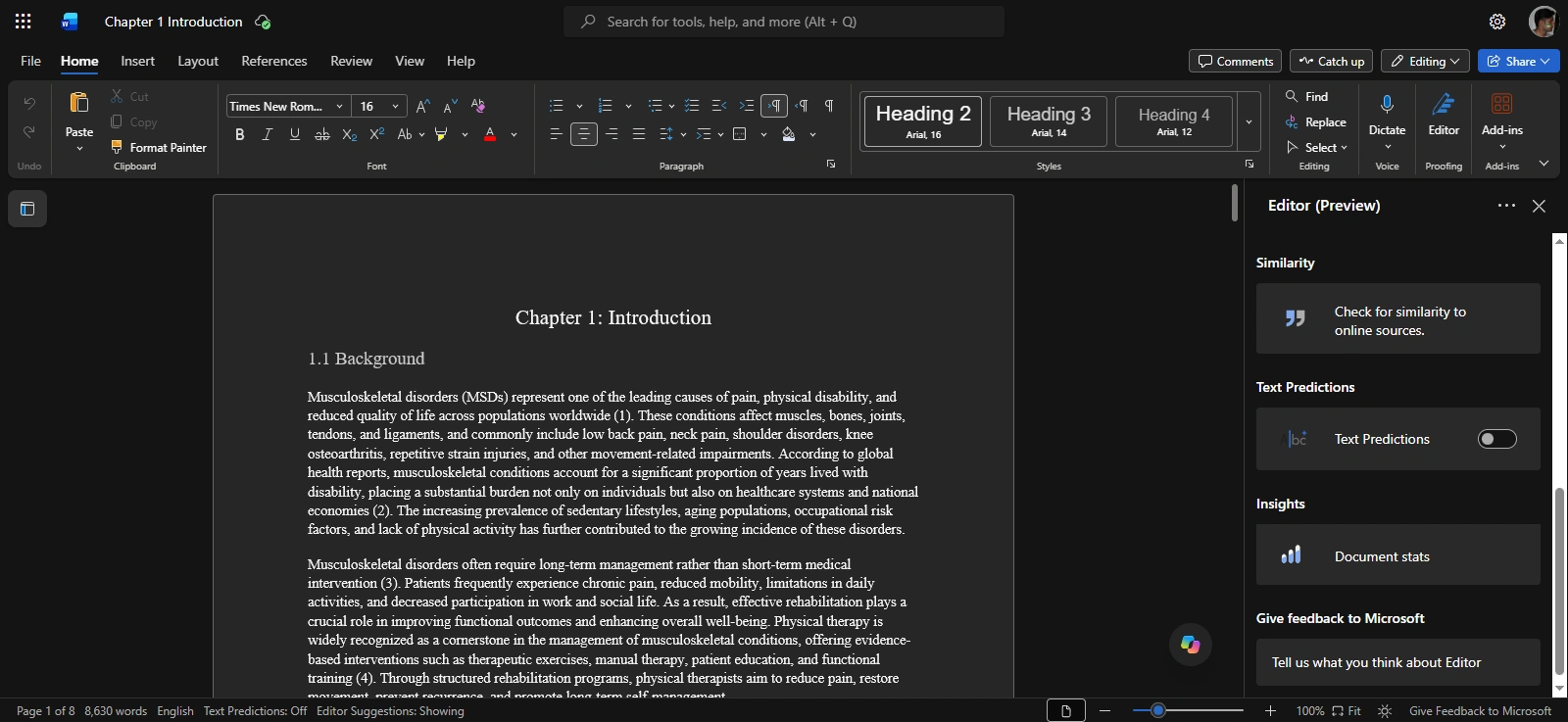
From the Home tab, select Editor. The Editor pane will open on the right side of the document. Scroll down to the Similarity section to find the similarity checking option.
Step 3. Run the Similarity Checker
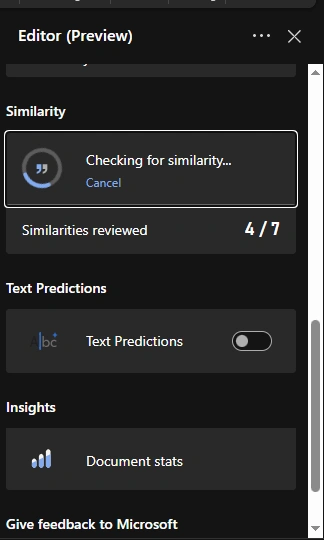
Under Similarity, select Check for similarity to online sources. Word will check your document against text it finds online. Microsoft's instructions explain this process in more detail.
Step 4. Review the percentage and passages
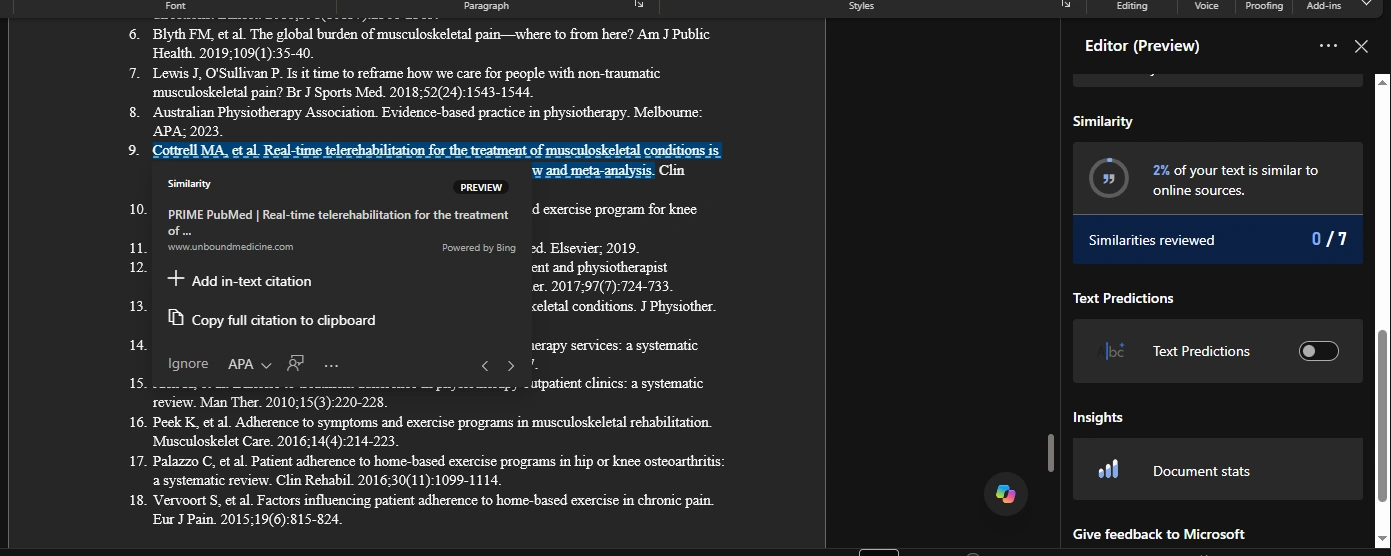
When the check is complete, Word shows the percentage of your text that matches online sources and the number of distinct passages available for review. Matching passages are marked in the document, and you can select a match to view information about the source.
Remember that a similarity percentage indicates textual overlap, not a final plagiarism verdict. A match can come from a quotation, common wording, a properly cited source, or other legitimate use of existing text.
Step 5. Cite, revise, or ignore each match
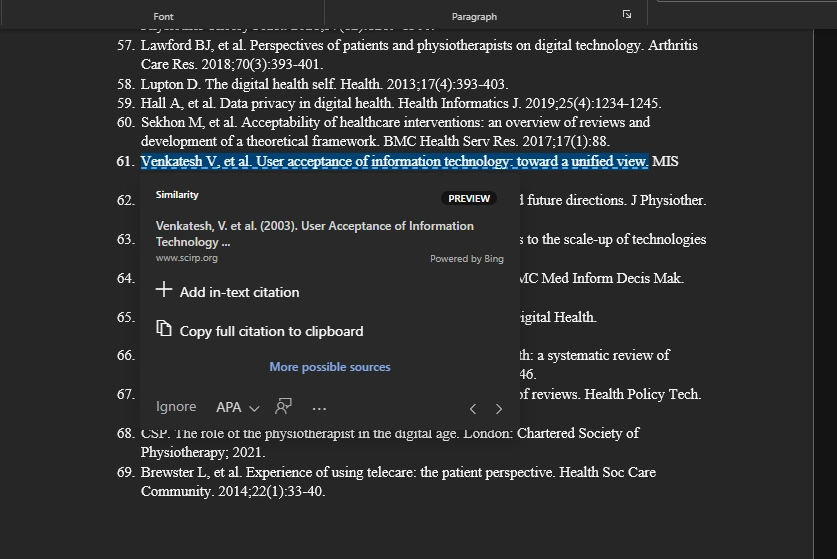
Review each matched passage and decide what action is appropriate. Word can help you insert an in-text citation, copy the full citation for a bibliography, open the original source, or ignore the match when a citation is not necessary.
If you use Word's citation suggestions, check the generated details before submitting your work. Make sure the source information and citation style match your institution's requirements.
Tip: Do not treat the similarity percentage as a target you need to reduce at any cost. Review why each passage was matched, cite sources where required, and rewrite your own work when the wording is too close to the source.
Why Is Similarity Checker Missing From Microsoft Word?
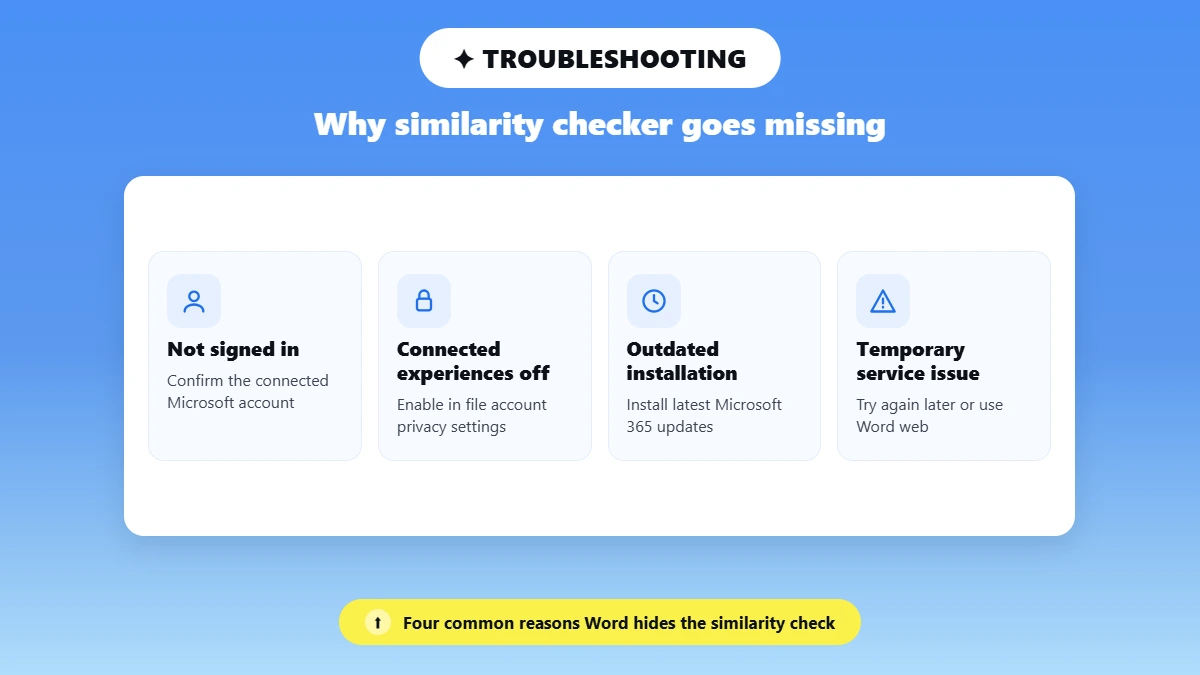
Similarity Checker is usually missing because your Word version is not Microsoft 365, you are not signed in, or connected experiences are turned off. Because the feature relies on cloud-connected services, school or company restrictions, an outdated installation, or a temporary service issue can also affect availability. If it remains unavailable, you can upload the DOCX to an external checker.
Possible Cause | What To Check |
Unsupported or perpetual Word version | Microsoft documents Similarity Checker for Word for Microsoft 365 and Word for Microsoft 365 for Mac. |
Not signed in | Confirm that Word is activated with the Microsoft account connected to your subscription. |
Connected experiences disabled | Go to File > Account > Account Privacy > Manage Settings and check your connected experiences settings. |
School or company restriction | Your school's or company's administrator may control whether connected experiences are available. |
Outdated Word installation | Install the latest Microsoft 365 updates, then restart Word and check again. |
Temporary service problem | Try again later or use Word for the web. You can also check Microsoft's current error information. |
Document or feature availability | Check Microsoft's current documentation if Similarity is unavailable for a specific document or setup. |
Still unavailable | Save the document as a DOCX file and use an external plagiarism checker. |
If Word's Similarity option is not available, save the file as .docx and upload it directly to Phrasly instead. For Google Docs, see our guide on how to check for plagiarism in Google Docs
Upload DOCX
Note: Microsoft marked its previous “Something went wrong” Similarity Checker issue as fixed in March 2024. If you encounter an error in 2026, do not assume it is related to that older incident. Current availability can depend on your account, settings, licensing, or Microsoft's services.
Method 2. Upload the Word Document to Phrasly
If Microsoft Word's Similarity Checker is unavailable, you can use a separate web-based plagiarism checker instead. Phrasly accepts DOCX files, so you can upload your Word document directly rather than copying and pasting it section by section. You can then review the similarity results and return to your original Word file to make any necessary changes.
Step 1. Save or Download the File as DOCX
First, make sure your Word document is saved as a .docx file. On desktop Word, go to File > Save As and select Word Document (.docx). In Word for the web, use File > Save As or Download a Copy to save a DOCX version of the document.
Step 2. Open Phrasly's Plagiarism Checker
Open Phrasly's plagiarism checker in your browser. This gives you a separate web-based option for checking your Word document when Word's own Similarity Checker is unavailable.
Phrasly Plagiarism Checker
Step 3. Upload the DOCX File
Upload your saved .docx file to the checker. Phrasly's plagiarism checker also accepts PDF and TXT files, as well as text pasted directly into the tool, so you can choose the format that works best for your document.
Step 4. Run the Scan
Start the plagiarism scan after uploading your document. According to Phrasly, its checker searches 10 billion+ web pages and academic papers for potential matches. This is a Phrasly-reported figure and may change as the service develops.
Step 5. Review the Report
Once the scan is complete, review the results rather than focusing only on the overall score. Phrasly lists an overall similarity score, highlighted matching passages, direct source links, and source-by-source percentages. The tool also provides a downloadable report and AI-content detection alongside the plagiarism check.
Look at the individual matches to determine whether they come from properly cited material, common wording, quotations, or passages that need to be rewritten or cited.
Step 6. Return to Word and Fix the Real Matches
Go back to your original Word document and make the necessary changes there. Add citations where required, use quotation marks for exact wording when appropriate, or rewrite passages that are too close to the source. Keep the original DOCX as your working file rather than editing the text inside the plagiarism report.
Note: According to Phrasly, uploaded documents are not stored, indexed, or shared and are deleted immediately after scanning. This is a Phrasly policy claim, so verify the current policy before publication.
We Tested the Same Word File in Both Checkers
Microsoft Word and Phrasly do not necessarily produce the same similarity score because they use different matching systems and source databases. In our test, the same 771-word document produced 16% similarity in Word and a 41% plagiarism probability in Phrasly, with both tools identifying copied material and external sources.
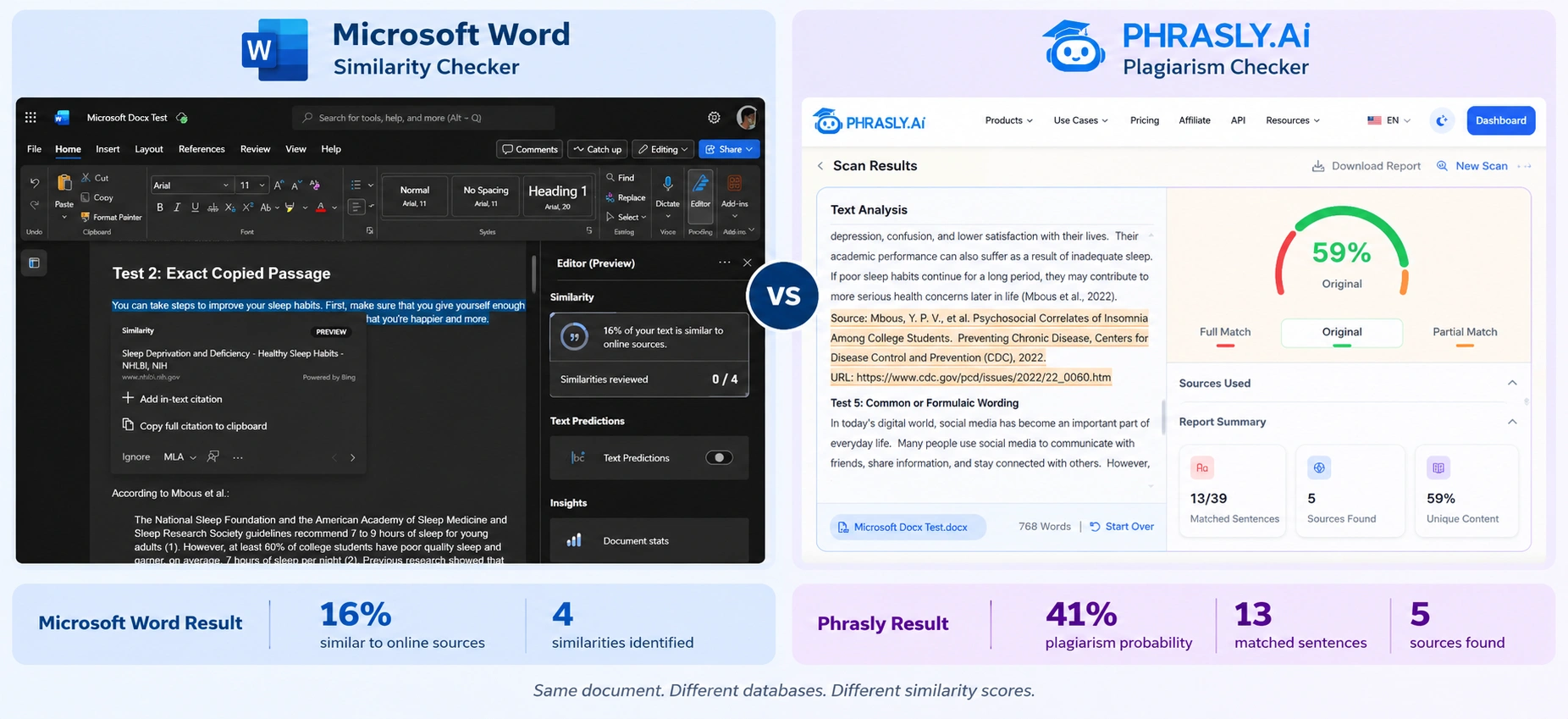
We created one unchanged DOCX containing five test cases: an original passage, an exact uncited passage from a public source, a properly quoted and cited passage, a close paraphrase with a citation, and common or formulaic wording.
The document contained 771 words in Microsoft Word. Phrasly's report recorded 770 words and 13 matched sentences.
Test Item | Word Result | Phrasly Result |
Original passage | No specific source match identified in the four reviewed similarities | No specific match identified in the report |
Exact copied passage | Detected. Word identified the NHLBI source and highlighted the matching text | Detected. Phrasly identified the same NHLBI source among its five sources |
Properly quoted passage | Detected. Word identified the matching source | Detected. Phrasly matched the quoted passage to the CDC source |
Close paraphrase | No specific match identified in the reviewed Word matches | No specific full or partial match was reported for this section |
Common wording | No specific match identified in the reviewed Word matches | No separate percentage was assigned to this section |
AI-content result | Not part of Word's native similarity report | Not reported in this plagiarism report. The 41% figure is not an AI score. |
Report / source usefulness | Identified matching text and the NHLBI source | Identified 13 matched sentences across 5 sources and provided highlighted matches and source listings |
The 16% Word similarity and 41% Phrasly plagiarism probability should not be treated as equivalent measurements. The tools use different databases and calculate text overlap differently, so their percentages are not expected to match.
Method Disclosure
Testing date: September 6, 2026
Document: Microsoft Docx Test.docx
Document length: 771 words in Microsoft Word; 770 words in the Phrasly report
Word environment: Microsoft Word for the web
Operating system: Windows desktop environment; exact OS version was not recorded
Primary sources used: NHLBI's Healthy Sleep Habits page and CDC's Psychosocial Correlates of Insomnia Among College Students
Phrasly report: Version 1.0.0, generated September 6, 2026
Similarity can also arise from patterns of source use that are less obvious than direct copying, including incremental plagiarism.
Microsoft Word vs. Phrasly vs. Turnitin Draft Coach
Word's Similarity Checker is the quickest option when you are already working in Word. Phrasly is useful for web-based checking and DOCX uploads, with plagiarism matching and additional writing tools. Turnitin Draft Coach is the better fit for students whose institution provides access to Turnitin. None of these checks should be treated as a guaranteed preview of a final Turnitin submission.
Feature | Microsoft Word Similarity Checker | Phrasly | Turnitin Draft Coach |
Access | Inside supported Word versions | Web-based; paste or upload DOCX | Word Online when enabled by an institution |
Native Word add-in | Built into Editor | No; upload the file | Yes, institution-managed add-in |
Sources | Online-source matching | 10B+ web pages and academic papers | Turnitin databases chosen by institution |
Similarity percentage | Yes | Yes | Yes |
Matched source links | Yes | Yes | Yes |
Citation assistance | Yes | Source review in report | Separate Citation Check |
AI-content detection | No native AI result | Yes | Not listed as a Draft Coach function |
Number of checks | No simple published universal limit | Current plan limits apply | Limited by Turnitin |
Best for | Quick in-Word checking | DOCX upload and combined review | Students whose institution provides Turnitin |
Microsoft confirms that Word's Similarity Checker identifies matching online text and provides source/citation options. Phrasly describes its checker as scanning web pages and academic papers. If you want to learn more about checking a document for plagiarism with Turnitin, see our guide on how to check plagiarism in Turnitin.
Turnitin confirms that Draft Coach provides Similarity Reports in Microsoft Word Online and that these checks do not add the document to the Turnitin repository.
What Does the Similarity Percentage Actually Mean?
A similarity score is the percentage of text that matches material in the checker's available sources. It does not determine plagiarism on its own. Quotations, references, standard terminology, assignment templates, common phrases, previous work, and correctly cited paraphrases can all produce legitimate matches. Review the flagged passages, not just the overall percentage.
A legitimate document can still show matches for several reasons:
Properly quoted material: Direct quotations can still appear as matches even when quotation marks and citations are used correctly.
References and bibliographies: Source information can contribute to similarity.
Standard terminology: Technical or commonly used terms may naturally match other sources.
Assignment questions or templates: Required wording provided by an instructor or institution can appear in multiple submissions.
Common phrases: Short, widely used expressions may be found in many documents.
Previously submitted personal work: Earlier submissions can create matches in systems that compare against submitted papers.
Correctly cited paraphrases: Properly cited ideas may still contain wording that overlaps with a source.
Turnitin explains that similarity reports highlight matching content for review and that similarity does not automatically mean plagiarism.
Is There an Acceptable Plagiarism Percentage?
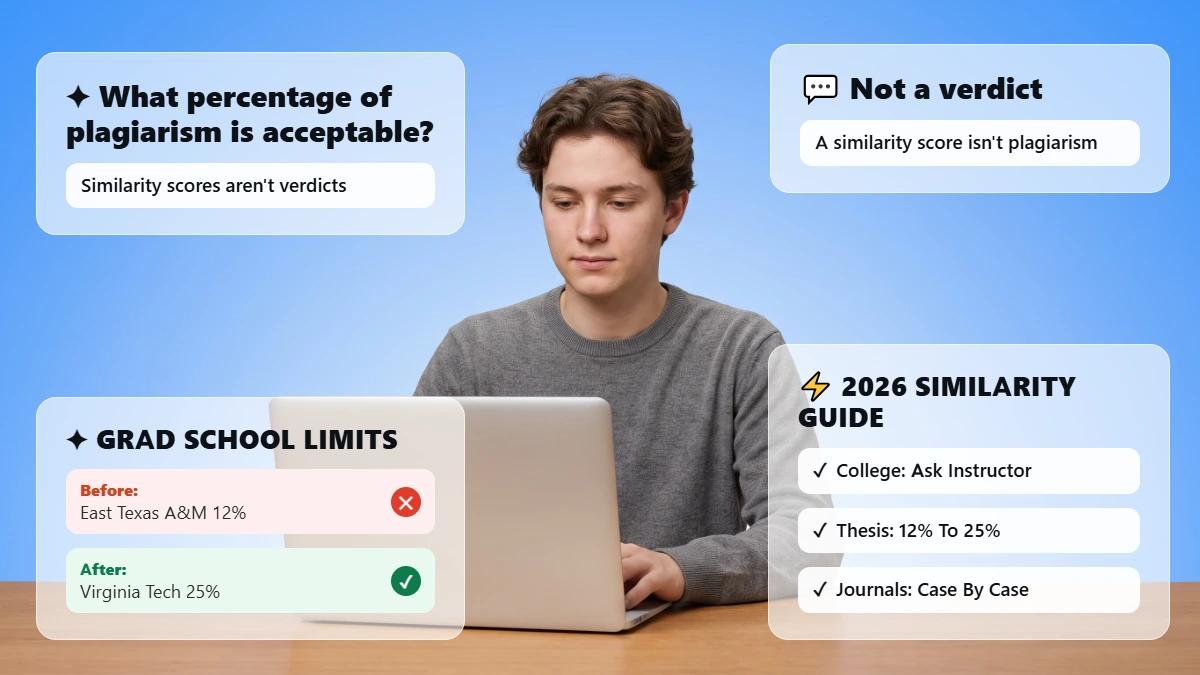
There is no universally acceptable percentage. Requirements vary by institution, instructor, assignment, publisher, and document type. A low score can still contain a serious uncited passage, while a higher score may come largely from quotations, references, or required wording. The important step is to review the actual matches rather than chase a target number.
What to Do When the Checker Finds a Match
When a similarity checker finds a match, do not focus only on lowering the percentage. Review why the text was flagged, then revise, cite, quote, or leave it unchanged based on what the passage actually requires.
Match Type | Appropriate Action |
Exact wording needed | Add quotation marks and a proper citation. |
Exact wording not needed | Rewrite genuinely in your own structure and cite the idea. |
Paraphrase is too close | Return to the source, understand it, then rewrite without copying its sentence pattern. |
Citation is missing | Add the required citation. |
Citation is present but incomplete | Correct the author, date, title, page, URL, or required formatting. |
Bibliography or template match | Review it against the relevant policy. Do not change legitimate text just to lower the percentage. |
Your previous work | Cite or disclose it according to your institution's self-plagiarism policy. |
Unrelated or incorrect match | Document why it is irrelevant and use the tool's ignore option where appropriate. |
Paraphrasing too closely can still create a similarity issue. See Is Paraphrasing Plagiarism? for a closer look at where the line falls.
Do not use a plagiarism remover, synonym swapping, invisible characters, or other methods designed to manipulate the similarity score. The goal is genuine revision and correct attribution, not simply making the percentage smaller.
The Best Final-Check Workflow for a Word Document
A reliable final check starts in Microsoft Word, where you finish the draft and citations, then review any similarity matches manually. Save a clean DOCX before checking it in Phrasly for another source check or AI-content review. After meaningful revisions, run a final check and follow your institution's submission and AI-use policy.
Finish the draft and citations in Microsoft Word.
Run Word's Similarity Checker if it is available.
Review each source match manually to determine whether it needs a citation, quotation, or revision.
Save a clean DOCX copy before making further changes.
Upload the DOCX to Phrasly for another source check or an accompanying AI-content review.
Correct genuine citation or wording problems in Word.
Run a final check after making meaningful revisions.
Follow your institution's official submission and AI-use policy, and keep your drafts, notes, and source records.
Word's built-in checker is convenient for a first review. Phrasly is a practical option when Word's Similarity Checker is unavailable or when you want to upload a DOCX and review source matches and AI-content results in one place.
If you're considering other options before submission, see our guide to Turnitin alternatives. Neither Word nor Phrasly should be treated as a guaranteed preview of an institution's Turnitin result.
FAQs
Does Microsoft Word Have a Built-In Plagiarism Checker?
Yes. Word for Microsoft 365 includes a Similarity Checker inside Microsoft Editor. It checks your document against online sources and shows matched passages with a similarity percentage. Microsoft calls it Similarity Checker rather than a plagiarism checker because it identifies text overlap but does not determine whether plagiarism has occurred.
Where Is the Similarity Checker in Word?
Go to the Home tab, select Editor, then scroll to Similarity in the Editor pane and select Check for similarity. The feature is available only in supported Microsoft 365 versions of Word when you are signed in and connected experiences are enabled.
Why Is the Word Similarity Checker Not Showing?
The Similarity Checker may be unavailable if you are not using a supported Microsoft 365 version, are not signed in, or have connected experiences turned off. School or workplace policies, outdated installations, and temporary service issues can also affect availability. If the feature remains unavailable, you can upload the DOCX to an external checker.
Does Microsoft Word Similarity Checker Use Turnitin?
No. Microsoft's native Similarity Checker compares your text with available online sources and is separate from Turnitin's databases. Turnitin Draft Coach is a different, institution-managed tool available through supported versions of Word Online and Google Docs. The two tools use different systems and should not be treated as the same checker.
Does Microsoft Word Detect AI-Generated Writing?
No. Word's native Similarity Checker looks for text that matches available online sources; it does not provide an AI-generated writing detection result. If you need an AI-content review, you need a dedicated AI detector. Phrasly provides an AI-content check alongside its plagiarism scan when you upload a supported document. For more on how Turnitin handles AI-generated writing, see Does Turnitin Detect ChatGPT?.
Can I Upload a Word Document Directly to a Plagiarism Checker?
Yes. Save your document as a .docx file and upload it to a web-based plagiarism checker that supports Word documents. Phrasly accepts DOCX files as well as PDF and TXT files or pasted text, allowing you to check the document without copying and pasting each section separately.
What Is an Acceptable Similarity Percentage?
There is no universal acceptable similarity percentage. Institutions, instructors, publishers, and document types can have different requirements. A low score can still contain a serious uncited passage, while a higher score may result largely from quotations, references, or required wording. Review the actual flagged passages instead of aiming for a specific percentage.
Will Checking My Paper Add It to a Database?
It depends on the checker. Turnitin states that a Similarity Check through Draft Coach does not add the document to its repository. Phrasly states that documents submitted to its plagiarism checker are not stored, indexed, or shared and are deleted after scanning. Check each tool's current privacy policy before uploading sensitive or unpublished work.
What Should I Do If Word Says “Something Went Wrong”?
First, confirm that you are signed in with a Microsoft 365 account and that connected experiences are enabled in Account Privacy. Update Word and restart it, then try Word for the web. If the problem continues, it may be related to licensing, sign-in, connectivity, or service availability. As an alternative, upload the DOCX to Phrasly.
Does Phrasly Accept Microsoft Word Files?
Yes. Phrasly's plagiarism checker accepts DOCX files, along with PDF and TXT files or pasted text. Other plagiarism checkers, including Grammarly's plagiarism checker, take a different approach to document and source checking. Save your Word document as a .docx file, upload it, and review the similarity score, highlighted matches, source links, and accompanying AI-content result.

Written by
Hasnain
Karachi, Pakistan
I help businesses grow with SEO-friendly blog posts, landing pages, and long-form content. With 3+ years of experience, I deliver clear, original, and well-researched writing that drives results.