A Gemini Prompt Generator Builds Structured Prompts From Your Idea
16 min read
Last Updated October 2026
Tired of Gemini answers that miss the point because your prompt left out the format or the tone? A Gemini prompt generator fixes that: it is a free tool that turns your rough idea into a structured prompt, with the task, context and format spelled out, so Gemini gets it right the first time.
Disclosure: Phrasly makes this prompt generator. We tested it with Gemini 3.8 Flash and 3.1 Pro on October 22, 2026, and share what worked and what didn’t.
Type your idea into the Gemini Prompt Generator below and get a structured prompt you can use in the Gemini app, AI Studio, a custom Gem or a skill, whether you use Gemini 3.1 Pro or Gemini 3.8 Flash.
Try the Free Gemini Prompt Generator 👇
Want Ready-Made Prompts Instead?
We link a separate prompt list further down, right after the examples.
Use the Gemini Prompt Generator Free, No Signup to Start
You can generate your first Gemini prompt here without signing up, and that free try resets every 24 hours. For unlimited prompts, create a free Phrasly account, with no payment needed at any point. It works as a Google Gemini prompt generator online in any browser.
How the Embedded Generator Works
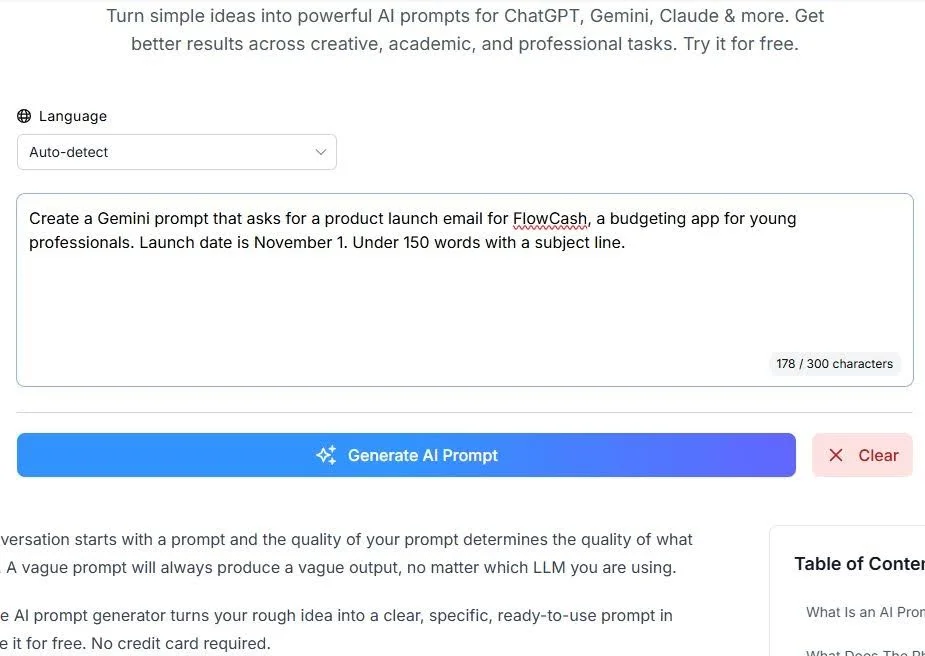
The tool has a Language menu and a 300-character text box. There are no fields for model, tone or format, so put those details in your request:
Start With the Right Words: begin with “Create a Gemini prompt that...” When we typed “Write a product launch email...”, the tool wrote the email itself instead of a prompt.
Name the Audience: say who the output is for, such as “young professionals” or “new customers.”
Add Hard Facts: include names, dates, prices and features you want used.
Set the Shape: ask for a length, a table, bullets or a subject line.
Then click Generate AI Prompt, and the result appears in a few seconds.
What You Get in Seconds
You get a ready-to-paste prompt, not a vague suggestion, with a word count and Copy and Clear buttons. Copy it straight into Gemini, a custom Gem or a skill. In our test, its prompts included:
A Clear Task: what Gemini should produce.
Audience and Context: who it is for and the key details you gave.
Constraints: length and tone, such as “under 150 words.”
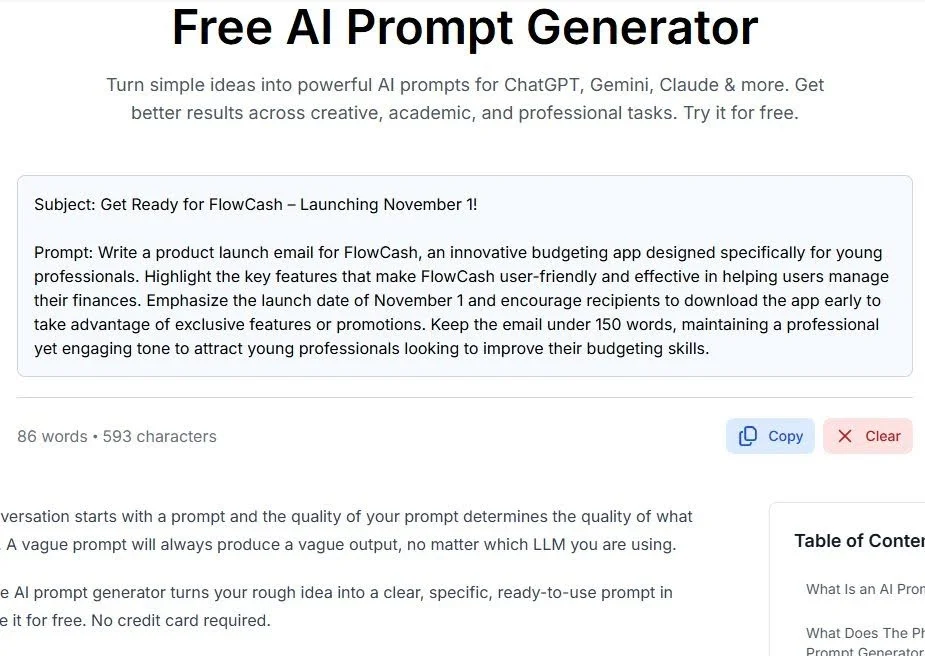
💡 None of our three generated prompts added a role or a format spec such as a table or JSON, so add those yourself when tone, expertise or layout matters. Then paste it into Gemini, check the answer, and edit the prompt if anything is missing.
What Is a Gemini Prompt Generator, and How Does It Work?
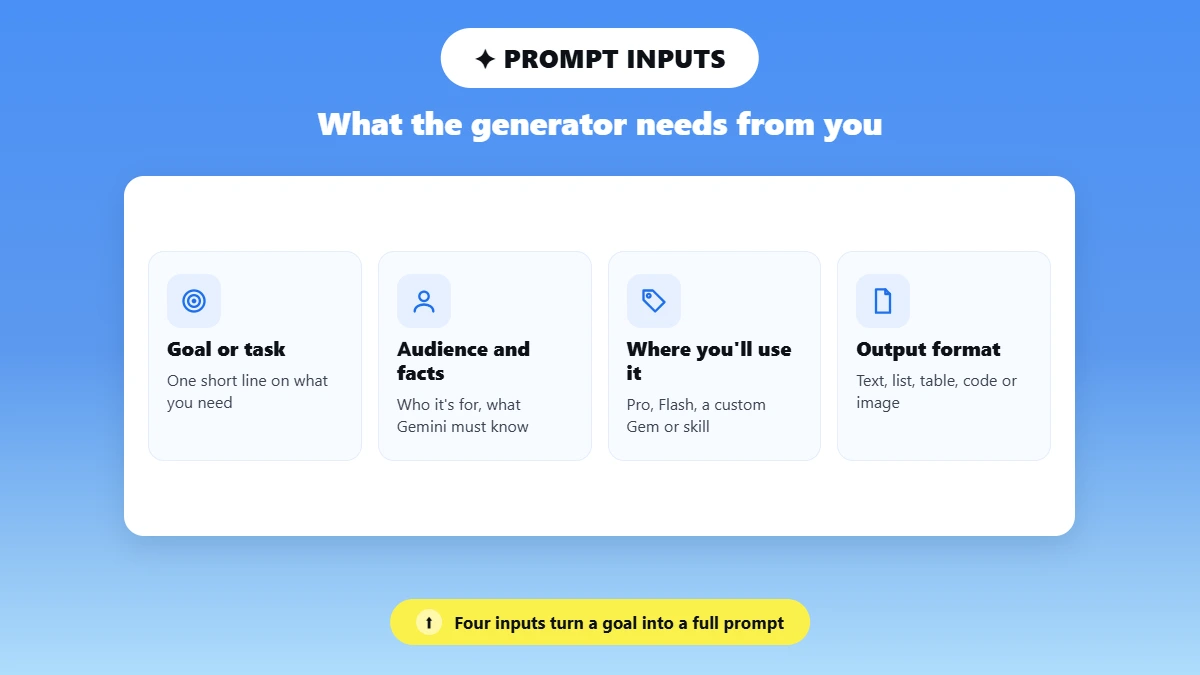
A Gemini prompt generator is a tool that rewrites a one-line goal into a fuller, multi-part prompt for Google’s Gemini models. Behind the box above, it applies basic prompt engineering for you: it reads your goal, then adds the task, audience, context and limits a quick request leaves out, removing the guesswork.
📢 Gemini is the conversational AI assistant built on Google DeepMind’s large language model family, and it now has more than 1 billion monthly users, according to Google’s August 2026 announcement.
Gemini has no built-in prompt generator in the chat window. In a Gemini AI Studio prompt generator workflow, you draft the prompt with the tool, then test and refine it in Google AI Studio, where developers otherwise write prompts by hand.
Inputs the Generator Needs
A short goal or task description.
The audience, and any facts Gemini must use.
Where you will use it: Gemini 3.1 Pro, Gemini 3.8 Flash, a custom Gem or a skill.
The format you want back, such as text, a list, a table, a code block or an image description.
What a Structured Prompt Includes
Google’s own prompting tips ask you to use natural language, be clear and specific, give context and break complex tasks into separate prompts. A strong Gemini prompt covers those points:
Role: who Gemini should act as, when tone or expertise matters.
Task and Context: what to do, for whom, with which facts.
Format Specification: the exact structure and length, so the answer is usable on the first try.
See a Real Prompt Built: From Idea to Structured Output
Here is what the generator produced from two real ideas, and how Gemini 3.8 Flash handled each. Can it turn your idea into a structured Gemini prompt? Yes, as a first draft that still needs your facts.
Example 1: A Marketing Email Idea Becomes a Prompt
Idea we typed | Prompt the generator returned |
Create a Gemini prompt that asks for a product launch email for FlowCash, a budgeting app for young professionals. Launch date is November 1. Under 150 words with a subject line. | Write a product launch email for FlowCash, an innovative budgeting app designed specifically for young professionals. Highlight the key features that make FlowCash user-friendly and effective in helping users manage their finances. Emphasize the launch date of November 1 and encourage recipients to download the app early to take advantage of exclusive features or promotions. Keep the email under 150 words, maintaining a professional yet engaging tone to attract young professionals looking to improve their budgeting skills. |
Here is how that prompt breaks down:
Part | What the generator wrote |
Role | Not included |
Context | FlowCash, a budgeting app for young professionals, launching November 1 |
Format spec | Under 150 words, professional yet engaging tone |
📌 In Gemini 3.8 Flash, this prompt returned a 120-word email with a subject line and the November 1 date. It also invented features such as “Smart Burn-Rate Alerts” and a free lifetime Premium offer, because the prompt asked for features and promotions without listing any.
The fix: add your real features and offer to the request. A structured prompt organizes facts; it cannot supply them.
Example 2: An Image Analysis Idea Becomes a Prompt
Idea we typed | Prompt the generator returned |
Create a Gemini prompt that asks Gemini to review a product photo for an online store and list every problem it finds, such as lighting, background, or blur, with a severity rating for each. | Please review the product photo for our online store and identify all issues it may have. Focus on aspects such as lighting, background, and blurriness. For each identified problem, provide a severity rating to help us understand which issues are most critical to address. |
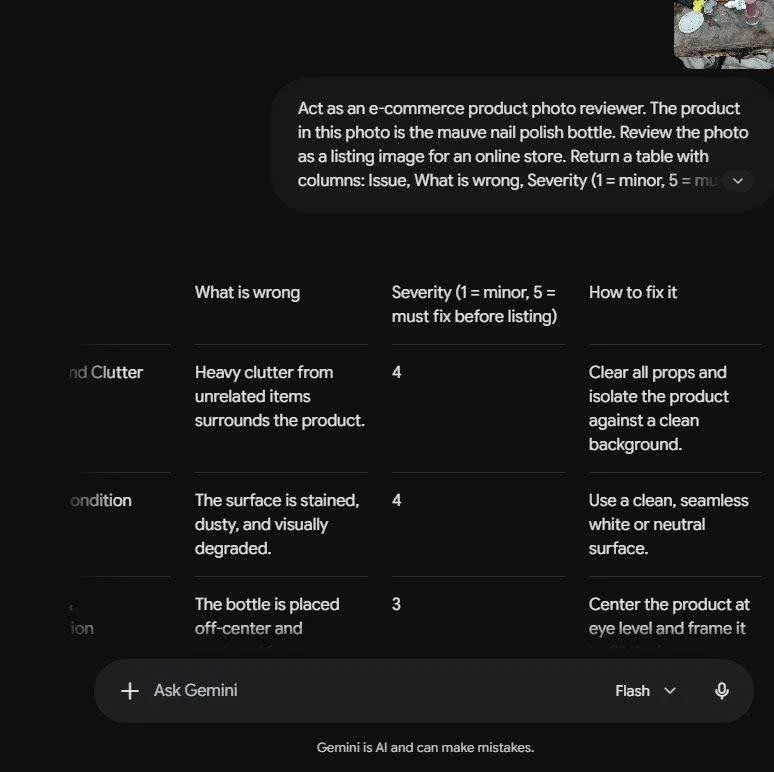
We ran it with our own phone photo of a nail polish bottle on a cluttered table, taken in poor light.
Gemini answered with a table and a 1 to 10 scale it chose itself, and said no single product was highlighted, because the prompt never named one.
Image prompts need explicit format instructions, because Gemini reads the photo and the text together and fills any gap on its own. So we added a role, the product name, columns and a scale by hand:
Act as an e-commerce product photo reviewer. The product in this photo is the mauve nail polish bottle. Review the photo as a listing image for an online store. Return a table with columns: Issue, What is wrong, Severity (1 = minor, 5 = must fix before listing), How to fix it. End with one line: “Ready to list: Yes or No”
This time Gemini used exactly those four columns, rated each issue on our 1 to 5 scale, gave a fix for each one and ended with “Ready to list: No.”
Research backs this up. In a 2024 JAMIA study, adding format rules, definitions and examples to a prompt raised GPT-3.5’s accuracy (F1 score) on medical notes from 0.634 to 0.794.
You can reuse the structured prompt above as a template: swap in your own product, columns and scale. For harder tasks, show Gemini one or two examples of the answer you want (few-shot examples), or ask it to think step by step before answering (chain of thought).
Want the ready-made prompts we mentioned at the top? Our guide to the best prompts for Gemini AI has copy-paste Gemini AI prompts with examples and templates, so you can start from a tested prompt instead of a blank box.
Structure Prompts for Gemini's Multimodal and Persona Needs
To write a good prompt for Gemini, give it a role, the task with real context, and an exact output format, then separate each input clearly. In the product photo example above, only the prompt with all three parts got a useful review. Clear structure beat clever wording.
Assign a Role and Persona
Role and persona assignment narrows Gemini’s tone and vocabulary before it starts the task. Put a one-line role such as “Act as a data analyst” at the top of the prompt. You can type it at the start of a normal Gemini chat, or paste it into the System Instructions box in AI Studio so it applies to every reply, which is why a Gemini system prompt generator always starts with the role.
Match the persona to the task: analyst, copywriter, tutor or reviewer.
Keep the same role wording when you reuse a prompt across models.
Specify the Output Format
Output format specification tells Gemini whether to return a table, JSON, a numbered list or a short paragraph. Without it, results vary: our email prompt came back as bullets in Gemini 3.8 Flash and as plain paragraphs in 3.1 Pro, and our photo prompt got a rating scale Gemini picked itself.
Name the columns or sections you want.
Define any scale, such as “1 = minor, 5 = must fix.”
Add a length limit, such as “under 150 words,” when format alone is not enough.
Handle Text, Image and Code Together
Gemini takes image and text input in one prompt, and it generates more than 150 million images a day, according to the same Google announcement. So how do you structure a prompt for Gemini’s multimodal features? Google’s media prompting guide and our test point to the same steps:
Put the Image First: for a single image, Google says placing it before the text prompt can give better results.
Label Each Input: for clear cross-modal input handling, write “The attached photo shows...” or “The code below is...”
Name the Subject: say which object, chart or function Gemini should focus on.
Ask for One Output Type at a Time: describe the image first, then ask for code or copy in a second step, instead of asking for all three in one paragraph.
💡 If the answer comes back generic, Google suggests asking Gemini to describe the image before giving the task. Build any Gemini image prompt generator request the same way.
Prompt Gemini 3.1 Pro and Flash Differently
So how do you write a prompt that works well with Gemini? Match its length and detail to the model. Flash is built for speed and lighter reasoning, while Pro handles complex, multi-step work that needs deeper reasoning. Gemini 3.1 Pro vs Flash prompting comes down to one rule: keep Flash prompts short and specific, and give Pro the full picture.
As of October 22, 2026, the Gemini app’s model menu on a Google AI Pro account lists four options:
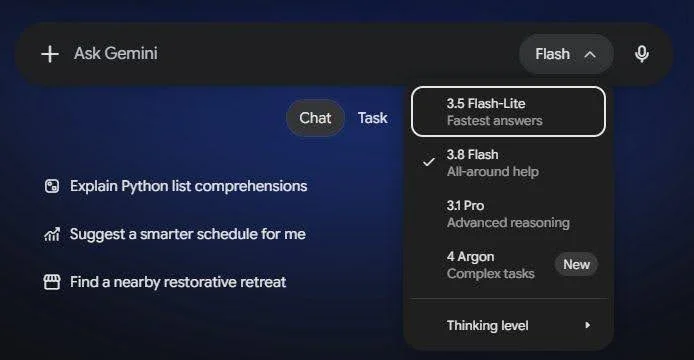
3.5 Flash-Lite: described as "Fastest answers."
3.8 Flash: "All-around help," the default.
3.1 Pro: "Advanced reasoning."
4 Argon: "Complex tasks," added for Google AI Pro and Ultra subscribers on October 13, 2026.
On a free account the next day, the menu showed a single “Gemini Auto” option instead. We ran the same email prompt on 3.8 Flash and 3.1 Pro: both stayed under 150 words and both invented an offer, but Flash used bullets while Pro wrote prose.
Here is how the same skill looks for each model:
Flash prompt: “Act as an assistant. Summarize this email thread in 3 bullets, under 50 words.”
Pro prompt: “Act as a contracts lawyer. Analyze this 40-page contract, flag every risk clause, rate each one high, medium or low, and cite the section number for each.”
When to Choose Pro Versus Flash
Flash: quick drafts, short rewrites, summaries, chat-style back and forth and high-volume, low-complexity tasks.
Pro or Argon: long documents, research synthesis, code review and multi-step reasoning.
Rule of Thumb: if the task needs citations, comparisons or nested logic, start with Pro.
Adjust Prompt Length for the Context Window
The context window is how much text a model can take in at once. Gemini 3.1 Pro and Gemini 3.8 Flash both have a 1 million token window, according to Google Cloud and Google AI for Developers, so the difference is how much reasoning you ask for, not how much text fits.
Flash: two to four sentences with a role and format spec; skip the background story, since extra detail can dilute a quick answer.
Pro: the full brief, with role, context, constraints and output format, especially when you attach long documents that need careful reading.
Watch Token Limits: do not repeat an instruction in new words; it uses up tokens without improving accuracy.
Prompt Gemini in Google AI Studio
AI Studio is where you test a prompt before saving it as a skill or using it in code. Google’s prompt design guide for developers sets out the mechanics:
System Instructions: put the role, key constraints and output format in the system instruction or at the start of the prompt.
Few-Shot Examples: Google recommends always adding a few, in one format, but not so many that Gemini copies them.
Temperature: Gemini 4 and Gemini 3.6 and later ignore custom temperature settings, and Google advises leaving earlier Gemini 3 models at the default.
Token Count: a token is about four characters, so 100 tokens is roughly 60 to 80 words.
JSON Output: for a complex JSON schema, use the Gemini API’s structured output feature instead of describing it in words.
Build Custom Gems and Skills for Docs, Sheets and Gmail
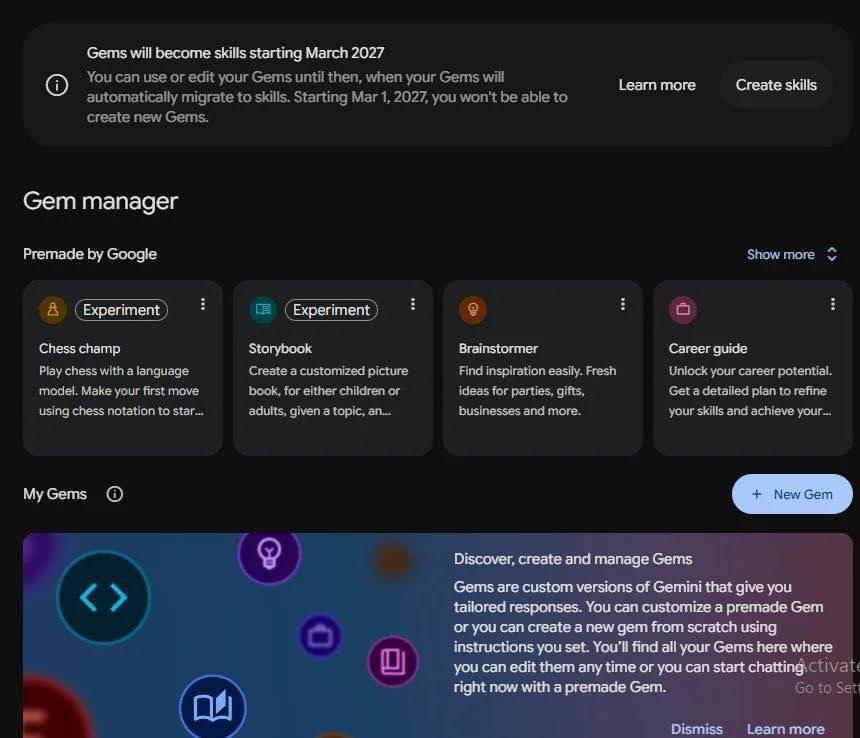
Custom Gems in Gemini and the newer skills both work as a saved persona: a structured prompt with your role, context and format that Gemini reuses, so you never retype it. Google’s transition page says skills began rolling out in the Gemini app on October 13, 2026, and that business and enterprise users can no longer create, edit or use Gems from March 1, 2027 at the earliest.
You can still create Gems at gemini.google.com/gems/view, where a banner reads “Gems will become skills starting March 2027.” Existing Gems will migrate, with their sharing settings, so build new reusable prompts as skills.
Turn a One-Off Prompt Into a Reusable Gem or Skill
Start With a Prompt That Works: one you built with the generator above and tested in Gemini.
Open Skills: in the Gemini sidebar, click Customize, then the Skills tab.
Create It: click Create and pick Create with Gemini, Create manually or Upload.
Fill In Name, Description and Instructions: keep the role, tone and format fixed, and drop one-time details. Name it by task, not by date, so it is easy to find.
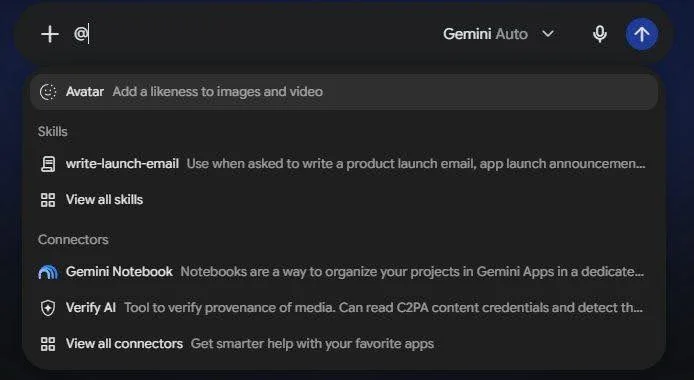
Use It in Any Chat: type “@” and pick the skill from the list.
To make a Gem instead, open the Gem manager and click New Gem. Advanced users can test and refine the underlying prompt in AI Studio before saving it, and Google’s skill writing tips suggest a verb-led name, a “Use when...” description and clear steps.
Connect Gems and Skills to Workspace Apps
For workflow automation, turn on the Google Workspace connector under Customize so Gemini can use your Gmail, Docs and Drive content. Then a Gem or skill can handle repeat tasks:
Docs: a “Weekly Report” skill that always uses the same headings.
Sheets: a “Formula Explainer” skill that explains or writes formulas without you re-explaining the sheet.
Gmail: an “Inbox Triage” skill that sorts messages and drafts replies in one voice.
We built a write-launch-email skill this way on October 23, 2026, telling it to ask for missing features. Called with “@”, it returned a subject line and a short email without opening Gmail, but it used generic features instead of asking for real ones.
Gemini Prompt Generator vs ChatGPT Prompt Generator
Both tools build the same core: a role, a task with context and a format spec. If you are weighing a ChatGPT prompt generator vs Gemini prompt generator, the prompts look alike; the difference is how each assistant uses them. Gemini rewards prompts that point to your Docs, Sheets or Gmail, while ChatGPT prompts often lean on conversational back and forth.
What is the difference between prompting Gemini and ChatGPT? In our test, Gemini 3.8 Flash first asked to turn on the Gmail app before writing the email. Adding “Show the email text here in the chat. Do not use Gmail.” fixed it.
Formatting works differently too. Gemini responds well to structured prompts that name an attached file, such as “Use the attached sheet,” while ChatGPT prompts often build on what was said earlier in the same chat.
If you switch between assistants, see our guide to the ChatGPT prompt generator for prompts written in ChatGPT’s style.
Key Prompting Differences
Gemini: stronger with structured prompts tied to your Google files.
ChatGPT: stronger with step-by-step refinement inside one chat.
Both: give better results with explicit format instructions, such as bullets, tables or word counts.
Aspect | Gemini | ChatGPT |
Context grounding | Your Docs, Sheets and Gmail, through the Workspace connector | Earlier messages in the same chat |
Persona handling | Gems and skills (Gems move to skills by March 2027) | Custom instructions and custom GPTs |
Prompt length | Short for Flash, full brief for Pro | Depends on the model you pick |
Best use case | Tasks tied to your Google files | Long conversations refined over many turns |
Reusing a prompt | Re-check role and format | Re-check role and format |
Can You Reuse ChatGPT Prompts for Gemini?
Yes, as a starting draft. Before you paste it:
Re-test the role and constraints, since a role that works in one assistant can read differently in another.
Add any Google file or Workspace context that ChatGPT prompts usually leave out.
Run the idea through the generator above to rebuild it in Gemini’s structure, and say where to show the answer.
For Anthropic’s assistant, read our Claude prompt generator guide.
Find Ready-Made Prompts and Automate Your Workflow
An AI prompt generator for Gemini tasks works best alongside a ready-made list: start from a proven pattern, then tailor it. Curated lists save setup time, and any prompt you reuse can become a skill or Gem instead of being pasted fresh each time.
Browse the Gemini Prompt List Guide
The Gemini AI prompts guide we linked after the examples has copy-paste prompts grouped by task, from writing, research and study to photos, video and Google Workspace.
Use a prompt from the list as a starting point, then adjust its role and format spec with the generator above.
What should you include in a prompt so Gemini gives accurate answers? Three things improve the accuracy and reliability of outputs:
Your Real Facts: features, prices and dates, or Gemini fills the gaps with its own.
A Named Subject: the exact product, file or section to focus on.
A Defined Format: columns, scales and length, so results are easy to compare.
Automate Recurring Tasks With Saved Prompts
For workflow automation, turn your best prompts into reusable instructions:
Save high-performing prompts as skills, or as Gems until March 2027, for tasks you repeat each week.
Check which prompts actually improve results before sharing them across a team.
Revisit saved prompts after each Gemini model update, since structure that worked for one version may need changes for the next.
For tasks beyond Gemini, Phrasly’s AI Prompt Generator builds prompts for ChatGPT, Claude and other models too.
Build Prompts for Any Task
Turn your next idea into a structured prompt for Gemini, ChatGPT or Claude, then add your own facts before you paste it.
Frequently Asked Questions
How Do You Use a Gemini Prompt Generator?
Type your goal in the box, starting with “Create a Gemini prompt that...”, and add your audience, facts and format. No technical skill is needed. Click Generate, review the prompt, then paste it into Gemini, a Gem or a skill. If answers vary, add one example of the output you want, using the few-shot prompting technique.
What Is the Best Gemini Prompt Generator Tool?
The best tool depends on what you need: a standalone free generator, control over Gemini 3.1 Pro or Flash, or Workspace integration through Gems and skills. Phrasly’s free AI prompt generator builds structured prompts, with your first one free of signup. Tools such as Jotform or Taskade serve broader multi-model use cases.
Can You Use ChatGPT Prompts for Gemini?
Yes, as a starting point, but adjust it first. Gemini handles system instructions, images and app connections in its own way; in our test, it asked to open Gmail before writing an email. Restructure the prompt rather than copying it, re-check the role and format, and say where to show the answer.
What prompt should I use for Gemini?
The right prompt depends on your task. Writing prompts need a role, tone, and format. Research prompts need a source-type preference and a depth level. Image prompts need subject, lighting, and composition details. The generator customises all of this based on the task type you select.
Does Gemini Have a Built-In Prompt Generator?
No. Gemini does not ship a dedicated prompt generator in the chat window, though Google AI Studio lets developers write, test and tune prompts and system instructions. That gap is why third-party tools like Phrasly’s generator exist: they turn a rough idea into a structured prompt in one step.
How Do I Write a Good Prompt for Gemini?
State the role, the task and the format you want, and mention any image, audio or video you attach up front. Keep the prompt specific and short, then improve it based on the first answer instead of chasing one perfect attempt. For more, see our guide on how to write good prompts for AI.

Written by
Obaid Ahsan
Content Lead · Pakistan
Obaid Ahsan is a Content Lead with 5+ years of experience in SEO, content strategy, and AI-focused publishing. At Phrasly, he leads content development with a focus on accurate research, search performance, and useful, trustworthy information for readers.