
Brisk AI Detector Review 2026: Does the Teacher's Chrome Extension Actually Work? (We Tested It)
We tested Brisk AI Detector on a 100% human essay, a GPT-5 essay, and a 50/50 hybrid in 2026. It passed 2 out of 3. Here's where Brisk Teaching AI wins, where it fails, what it costs, and whether teachers can trust it for academic integrity.
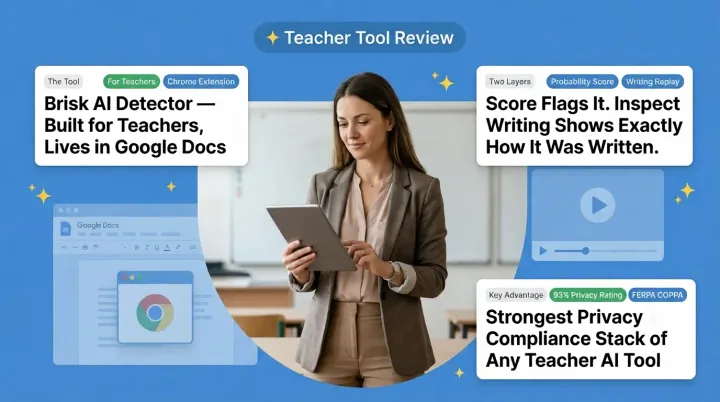
Brisk AI Detector is a free AI-detection tool built into Brisk Teaching AI, the Chrome and Edge extension for educators.
The real question every teacher and student is asking in 2026 is simple: does it actually work?
We tested Brisk on three real samples: a 100% human-written research paper, a 100% GPT-5 essay, and a 50/50 human-plus-AI hybrid. We wanted to find out where Brisk succeeds, where it fails, and whether it's safe to rely on for academic-integrity decisions.
Below is exactly how Brisk works, what it costs in 2026, and the honest test results no other review will give you.
What Is Brisk AI Detector? (And What It Actually Does)
Brisk AI Detector is the AI-detection feature inside Brisk Teaching AI, a free Chrome and Edge extension used by over 2 million teachers in 20,000+ school districts. It runs inside Google Docs and flags AI-generated student writing while replaying how a document was actually written.
Brisk Teaching was founded in 2023 by Arman Jaffer, a UC Berkeley graduate and former product manager at the Chan Zuckerberg Initiative. It raised a $15 million Series A in March 2025, led by Bessemer Venture Partners.
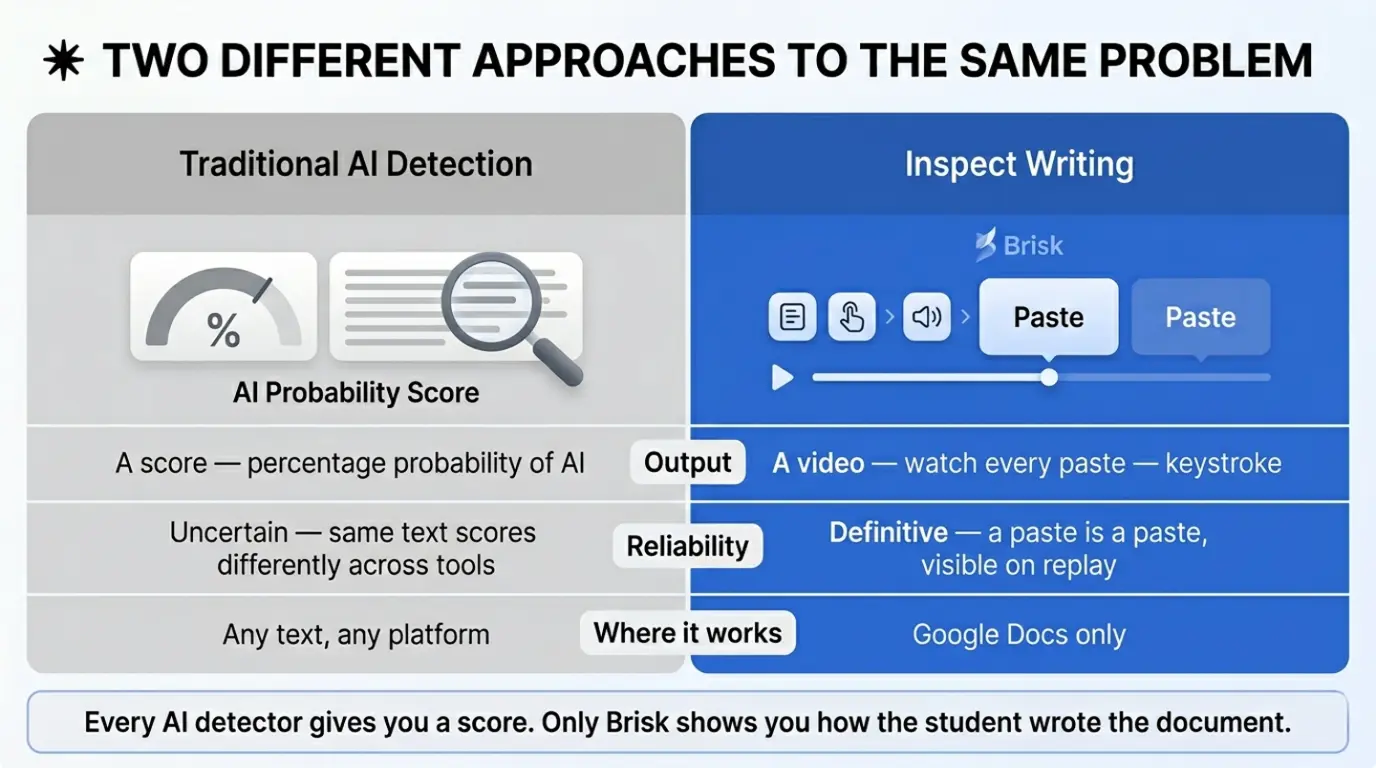
Brisk has two detection layers, not one. Knowing the difference matters.
Inspect Writing
Inspect Writing shows a video-style replay of how a Google Doc was created. You watch the student type, revise, and paste in real time.
Color-coded markers make it readable at a glance: green for created text, yellow for large copy-paste actions, red for deleted text. A 700-word essay that appears in one paste shows up as a giant yellow block. A naturally written essay shows green text growing over time.
That's a process-based signal, the kind of evidence that holds up in a real conversation with a student.
Limitation: Inspect Writing only works on Google Docs. Brisk's help center confirms other file types are not supported for the replay.
Detect AI
This is what most people mean when they search "Brisk AI Detector." Inside Inspect Writing, click the magnifying-glass icon, and Brisk runs an AI-writing likelihood check.
The result shows on a sliding scale from "Unlikely for AI Writing" to "Likely for AI Writing". It's a probability readout based only on the final text.
This score should not be the only evidence used against a student. AVID Open Access and Brisk's own guidance both recommend treating Detect AI as one data point. Every AI detector produces false positives, especially on ESL writing, neurodivergent writing styles, and structured prose.
The simplest way to think about both layers:
Detect AI tells you what the text looks like. Inspect Writing shows you how it was created.
Where Brisk Works (And Where It Doesn't)
Brisk's extension works across Google Docs, Google Classroom, Canvas, Microsoft Word, PowerPoint, Google Slides, Google Forms, PDFs, webpages, and YouTube. It runs on Chrome and Edge.
For AI detection, Brisk is strongest inside Google Docs. Standalone PDFs, Word files, and offline documents lose access to Inspect Writing (the most reliable signal).
If your school uses Google Workspace for Education, Brisk fits. Outside that ecosystem, expect limited results.
How to Use Brisk AI Detector (Step-by-Step Guide)
To use Brisk AI Detector, install the Brisk Teaching Chrome extension, sign in with a Google account, open the student's original Google Doc, click the Brisk icon to launch Inspect Writing, then click the magnifying-glass icon to run the AI detection check on a sliding scale from "Unlikely" to "Likely AI Writing." Here's the full step-by-step process.
Step 1: Install the Brisk Teaching Extension
Go to the Chrome Web Store (or Edge Add-ons) and search for Brisk Teaching. Click Add to Chrome. Once installed, pin the Brisk icon to your browser toolbar so it's easy to access.
Step 2: Sign In With Your Google Account
Open the extension and sign in with your school Google account (or a personal Gmail). Brisk needs school account permissions to access Google Docs version history, which powers the entire detection workflow.
Step 3: Open the Student's Google Doc
Open the exact Google Doc the student worked on. This is important. Brisk's AI detection won't work on a Word file, a PDF, or a copied-and-pasted version of the essay. It needs the original Google Doc with version history intact.
If a student submitted their work through Google Classroom, click into the assignment and open their submitted Doc directly.
Step 4: Launch Inspect Writing
With the Doc open, click the Brisk icon in the bottom-right corner of your screen (or the toolbar icon if you pinned it). The Brisk panel will open.
From the menu, select Inspect Writing.
Brisk will load a video-style playback of the student's writing process. You'll see typed text, deleted text, and pasted sections appear in real time, color-coded as green, red, and yellow.
Step 5: Review the Playback for Suspicious Patterns
Before running the AI detection score, watch the replay first. Look for:
- Large yellow blocks: text pasted in from another source
- Time gaps: long pauses followed by huge sections appearing at once
- Minimal revisions: essays that appear fully formed with no edits
This is often more revealing than the AI score itself.
Step 6: Click the Magnifying-Glass Icon to Run Detect AI
At the top-right of the Inspect Writing window, you'll see a magnifying-glass icon. Click it to run the AI detection check.
Brisk will analyze the text and return a result on a sliding scale:
- Unlikely for AI Writing
- Possibly AI Writing
- Likely for AI Writing
This is Brisk's probability readout.
Step 7: Interpret the Results (Don't Rely on the Score Alone)
A "Likely AI Writing" result is not proof. Treat it as one data point. Combine it with what you saw in the Inspect Writing replay:
- If the score says "Likely AI" and the replay shows a single giant paste event, that's strong evidence.
- If the score says "Likely AI" but the replay shows natural typing and revisions, the student may just write in a structured style. Don't accuse based on the score alone.
Step 8: Have a Conversation, Not an Accusation
Brisk works best as a starting point for a conversation, not a verdict. Show the student the replay. Ask how they approached the assignment. The replay gives you something concrete to discuss without making it feel like a trial.
How We Tested Brisk AI Detector (Our Methodology)
To find out whether Brisk AI Detector actually works in a real classroom, we ran it through three controlled tests, each using a different type of content a teacher would realistically encounter when grading student work.
For every test, we:
- Pasted the sample into a fresh Google Doc (so version history was clean)
- Ran Brisk's Detect AI tool by clicking the magnifying-glass icon inside the Brisk extension
- Recorded the result on Brisk's sliding scale ("Unlikely for AI Writing" to "Likely for AI Writing")
- Cross-checked the result against Brisk's Inspect Writing replay to see whether the version history matched
Here's how Brisk performed across all three tests.
Test 1: 100% Human-Written Student Content
What we tested: A genuine 500-word research paper written entirely by a human author, typed live in Google Docs with natural pauses, edits, and revisions. No AI assistance was used at any point.
Why this test matters: This is the most important test for any AI detector. If a tool flags real student writing as AI-generated, it risks falsely accusing students, a serious academic-integrity problem that disproportionately affects ESL students and neurodivergent writers. If you've experienced this, our guide on why your essay gets detected as AI explains the common triggers and how to fix them.
Sample details:
- Word count: 500 words
- Topic: Bioinformatics academic research
- Drafting method: Typed live in Google Docs with natural revisions
Brisk's result:
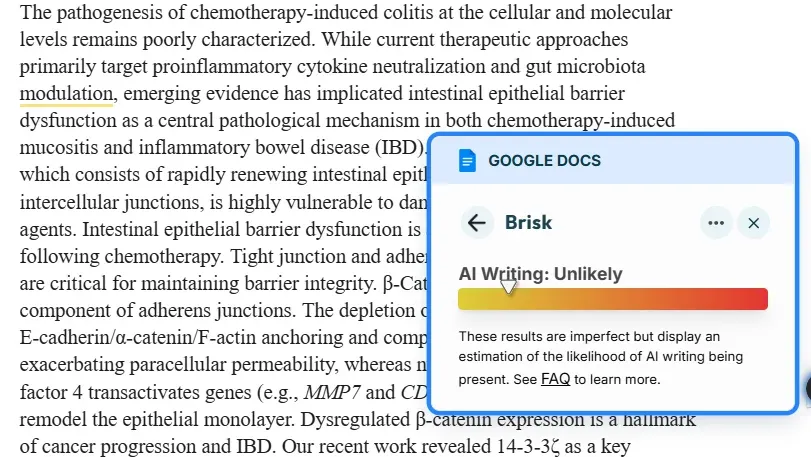
Verdict: Pass ✅
Test 2: 100% AI-Generated Content (GPT-5 Thinking Mode)
What we tested: A full 500-word essay generated entirely by GPT-5 in Thinking Mode, with no human edits, paraphrasing, or restructuring. The output was pasted directly into a Google Doc as a single block, exactly the kind of submission Brisk is designed to catch.
Why this test matters: GPT-5 Thinking Mode produces some of the most human-sounding AI output available in 2026. If Brisk can't detect clean, unedited GPT-5 text, it can't reliably detect anything more advanced.
Sample details:
- Word count: 500 words
- Topic: Inhibition of DDX5-Mediated G-Quadruplex (bioinformatics research prompt)
- Generation method: GPT-5 Thinking Mode, single prompt, no edits
Brisk's result:
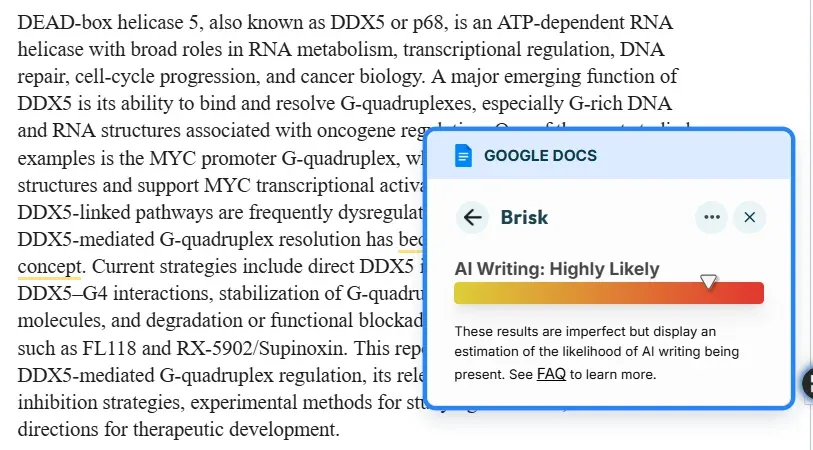
Verdict: Pass ✅
Test 3: Mixed Content (Human + AI)
What we tested: A hybrid 500-word essay where roughly 50% was generated by GPT-5 and 50% was written or rewritten by a human author. This mimics how most students actually use AI in 2026: drafting with ChatGPT or GPT-5, then editing and personalizing portions so it sounds like their own work.
Why this test matters: Mixed AI content is the hardest category for any detector. Industry data shows accuracy drops to around 85% (or lower) on hybrid text. This test reveals whether Brisk gives teachers a clear, usable signal, or an ambiguous one that students can easily slip past.
Sample details:
- Word count: 500 words
- Word count: 500 words
- Topic: Inhibition of DDX5-Mediated G-Quadruplex (bioinformatics research prompt)
- AI portion: 50% (GPT-5) Human portion: 50%
Brisk's result:
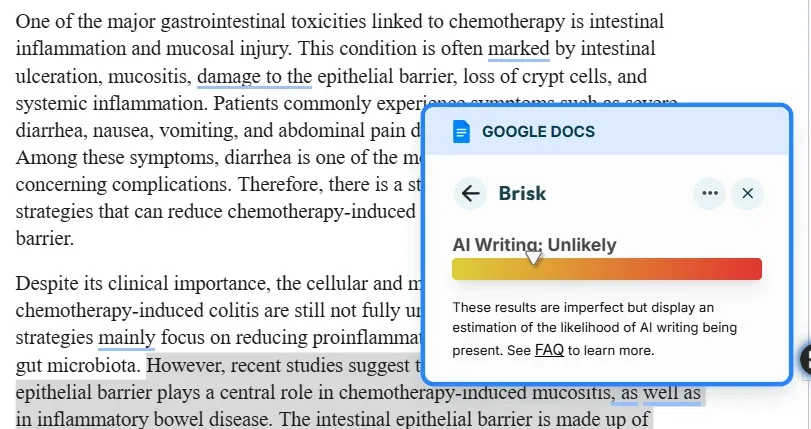
Verdict: Failed ❌
Overall Testing Summary
Across all three tests, Brisk AI Detector passed 2 out of 3 scenarios. It accurately identified pure human writing and pure AI writing, but it failed on mixed human-plus-AI content, which is the most common type of student submission in 2026.
Detect AI score works well on the extremes but loses reliability in the middle, where most real student work actually sits. In our testing, Inspect Writing's replay was the more dependable signal, especially for catching large paste events that the AI classifier missed.
Brisk AI Detector Alternative: Why Many Users Switch to Phrasly
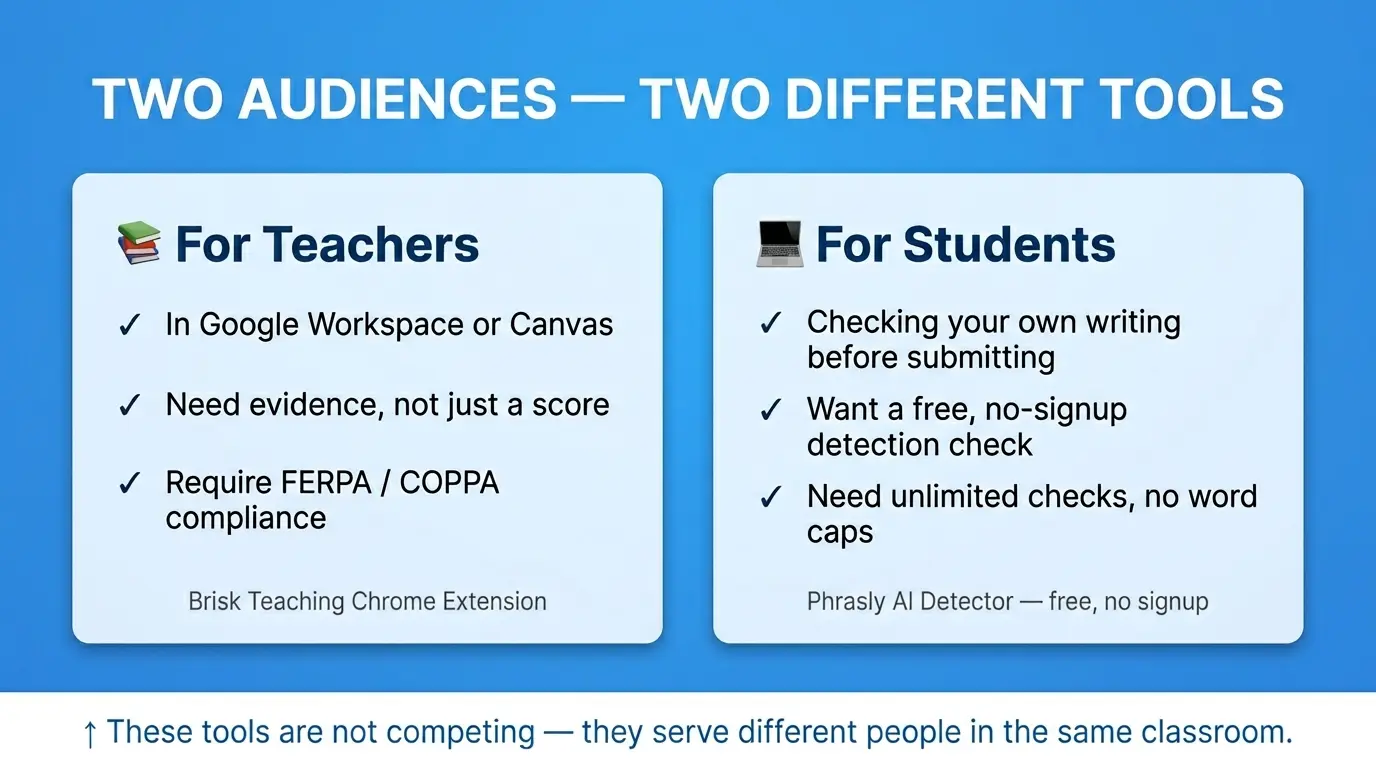
Brisk is built for one specific job: helping K–12 teachers review student writing inside Google Docs. If that's your workflow, Brisk is one of the best options available.
But Brisk is not the right tool for everyone. Based on our testing in this review, two real gaps emerged:
- Brisk's Detect AI classifier struggles with mixed AI and human content, which is the most common type of submission in 2026.
- Brisk only works inside Google Docs version history. If you have a Word doc, a PDF, a pasted essay, or any text without a Google Docs paper trail, Brisk's strongest feature (Inspect Writing) doesn't help you.
This is where Phrasly comes in as a practical alternative.
What Phrasly Does Differently
Phrasly is not a Chrome extension built around classroom workflows. It's a standalone AI detection and writing-quality platform designed for anyone who needs to check text quickly, without needing a Google Doc with version history.
Phrasly's AI Detector lets users paste text directly and get results in under 10 seconds. It detects content from ChatGPT, Claude, Gemini, Meta Llama, Jasper, Copy.ai, and other major AI writing tools.
Where Phrasly stands out is its full workflow:
- AI Detector for paste-and-check scanning
- AI Humanizer with Easy, Medium, and Aggressive rewriting modes (up to 5,000 words per request on paid plans)
- Plagiarism Checker that scans against 10B+ web pages and academic sources, with built-in AI detection layered alongside it
That makes Phrasly more of a writing review tool than a classroom-only checker. Students can verify their essays before submission. Freelancers and editors can scan client work. Content teams can audit blog posts before publishing. None of those use cases fit Brisk.
When to Choose Brisk vs Phrasly
Bottom Line
Use Brisk if you're a teacher reviewing Google Docs assignments and you want process-level evidence (revisions, paste events, drafting timeline) before any academic-integrity conversation.
Use Phrasly if you need a standalone AI detector, plagiarism checker, and writing improvement workflow that works on any text from any source. That includes pre-submission checks for students, originality reviews for freelancers, and content audits for publishers.
Key Features of the Brisk Chrome Extension (Beyond Detection)
Brisk Teaching AI includes 30+ classroom tools beyond AI detection. The core features are Targeted Feedback (Glow, Grow, Wonderings, Next Steps), AI Rubric Maker, Quiz and Worksheet Generator, Reading Level Adjuster, Translation in 50+ languages, Presentation Maker, IEP/504/MTSS Generators, and Brisk Boost student-facing AI activities.
Targeted Feedback (Glow, Grow, Wonderings, Next Steps)
Brisk offers four feedback modes: Glows & Grows, Targeted, Rubric Criteria, and Next Steps. Comments embed directly into Google Docs, with about three glows, three grows, and three wonderings per essay. Targeted Feedback (premium) drops standards-aligned comments straight into the margin.
Rubric Generator
Brisk's AI Rubric Maker creates standards-aligned rubrics in seconds. Teachers customize criteria, grading scale, and subject, then export to Google Docs or Microsoft Word.
Quiz and Worksheet Generator
Brisk turns any article, YouTube video, or PDF into a quiz, worksheet, or Google Form with embedded answer keys.
Reading Level Adjuster
Brisk's Change Reading Level tool rewrites articles, webpages, and documents for a target grade level. Useful for ESL, ELL, and mixed-ability classrooms.
Translation Tool (50+ Languages)
How many languages does Brisk support? Brisk translates classroom resources into 50+ languages, with some official pages listing 58 supported languages. Useful for ELL students, multilingual classrooms, and parent-facing communication.
Presentation Maker
Brisk generates editable Google Slides or PowerPoint decks from any article, video, or PDF. Customize by grade level, slide count, and standards.
IEP, 504, and MTSS Generators
Brisk offers ready-to-go templates for IEPs, 504s, and MTSS interventions, plus guided notes, visual aids, and UDL lesson plans. Teachers must still review for compliance and student-specific accuracy.
Brisk Boost (Student-Facing AI Activities)
What is Brisk Boost? Brisk Boost is Brisk's student-facing AI workspace. Teachers create interactive activities (Tutor, Debate, Writing Coach, Whiteboard), share a link or QR code, and track student engagement in real time.
Boost activities run in 50+ languages and flag chats with profanity, insults, or violence. Some Boost features, including the student Chrome extension for live writing feedback in Google Docs, are part of Brisk's School & District plan.
Brisk Pricing 2026: Free vs Pro vs School/District
Brisk Teaching AI pricing in 2026 is split into three tiers: a free plan for individual teachers, an Educator Pro upgrade, and custom-priced plans for schools and districts.
Is Brisk free for teachers? Yes. Brisk Educator Free costs $0/month forever and includes 20+ core AI tools. New sign-ups also get a 14-day trial of premium features, then automatically move back to Free Forever access.
Free Tier (Educator Free)
The free plan covers 20+ essential tools, including the Quiz Maker, Lesson Plan Generator, Rubric Maker, Podcast Generator, and Presentation Maker. It works as a Chrome and Edge extension across Google Docs, Slides, YouTube, articles, and PDFs.
Limitation: The free plan has usage caps and runs on Brisk's Standard AI model. Tools like the Podcast Generator are limited to 2 minutes. Teachers who use Brisk daily will hit limits quickly.
Brisk Educator Pro: $99.99/Year
How much does Brisk Educator Pro cost? Brisk Educator Pro is listed at $99.99/year, which works out to about $8.33/month when billed annually. The plan unlocks:
- Unlimited usage (no daily caps)
- Turbo AI LLM for faster, higher-quality output
- Extra feedback styles including Targeted Feedback
- Google Docs comment integration for embedded feedback
- Presentation upgrades with slide templates and images
Note: Brisk's FAQ states no refunds are offered for Educator Pro cancellations.
Brisk School & District (Custom Pricing)
Schools and districts use custom pricing based on number of educators and feature needs. Institutional plans unlock standards alignment, district admin dashboards, batch feedback, Brisk Boost premium features, advanced student insights, bulk workflows, dedicated CSM support, onboarding, and professional development.
Brisk Pricing Comparison Table 2026
Pros and Cons of Brisk AI Detector
Brisk AI Detector earns its reputation through one clear strength: it lives inside the tools teachers already use, instead of forcing them to upload student work into a separate paste-and-check website. The result is a faster, more contextual review process. But Brisk is not a perfect tool, and it should not be treated as a final verdict on student honesty.
Brisk AI Detector Pros and Cons
Verdict
Brisk is the strongest classroom-native AI detector in 2026 for K–12 teachers in Google Workspace. Inspect Writing is its real differentiator, the free plan is generous, and the privacy stack is best-in-class.
The catch: Brisk struggles with mixed AI and human writing, the most common type of student submission today.
Is Brisk AI Detector Worth It in 2026?
Brisk AI Detector, the detection feature inside Brisk Teaching AI, is the best classroom-native AI detector for K–12 teachers in Google Workspace. Its Inspect Writing replay is genuinely unique, the free plan is generous, and the privacy stack is best-in-class.
Brisk's Detect AI classifier fails on mixed human-and-AI writing, the most common type of student submission in 2026. It passed pure-human and pure-AI samples but missed the bulk of GPT-5 content in the 50/50 hybrid.
The verdict: Use Brisk for student writing context inside Google Docs. Don't rely on its AI score alone for academic-integrity decisions.
Frequently Asked Questions
Is Brisk AI Detector accurate?
Brisk AI Detector is accurate on pure human and pure AI writing, but its reliability drops on mixed human-and-AI content. In our testing, Brisk correctly flagged a 100% GPT-5 essay as "Highly Likely AI" and a human-written research paper as "Unlikely AI." But it failed on a 50/50 hybrid sample, marking it as "Unlikely AI" despite half the content being GPT-5. No detector is 100% accurate, and Brisk itself recommends treating the score as one data point, not proof.
Can Brisk detect ChatGPT, Claude, and Gemini AI writing?
Yes. Brisk AI Detector is designed to flag content from major large language models including ChatGPT (all versions), GPT-5, Claude, and Gemini, along with other AI writing tools. Detection works best on clean, unedited AI output. Accuracy drops sharply on paraphrased or humanized content, regardless of which AI model generated it. For a deeper look at how detection works on ChatGPT specifically, see our guide on Does Turnitin detect ChatGPT.
Why did Brisk flag my essay as AI when I wrote it myself?
Brisk can produce false positives when human writing follows clean, structured, or formulaic patterns. This happens most often with ESL students, neurodivergent writers, and academic prose that uses uniform sentence rhythm. If you wrote the essay live in Google Docs, your Inspect Writing replay will show natural typing, revisions, and edits, which is the strongest evidence to defend your work. For more strategies, read our full guide on how to protect yourself from AI detector false positives.
Does Brisk detect paraphrased or humanized AI content?
No, not reliably. This was the biggest gap in our testing. When AI content is rewritten by a human or run through a humanizer, Brisk's Detect AI score often returns "Unlikely AI Writing", even when the bulk of the text is AI-generated. For paraphrased AI content, a dedicated detector like Phrasly AI Detector is more reliable since it's built specifically to catch hybrid and humanized writing. To understand how professors actually catch AI writing today, read Can Professors Detect ChatGPT?.
Is Brisk better than GPTZero or Turnitin?
It depends on the use case. Brisk wins for K–12 teachers in Google Workspace because of its Inspect Writing replay, which no other tool offers in the same way. GPTZero is more accurate as a standalone AI detector, with stronger benchmarks on paraphrased content. Turnitin remains the standard for higher education with deep LMS integration. For classroom workflow inside Google Docs, Brisk is the easier choice; for raw detection accuracy, GPTZero leads.
Can students see when teachers use Brisk on their work?
No. Students do not get a notification when a teacher runs Brisk AI Detector or Inspect Writing on their Google Doc. Brisk only activates when a teacher explicitly opens the tool, and according to Brisk's privacy documentation, it does not run in the background, track student browsing, or alert students to detection scans.
Is Brisk Teaching AI safe to install?
Yes. Brisk Teaching AI holds a 93% Common Sense Privacy Rating (the highest among teacher AI tools) and is FERPA, COPPA, GDPR, and SOC 2 compliant. Brisk is a signatory of the Student Data Privacy Pledge, never sells student data, and does not store the content of student essays after processing. For schools, IT teams can request a full privacy and compliance packet directly from Brisk.